
1. Inleiding
Bedankt voor uw aankoopasing the CAMMUS C5 Bundle Complete Set. This manual provides detailed instructions for the setup, operation, maintenance, and troubleshooting of your C5 Direct Drive Steering Wheel, CP5 Pedals, and Desk Clamp. This system is designed to deliver a responsive and dynamic racing experience exclusively on PC hardware. Please read this manual thoroughly before use to ensure proper installation and optimal performance.
Belangrijke opmerking: The CAMMUS C5 operates exclusively on PC hardware and is not compatible with Xbox or PlayStation systems. Ensure your operating system is Windows 7 or newer for optimal performance.
2. Veiligheidsinformatie
- Always connect the power adapter to a suitable power outlet as specified.
- Houd het apparaat uit de buurt van water of andere vloeistoffen om elektrische schokken te voorkomen.
- Do not attempt to disassemble or modify the product. Unauthorized modifications can void the warranty and pose safety risks.
- Ensure proper ventilation around the wheelbase to prevent overheating. The C5 DD base includes an intelligent temperature control system with a turbo blower cooling fan for safe operation.
- Gebruik alleen de meegeleverde voedingsadapter en kabels.
- Dit product is bedoeld voor gebruik door personen van 12 jaar en ouder.
3. Inhoud van het pakket
Controleer of alle onderstaande artikelen in uw pakket aanwezig zijn:
- CAMMUS C5 stuurwiel met directe aandrijving
- CAMMUS CP5 Pedals
- Bureau Clamp
- Voedingsadapter (19V / 7.35A)
- USB-kabel
- Gebruiksaanwijzing (dit document)

4. Product voorbijview
4.1 CAMMUS C5 Direct Drive Steering Wheel
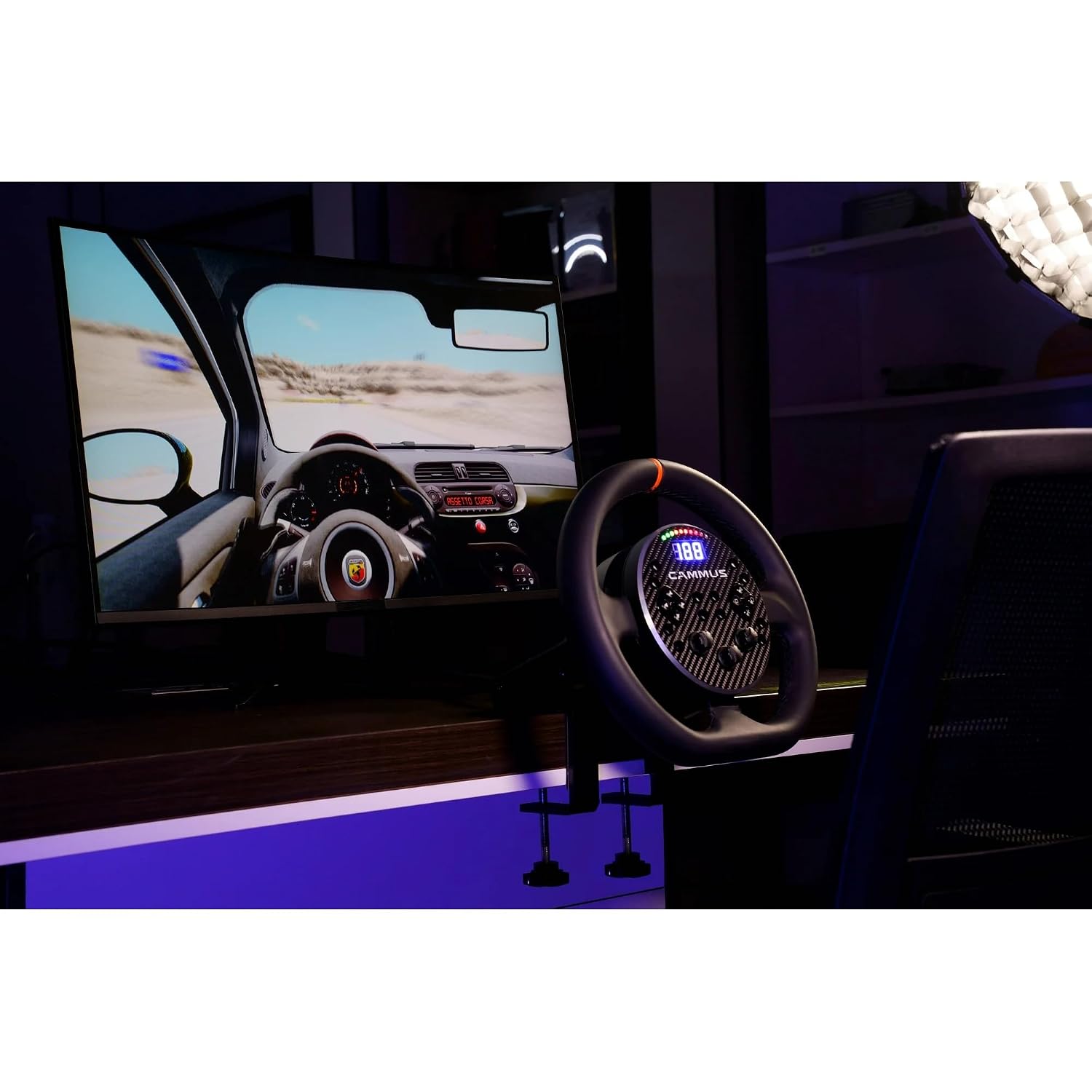
The C5 steering wheel features a 5Nm direct drive wheelbase for precise force feedback. It includes various controls for an immersive racing experience.

- Steering Wheel Return Reminder Strip: Visual indicator for wheel center.
- 10 LED's: Customizable shift lights and indicators.
- Beeldscherm: Shows speed, gear, or other telemetry data.
- Shift Paddles (x2): For quick gear changes.
- Direction Key Area: D-pad for menu navigation.
- 12-band Knobs (x3): Rotary encoders for fine adjustments.
- Programmable Buttons (x12): Assignable functions for in-game controls.
- Bedieningsknopgebied: Additional buttons (A, B, C, D) for various functions.

4.2 CAMMUS CP5 Pedals
The CP5 Pedals provide realistic throttle and brake input for precise control during racing simulations.

4.3 Bureau Klamp
The included desk clamp allows for secure mounting of the C5 wheelbase to a desk or table.
5. Installatie-instructies
5.1 Mounting the Wheelbase
- Place the C5 wheelbase on a stable desk or table.
- Bevestig het bureau clamp to the front underside of the wheelbase.
- Position the wheelbase and clamp on your desk. Tighten the clamp screws until the wheelbase is securely fastened and does not move during use.

5.2 De componenten aansluiten

- Pedalen aansluiten: Connect the CP5 Pedals to the designated port on the C5 wheelbase (if applicable, typically via USB or a proprietary cable).
- Verbinden met PC: Connect the C5 wheelbase to your PC using the provided USB cable. Insert one end into the USB socket on the wheelbase and the other into an available USB port on your computer.
- Sluit stroom aan: Plug the power adapter into the "Power base" port on the C5 wheelbase. Then, plug the power adapter into a wall outlet.
- Inschakelen: The system should power on automatically or via a power button (refer to specific product for power button location if present).
Once connected, your PC should detect the CAMMUS C5 device. You may need to install drivers, which are typically available on the official CAMMUS webplaats.
6. Gebruiksaanwijzing
6.1 Eerste installatie en kalibratie
- After connecting the device to your PC, ensure all drivers are installed.
- Open the CAMMUS PC software (available for download from the official CAMMUS webwebsite).
- Follow the on-screen instructions within the software to calibrate the steering wheel and pedals. This typically involves turning the wheel to its full lock left and right, and pressing the pedals to their full extent.
- Adjust force feedback strength, damping, and other settings to your preference within the software.
6.2 In-Game Use
Once calibrated, launch your preferred PC racing simulator game.
- Navigate to the game's controller settings or options menu.
- Select the CAMMUS C5 as your primary controller.
- Map the steering, throttle, brake, and any desired buttons (shift paddles, programmable buttons) to their respective in-game functions.
- Adjust in-game force feedback settings to complement the CAMMUS C5's direct drive system.

7. Software- en app-beheer
The CAMMUS C5 system offers advanced control through its dedicated PC software and mobile application.
- PC Software: Provides comprehensive control over force feedback settings, button mapping, LED customization, and firmware updates. It is essential for initial setup and advanced configuration.
- Mobiele app: The CAMMUS mobile app allows you to check your device's status, create and save custom settings profiles, and launch games with one click. This offers convenient adjustments without interrupting your gameplay on the PC.
Download the latest PC software and mobile app from the official CAMMUS website or your mobile app store.

8. Onderhoud
- Schoonmaak: Use a soft, dry cloth to clean the steering wheel, pedals, and wheelbase. Avoid abrasive cleaners or solvents.
- Opslag: When not in use, store the device in a clean, dry environment away from direct sunlight and extreme temperatures.
- Kabelbeheer: Zorg ervoor dat alle kabels netjes zijn weggewerkt en niet onder spanning staan om beschadiging te voorkomen.
- Firmware-updates: Regularly check the official CAMMUS website voor firmware-updates om optimale prestaties en toegang tot nieuwe functies te garanderen.
9. Probleemoplossing
9.1 Device Not Detected by PC
- Ensure the USB cable is securely connected to both the wheelbase and the PC.
- Probeer een andere USB-poort op je pc.
- Controleer of de voedingsadapter correct is aangesloten en of het apparaat is ingeschakeld.
- Check Device Manager on Windows to see if the device is listed. If there's an error, reinstall the drivers from the CAMMUS webplaats.
- Confirm your PC meets the minimum operating system requirement (Windows 7 or newer).
9.2 No Force Feedback or Weak Force Feedback
- Ensure the power adapter is connected and providing sufficient power. The C5 requires 19V / 7.35A.
- Check force feedback settings in both the CAMMUS PC software and your racing game. Increase the strength if necessary.
- Verify that the game's force feedback is enabled and configured correctly.
- Update the wheelbase firmware to the latest version.
9.3 Pedalen reageren niet
- Ensure the pedal cable is securely connected to the wheelbase.
- Calibrate the pedals using the CAMMUS PC software.
- Check in-game settings to ensure pedals are correctly mapped.
9.4 Oververhitting
- The C5 DD base has intelligent temperature control. If you experience overheating warnings, ensure the wheelbase has adequate airflow.
- Do not block the cooling fan vents.
- Allow the device to cool down before resuming use if it feels excessively hot.
10. Specificaties
| Functie | Specificatie |
|---|---|
| Merk | CAMMUS |
| Modelnaam | C5 Bundle Complete Set (Model 901) |
| Compatibele apparaten | PC (Windows 7 or newer) |
| Controller-type | Stuur met directe aandrijving |
| Force-feedback | 5Nm Wheelbase |
| Energiebron | Corded Electric (19V / 7.35A) |
| Connectiviteitstechnologie | USB |
| Aantal knoppen | 23 (including programmable buttons, D-pad, knobs) |
| Artikelgewicht | 24.3 Pounds (total bundle) |
| Item Dimensions (Wheel) | Ongeveer 27.8 x 26.5 x 8.2 cm (10.9 x 10.4 x 3.2 inch) |
| Bouwmateriaal | Aviation-grade aluminum base |
| Koelsysteem | Intelligent temperature control with turbo blower fan |
11. Garantie en ondersteuning
11.1 Garantie-informatie
The CAMMUS C5 Bundle Complete Set comes with a 1 jaar fabrieksgarantie Deze garantie geldt vanaf de aankoopdatum. De garantie dekt materiaal- en fabricagefouten bij normaal gebruik. Schade veroorzaakt door verkeerd gebruik, ongelukken, ongeoorloofde aanpassingen of onjuiste installatie valt niet onder de garantie. Bewaar uw aankoopbewijs voor garantieclaims.
11.2 Klantenservice
For technical assistance, troubleshooting, or warranty inquiries, please contact CAMMUS customer support through their official website. You can typically find contact information, FAQs, and driver downloads on the support section of the CAMMUS webplaats.
Official CAMMUS Webwebsite: www.cammus.com (Let op: dit is een tijdelijke aanduiding URL. Please refer to your product packaging or official documentation for the correct webplaats.)