
1. Inleiding
This manual provides comprehensive instructions for the Hyperkin Pixel Art Bluetooth Controller, Tetris™ Edition (Model M01328-TETS). This limited-edition wireless controller is designed for use with various gaming platforms, offering a blend of retro aesthetics and modern functionality. Please read this manual thoroughly before use to ensure proper setup and operation.

Image 1.1: The Hyperkin Pixel Art Bluetooth Controller, Tetris™ Edition, showcasing its unique Tetris-themed design.
2. Inhoud van het pakket
Controleer of alle artikelen in uw pakket aanwezig zijn:
- Hyperkin Pixel Art Bluetooth Controller (Tetris™ Edition)
- USB-C-oplaadkabel
- Gebruikershandleiding (dit document)
3. Controllerindeling
Familiarize yourself with the buttons and features of your controller:

Afbeelding 3.1: Voorkant view of the controller, displaying the D-pad, analog sticks, action buttons (A, B, X, Y), SELECT, START, and Tetris™ logo.
- D-pad: Directionele invoer.
- Analoge sticks links/rechts: Nauwkeurige 360-graden beweging.
- Actieknoppen (A, B, X, Y): Primaire interactieknoppen.
- SELECT-knop: Function varies by platform/game.
- Startknop: Function varies by platform/game.
- Schouderknoppen (L1, R1): Knoppen aan de bovenkant.
- Triggerknoppen (L2, R2): Bottom-mounted analog triggers.
- Thuis knop: Returns to system menu (functionality varies by platform).
- Turboknop: Activates/deactivates turbo function for selected buttons.
- USB-C-poort: Voor opladen en bedrade verbinding.

Afbeelding 3.2: Achterkant view of the controller, showing the ergonomic grip and product label.
4. Instellen
4.1. De controller opladen
Before initial use, fully charge the controller. Connect the included USB-C charging cable to the controller's USB-C port and the other end to a USB power source (e.g., computer, USB wall adapter). The charging indicator light will show charging status and turn off when fully charged.
4.2. Bluetooth-koppeling
The controller supports wireless connection via Bluetooth up to 30 feet. Follow these general steps for pairing:
- Zorg ervoor dat de controller is opgeladen.
- Turn on the controller (specific method may vary, typically holding the Home button).
- Activate pairing mode on the controller (refer to specific platform instructions below, usually a combination of buttons or a dedicated pairing button). The indicator lights will flash rapidly.
- On your device (Nintendo Switch, PC, Mac, Android, iOS), navigate to the Bluetooth settings.
- Zoeken naar available devices and select "Hyperkin Pixel Art Controller" or similar.
- Once paired, the indicator lights on the controller will become solid.
4.2.1. Pairing with Nintendo Switch/OLED Model
- From the HOME Menu, select "Controllers" > "Change Grip/Order."
- While on this screen, press and hold the pairing button on the Hyperkin controller until the indicator lights flash.
- Once paired, the controller will appear on the screen, and the player indicator will light up.
4.2.2. Pairing with PC (Windows 10/11)
- Ga naar "Instellingen" > "Apparaten" > "Bluetooth en andere apparaten."
- Turn on Bluetooth and click "Add Bluetooth or other device."
- Select "Bluetooth" and then choose "Hyperkin Pixel Art Controller" from the list.
4.2.3. Pairing with Mac
- Open "System Settings" (or "System Preferences") > "Bluetooth."
- Ensure Bluetooth is on. The controller should appear in the list of devices.
- Click "Connect" or "Pair" next to "Hyperkin Pixel Art Controller."
4.2.4. Pairing with Android/iOS Devices
- Go to your device's "Settings" > "Bluetooth."
- Turn on Bluetooth. The controller should appear in the list of available devices.
- Tap on "Hyperkin Pixel Art Controller" to pair.

Image 4.1: The controller demonstrating wireless connectivity with a Nintendo Switch console, highlighting its Bluetooth capability.
5. Gebruiksaanwijzing
5.1. Basisbedieningen
The controller functions as a standard gamepad. Button mapping may vary depending on the game and platform. Refer to your game's instructions for specific control schemes.
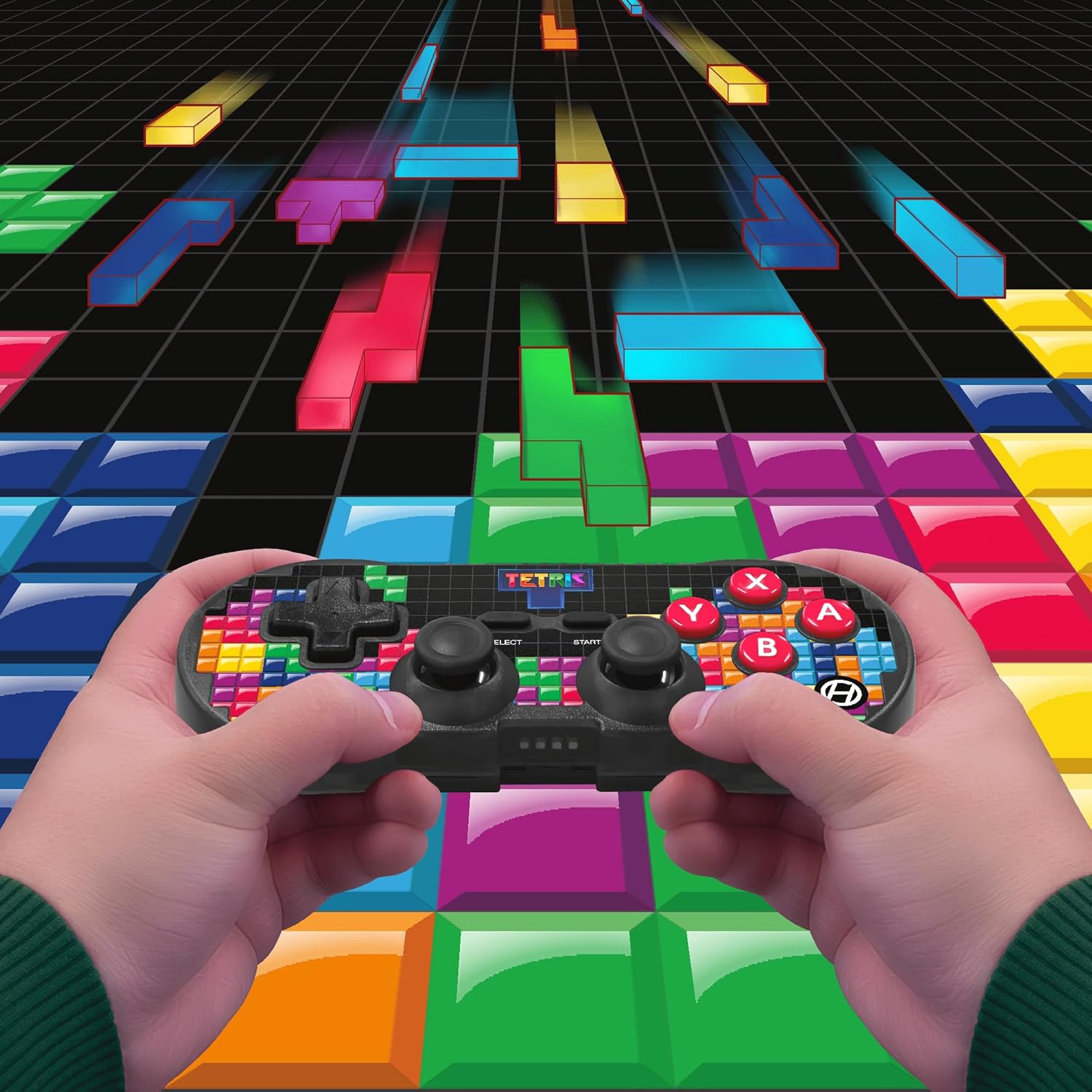
Image 5.1: A user holding the controller, illustrating its use during gameplay.
5.2. Turbofunctie
The controller features a turbo function for rapid button presses. To activate or deactivate turbo for a specific button:
- Houd de Turbo-knop.
- While holding the Turbo button, press the desired actieknop (A, B, X, Y, L1, R1, L2, R2) you wish to apply turbo to.
- Release both buttons. The selected action button will now have turbo enabled.
- To disable turbo for that button, repeat the process.
6. Compatibiliteit
The Hyperkin Pixel Art Bluetooth Controller is compatible with a wide range of platforms:
- Nintendo-schakelaar
- Nintendo Switch OLED-model
- Windows 10/11-pc
- Mac
- Android-apparaten
- iOS-apparaten
- Stoom
- Framboos Pi
- Amazon Games
- Amazon Luna
- Tesla

Image 6.1: Visual representation of the controller's broad compatibility across multiple gaming and computing platforms.
7. Onderhoud
Om de levensduur en optimale prestaties van uw controller te garanderen:
- Schoonmaak: Gebruik een zachte, droge doek om de controller schoon te maken. Vermijd schurende reinigingsmiddelen of oplosmiddelen.
- Opslag: Bewaar de controller op een koele, droge plaats, uit de buurt van direct zonlicht en extreme temperaturen.
- batterij zorg: Do not attempt to replace the internal Lithium Polymer battery. Avoid fully discharging the battery for extended periods.
- Vermijd druppels: Bescherm de controller tegen vallen en stoten, aangezien deze interne componenten kunnen beschadigen.
8. Probleemoplossing
Als je problemen ondervindt met je Hyperkin Pixel Art Bluetooth-controller, raadpleeg dan de volgende veelvoorkomende problemen en oplossingen:
| Probleem | Mogelijke oplossing |
|---|---|
| Controller gaat niet aan. | Ensure the controller is fully charged. Connect it to a power source using the USB-C cable. |
| Controller does not pair via Bluetooth. |
|
| Invoervertraging of verbroken verbinding. |
|
| De knoppen reageren niet of zitten vast. | Clean around the buttons with a soft, dry cloth. Avoid liquid cleaners. If the issue persists, contact support. |
9. Specificaties
| Functie | Detail |
|---|---|
| Modelnummer | M01328-TETS |
| Connectiviteit | Bluetooth (Wireless up to 30 ft.), USB-C (Wired) |
| Verenigbaarheid | Nintendo Switch/OLED, Windows 10/11 PC, Mac, Android, iOS, Steam, Raspberry Pi, Amazon Games, Amazon Luna, Tesla |
| Speciale kenmerken | Turbo function, Retro design with modern ergonomics, High-quality symmetrical sticks, Responsive action buttons, Reliable triggers |
| Batterijtype | 1 lithium-polymeeraccu (intern) |
| Pakket afmetingen | 7.24 x 5 x 2.48 inch |
| Artikelgewicht | 9.9 ons |
| Fabrikant | Hyperkin |
10. Garantie en ondersteuning
Voor garantie-informatie en technische ondersteuning kunt u terecht op de officiële Hyperkin-website. webwebsite of neem contact op met hun klantenservice. Bewaar uw aankoopbewijs voor garantieclaims.
Hyperkin Officieel Webwebsite: www.hyperkin.com