
Invoering
Thank you for choosing the DYONDER Mini Wireless Controller. This compact gamepad is designed for enhanced gaming experiences across multiple platforms, including PlayStation 4 (PS4, PS4 Pro, PS4 Slim) and PC (Windows 10/8/7). It features dual vibration, a 6-axis sensor, and an audio function for immersive gameplay. Please read this manual carefully to ensure proper setup and operation.
Product voorbijview

Voorkant view of the DYONDER Mini Wireless Controller, showcasing zijn compacte ontwerp.

Dimensions of the controller: 145mm (5.7 inches) length, 75mm (3 inches) height, 45mm (1.5 inches) width.
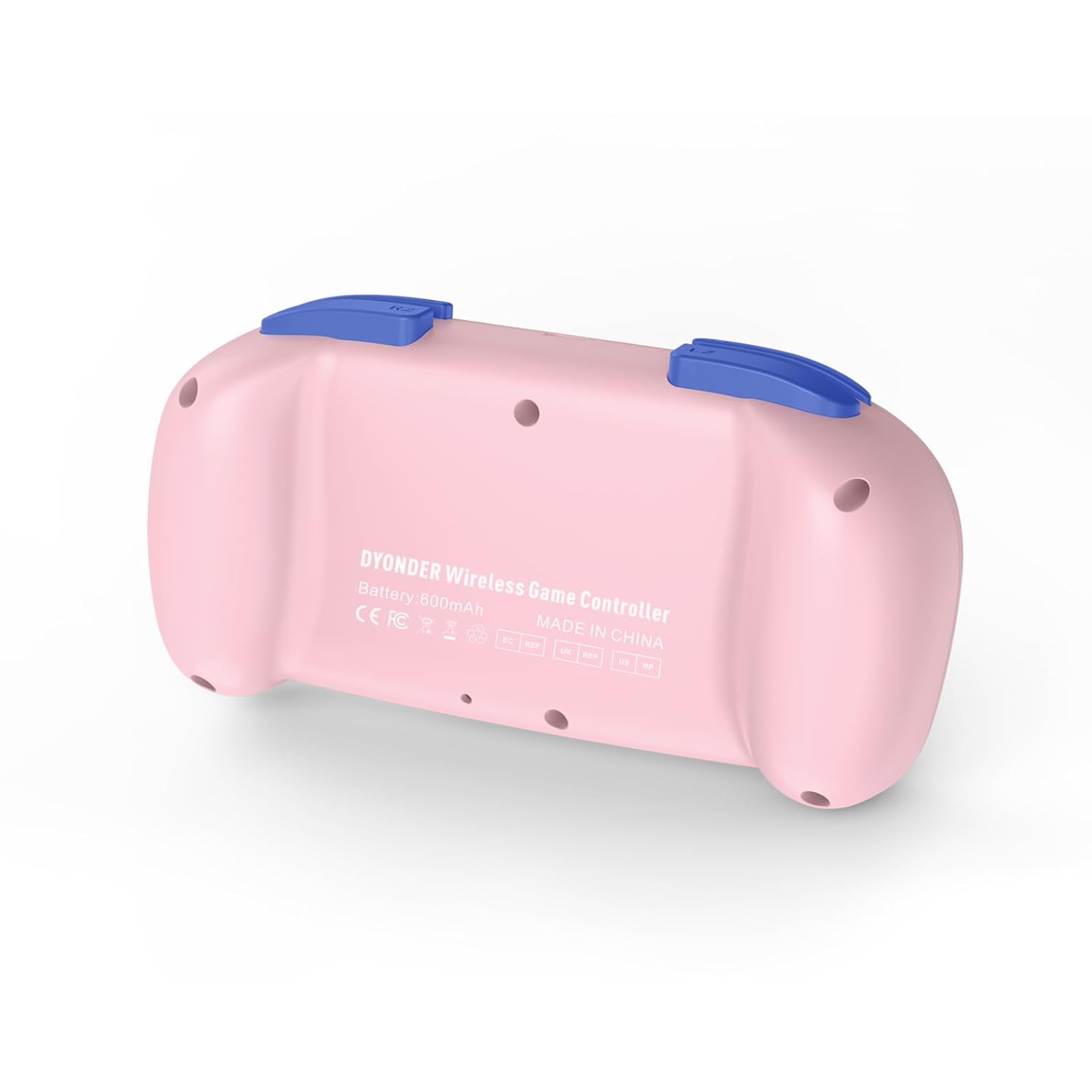
Rug view of the controller, showing the model information and regulatory marks.

Detailed layout of the controller buttons, including Multi-touch Pad, Share Button, Options Button, D-Pad, Left Stick, Right Stick, Home Button, R1/R2, L1/L2, and Charging Port.
Belangrijkste kenmerken:
- Dubbele vibratie: Experience immersive feedback with dual vibration motors.
- 6-assige bewegingssensor: Enhance dynamic feeling and control in compatible games.
- Ingebouwde 600mAh-batterij: Provides 10-12 hours of playing time on a 2-hour charge.
- Ondersteuning voor meerdere platformen: Compatible with PS4/Pro/Slim, PC (Windows 10/8/7), iOS, and Android.
- Mini-ontwerp: Compact and easy to handle, especially suitable for smaller hands.
- Audio functie: Includes a 3.5mm headphone jack for audio output.
Official product video demonstrating the DYONDER wireless controller for PS4, highlighting its features and design.
Installatie en verbinding
Connecting to PlayStation 4 (PS4/Pro/Slim):
- Zorg ervoor dat je PS4-console is ingeschakeld.
- Connect the controller to the PS4 console using the provided USB cable.
- Press the Home button on the controller. The light bar will flash, indicating it's pairing.
- Once the light bar turns solid, the controller is successfully connected and ready for use.
- After initial pairing, you can disconnect the USB cable and use the controller wirelessly.
Connecting to PC (Windows 10/8/7):
- Bekabelde verbinding: Connect the controller to your PC using a USB cable. The PC should automatically detect and install the necessary drivers.
- Bluetooth-verbinding:
- Zorg ervoor dat Bluetooth op uw pc is ingeschakeld.
- On the controller, press and hold the Share button and the Home button simultaneously until the light bar starts flashing rapidly.
- Ga op je pc naar de Bluetooth-instellingen en zoek naar nieuwe apparaten.
- Selecteer de controller uit de lijst met beschikbare apparaten om te koppelen.
Connecting to iOS/Android Devices:
- Zorg ervoor dat Bluetooth is ingeschakeld op uw mobiele apparaat.
- On the controller, press and hold the Share button and the Home button simultaneously until the light bar starts flashing rapidly.
- Ga op je mobiele apparaat naar de Bluetooth-instellingen en zoek naar nieuwe apparaten.
- Selecteer de controller uit de lijst met beschikbare apparaten om te koppelen.
Gebruiksaanwijzing
Aan/uit:
- Inschakelen: Press the Home button once.
- Uitschakelen: Press and hold the Home button for approximately 10 seconds until the light bar turns off. The controller will also automatically power off after a period of inactivity.
De controller opladen:

The controller features a built-in 600mAh battery, providing 10-12 hours of playtime after a 2-hour charge.
- Connect the provided USB cable to the charging port on the controller and the other end to a USB power source (e.g., PS4 console, PC, or USB wall adapter).
- The light bar will slowly flash while charging and turn off when fully charged.
- A full charge typically takes about 2 hours and provides 10-12 hours of gameplay.
Using the Audio Function:
- Plug a 3.5mm compatible headset into the audio jack located on the bottom of the controller.
- Audio output will be routed through the headset.
Onderhoud
- Houd de controller schoon door hem af te vegen met een zachte, droge doek. Vermijd het gebruik van agressieve chemicaliën of schurende materialen.
- Bewaar de controller op een koele, droge plaats, uit de buurt van direct zonlicht en extreme temperaturen.
- Laat de controller niet vallen en stel hem niet bloot aan harde stoten.
- Probeer de controller niet te demonteren of te wijzigen, aangezien dit de garantie ongeldig maakt.
Probleemoplossing
Controller maakt geen verbinding:
- Zorg ervoor dat de controller volledig is opgeladen.
- For PS4, try connecting via USB cable first to establish the initial pairing.
- Reset the controller: Locate the small reset button on the back of the controller (often inside a small hole). Use a thin object (like a paperclip) to press and hold the button for 3-5 seconds. Then, attempt to re-pair.
- Zorg ervoor dat er geen andere Bluetooth-apparaten de verbinding verstoren.
Inputvertraging of niet-reagerende knoppen/sticks:
- Ensure the controller is within range of the console/device.
- Check for any physical obstructions between the controller and the console/device.
- If using a wired connection, try a different USB port or cable.
- Reset the controller as described above.
Batterij houdt de lading niet vast:
- Ensure you are using a reliable USB cable and power source.
- Neem contact op met de klantenondersteuning als het probleem zich blijft voordoen.
Specificaties
| Functie | Detail |
|---|---|
| Merk | DYONDER |
| Modelnummer (ASIN) | B0CFQ8816Z |
| Compatibele apparaten | PlayStation 4 (PS4/Pro/Slim), PC (Windows 10/8/7), iOS, Android |
| Controller-type | Spelcomputer |
| Aantal knoppen | 15 |
| Hardwareplatform | Gaming Console, PC, Mobile |
| Energiebron | Werkt op batterijen (ingebouwde 600mAh) |
| Oplaadtijd | Ongeveer 2 uur |
| Speeltijd | Ongeveer 10-12 uur |
| Kleur | Roze |
Garantie en ondersteuning
For warranty information or technical support, please refer to the product packaging or contact DYONDER customer service directly. Keep your purchase receipt for any warranty claims.