
1. Inleiding
Thank you for choosing the Luqeeg 1080P Wireless Reverse Hitch Camera. This system is designed to enhance visibility and safety when maneuvering vehicles such as RVs, trucks, trailers, and cars. It features a 150° wide-angle lens, 1080P resolution, infrared night vision, and smart detection capabilities. Please read this manual thoroughly before installation and operation to ensure proper use and optimal performance.
2. Inhoud van het pakket
Controleer of alle hieronder vermelde artikelen in uw pakket zitten:
- Camerabehuizing
- Bevestigingsgesp
- Datakabel (USB)
- Gebruiksaanwijzing

Image: The camera body, mounting buckle, USB data cable, and user manual are shown, representing the complete package contents.
3. Producteigenschappen
- 1080P High-Definition Video: Legt heldere en gedetailleerde beelden vasttage.
- 150° groothoeklens: Biedt een uitgebreide view behind your vehicle, aiding in hitching and reversing.
- Infrarood Night Vision: Equipped with four infrared LED lights for clear visibility in low-light conditions.
- Draadloze connectie: Establishes a direct peer-to-peer WiFi connection with your mobile device (up to 30 feet). No external network required.
- Motion and Voice Detection: Sends alert notifications to your phone upon detecting movement or sound. Captures three photos and records video to a memory card (not included). This feature must be enabled in the app.
- Mobiele app-bediening: Compatible with both Android and iOS systems for remote viewing, recording, and settings adjustment.
- Magnetic and Adhesive Base: Offers versatile mounting options for various surfaces and applications.
- Ingebouwde oplaadbare batterij: Provides portable power for flexible installation.
- Waterdicht ontwerp: Ensures reliable performance in diverse weather conditions.
- Lokale opslag: Supports memory cards up to 32GB (not included) for video recording.

Image: A visual representation of the camera assisting in hitching a trailer, demonstrating its wide-angle view.
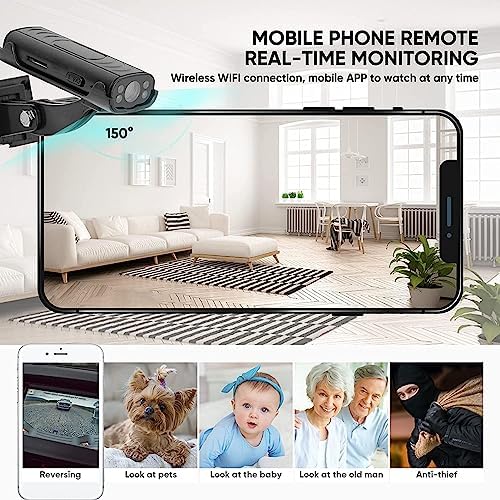
Image: The camera's live feed displayed on a mobile phone, illustrating its versatility for different monitoring needs.

Image: The camera's app interface, highlighting its intelligent motion and sound detection capabilities for security and monitoring.
4. Installatiehandleiding
4.1 De camera opladen
Before first use, fully charge the camera using the provided USB data cable. Connect the cable to the camera's charging port and a standard USB power source (e.g., computer, USB wall adapter). The charging indicator light will provide status.
4.2 Installing a Memory Card (Optional)
To enable video recording and storage, insert a memory card (up to 32GB, not included) into the designated slot on the camera. Ensure the card is inserted correctly according to the diagram in the manual.
4.3 De camera monteren
The camera comes with a magnetic and adhesive base for flexible mounting. Choose a location that provides a clear view for your intended use (e.g., near the hitch for trailer hookup, on the rear of the vehicle for general reversing). Ensure the surface is clean and dry before applying the adhesive base. The camera's angle can be adjusted for optimal viewind.
4.4 App downloaden en verbinden
- Download the dedicated app (e.g., "IWFcam" or as specified in the included manual) from your device's app store (Android or iOS).
- Zet de camera aan.
- On your mobile device, go to WiFi settings and connect to the camera's direct WiFi network. The network name will typically start with a unique identifier for the camera.
- Open the app. The camera feed should appear automatically.
5. Gebruiksaanwijzing
5.1 In-/uitschakelen
Locate the power button on the camera. Press and hold to power on or off. Refer to the camera body diagram in the included manual for exact button location.
5.2 Levend View en opname
Once connected via the app, you will see the live video feed. Use the app interface to:
- View Live feed: Monitor the area behind your vehicle in real-time.
- Video opnemen: Tap the record button to start/stop video recording.
- Foto's nemen: Tap the camera icon to capture still images.
- Toegang geregistreerd Files: View stored videos and photos directly through the app.
5.3 Motion and Voice Detection Settings
To activate or adjust motion and voice detection features:
- Open the app and connect to the camera.
- Navigate to the settings menu within the app.
- Locate the 'Motion Detection' and 'Voice Detection' options.
- Enable these features and adjust sensitivity settings as desired.
When triggered, the camera will capture three photos, send an alert to your phone, and record video to the memory card.
Video: An official product video demonstrating the Luqeeg Reverse Hitch Guide Camera's features, including its 1080P resolution and night vision capabilities. This video is provided by the seller, Oumij1.
6. Onderhoud
6.1 Reinigen
To maintain optimal image clarity, regularly clean the camera lens with a soft, lint-free cloth. Avoid using abrasive cleaners or solvents that could damage the lens or camera body.
6.2 Batterijonderhoud
Recharge the camera's built-in battery when the battery indicator shows low power. For long-term storage, ensure the battery is partially charged (around 50%) and store in a cool, dry place.
6.3 Opslag
When not in use, store the camera in a protective environment away from extreme temperatures, direct sunlight, and moisture.
7. Probleemoplossing
If you encounter issues with your Luqeeg Reverse Hitch Camera, please refer to the following common problems and solutions:
- Camera not connecting to phone:
- Zorg ervoor dat de camera is ingeschakeld en volledig is opgeladen.
- Verify that your phone's WiFi is enabled and connected to the camera's direct WiFi network.
- Check the distance between the camera and your phone. The wireless connection is stable up to 20-30 feet. Obstructions can reduce this range.
- Restart both the camera and your phone, then attempt to reconnect.
- Zorg ervoor dat de app is bijgewerkt naar de nieuwste versie.
- "Live Video Failed" error:
- This often indicates a weak or interrupted WiFi connection. Move closer to the camera or reduce interference.
- Sluit de app en open deze opnieuw.
- Check if other applications are consuming significant network resources on your phone.
- Poor image quality or blurry video:
- Maak de cameralens schoon met een zachte doek.
- Ensure there is adequate lighting. While the camera has night vision, extreme darkness or glare can affect quality.
- Check for condensation or moisture on the lens.
- Motion/Voice Detection not working:
- Confirm that these features are enabled in the app's settings.
- Adjust the sensitivity settings within the app.
- Ensure a memory card is inserted for recording triggered events.
- Batterij houdt de lading niet vast:
- Controleer of de oplaadkabel en de stroombron goed functioneren.
- Allow sufficient time for a full charge.
- Als het probleem aanhoudt, moet de accu mogelijk worden nagekeken.
8. Specificaties
| Functie | Specificatie |
|---|---|
| Merknaam | Luqeeg |
| Modelnummer | Luqeegu7ya6wocsb |
| Artikelgewicht | 4.6 ons |
| Pakket afmetingen | 5.24 x 3.54 x 1.77 inch |
| Kleur | Zwart |
| Speciale kenmerken | Motion Detection, Voice Detection |
| Fotosensortechnologie | CMOS |
| Resolutie video-opname | 1080p |
| Video-opname-indeling | AVI |
| Ondersteunde audioformaten | PCM, MP3 |
| Screen Size (for display, not camera) | 2.7 Inches (referring to typical display size for such devices) |
| Connectiviteitstechnologie | Peer to peer direct connection |
| Camcordertype | Videocamera |
9. Garantie en ondersteuning
9.1 Garantie-informatie
For specific warranty details, please refer to the warranty card included with your product or contact Luqeeg customer support. Keep your purchase receipt as proof of purchase for any warranty claims.
9.2 Klantenservice
If you require further assistance, have questions, or encounter issues not covered in this manual, please contact Luqeeg customer support through the retailer's platform or the official brand website. Provide your product model number and a detailed description of the issue for efficient support.