
1. Inleiding
The BuzzTV B5 is an advanced Android 11 TV Box designed to deliver a superior 4K UHD streaming experience. This device allows you to access a wide range of entertainment, including movies, TV shows, and applications, directly on your television. This manual provides essential information for the proper setup, operation, maintenance, and troubleshooting of your BuzzTV B5.
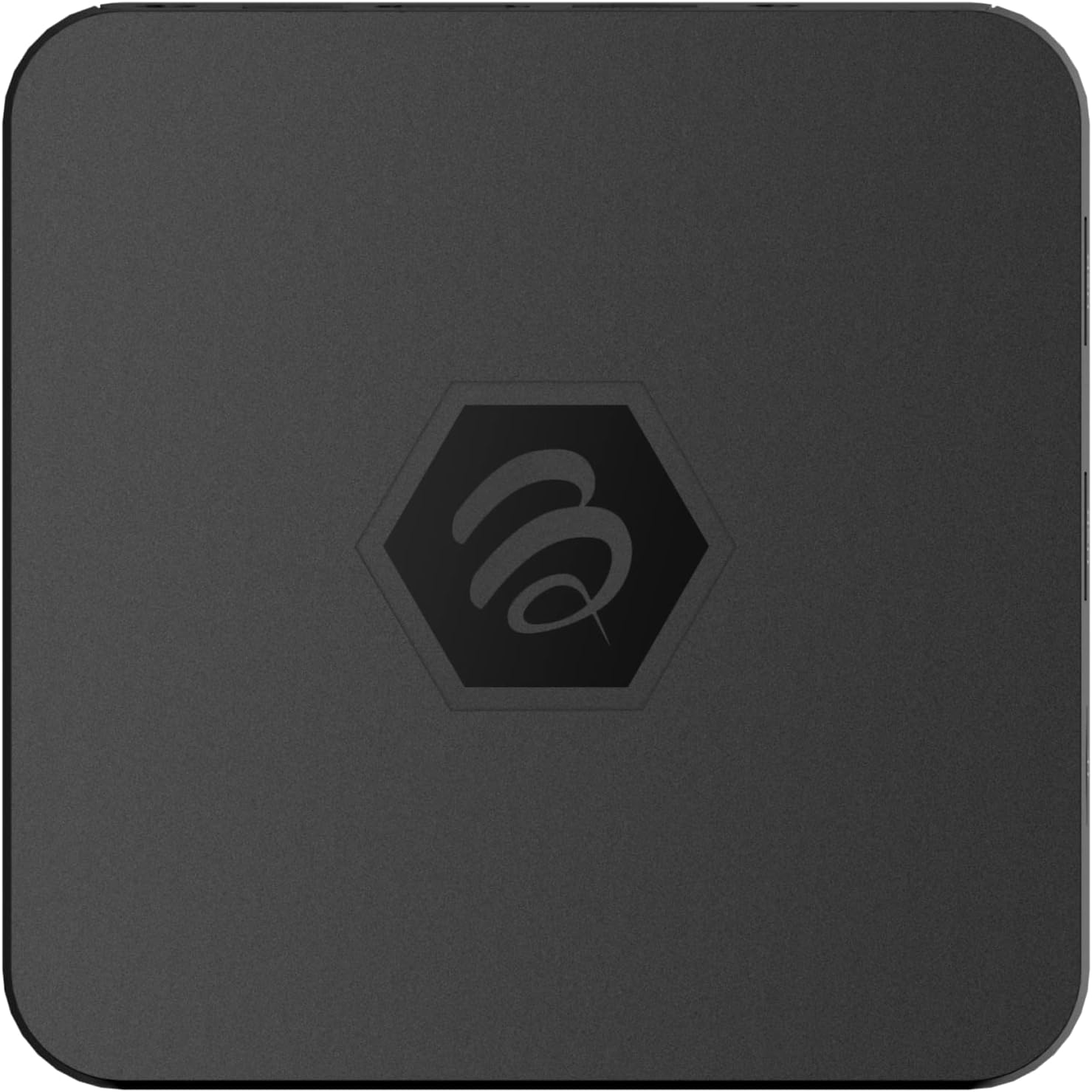
Afbeelding 1.1: Boven view of the BuzzTV B5 Android 11 TV Box.
2. Inhoud van het pakket
Please verify that all items listed below are included in your BuzzTV B5 package:
- BuzzTV B5 Set Top Box
- IR-100 Remote Control
- Voeding Adapter
- 2x AAA-batterijen (voor afstandsbediening)
- HDMI-kabel
- Gebruikershandleiding (dit document)

Image 2.1: Contents included in the BuzzTV B5 retail package.
3. Installatiehandleiding
Follow these steps to set up your BuzzTV B5 TV Box:
- Aansluiten op tv: Connect one end of the provided HDMI cable to the HDMI port on the BuzzTV B5 and the other end to an available HDMI input on your television.
- Sluit stroom aan: Plug the power supply adapter into the DC 5V port on the BuzzTV B5, then plug the adapter into a wall outlet. The device should power on automatically or can be powered on using the remote control.
- Plaats de batterijen in de afstandsbediening: Open the battery compartment on the back of the IR-100 Remote Control and insert the two AAA batteries, ensuring correct polarity (+/-).
- Netwerkverbinding: Once the device boots up, follow the on-screen instructions to connect to your network. You can choose between Wi-Fi (wireless) or Ethernet (wired) connection. For a wired connection, connect an Ethernet cable from your router to the Ethernet port on the BuzzTV B5.
- Initiële setup: Complete the initial Android setup process, which may include language selection, Google account login, and time zone settings.

Image 3.1: Rear ports of the BuzzTV B5 for connectivity.
4. Gebruiksaanwijzing
The BuzzTV B5 operates on Android 11, providing a user-friendly interface for navigation and content access.
4.1 Functies afstandsbediening
The IR-100 Remote Control is your primary interface for the BuzzTV B5. Key functions include:
- Aan/uit-knop: Hiermee schakelt u het apparaat in of uit.
- Navigatiepad (Omhoog/Omlaag/Links/Rechts/OK): Wordt gebruikt om door menu's te navigeren en items te selecteren.
- Terugknop: Keert terug naar het vorige scherm of menu.
- Thuis knop: Keert terug naar het hoofdscherm van Android.
- Volumeknoppen: Past het audiovolume aan.
- App/Menu Buttons: Accesses specific applications or context menus.

Image 4.1: Layout of the IR-100 Remote Control.
4.2 Toegang tot applicaties
From the home screen, you can access pre-installed applications like Netflix and YouTube, or download new applications from the Google Play Store. Use the navigation pad on your remote to select and launch applications.
4.3 4K UHD Streaming
The BuzzTV B5 supports 4K UHD resolution. Ensure your television is 4K compatible and that you are using a high-speed HDMI cable for optimal picture quality. Streaming quality will also depend on your internet connection speed and the content source.
5. Onderhoud
To ensure the longevity and optimal performance of your BuzzTV B5, consider the following maintenance tips:
- Schoonmaak: Gebruik een zachte, droge doek om de buitenkant van het apparaat schoon te maken. Vermijd vloeibare reinigingsmiddelen of schurende materialen.
- Ventilatie: Zorg ervoor dat het apparaat in een goed geventileerde ruimte staat om oververhitting te voorkomen. Dek de ventilatieopeningen niet af.
- Software-updates: Periodically check for and install system updates to benefit from new features, performance improvements, and security patches. These can usually be found in the device's settings menu.
- Stroomcyclus: If the device becomes unresponsive, disconnect the power adapter, wait 10 seconds, and then reconnect it to perform a power cycle.
6. Probleemoplossing
If you encounter issues with your BuzzTV B5, refer to the following common problems and solutions:
| Probleem | Mogelijke oorzaak | Oplossing |
|---|---|---|
| Geen stroom | De voedingsadapter is niet aangesloten; het stopcontact werkt niet. | Zorg ervoor dat de voedingsadapter goed is aangesloten op het apparaat en op een werkend stopcontact. Probeer een ander stopcontact. |
| Geen signaal op tv | Incorrect HDMI input selected; faulty HDMI cable. | Select the correct HDMI input on your TV. Check HDMI cable connections or try a different HDMI cable. |
| Afstandsbediening reageert niet | Lege batterijen; afstandsbediening niet gekoppeld (indien van toepassing); obstakel. | Replace AAA batteries. Ensure no obstructions between remote and device. |
| Problemen met netwerkverbinding | Onjuist wifi-wachtwoord; problemen met de router; zwak signaal. | Verify Wi-Fi password. Restart your router. Move the device closer to the router or use an Ethernet cable. |
| Applications Crashing/Freezing | Insufficient memory; outdated app; software glitch. | Close background apps. Update the app or the device's firmware. Clear app cache/data in settings. |
7. Specificaties
Detailed technical specifications for the BuzzTV B5 Android 11 TV Box:
- Besturingssysteem: Android-besturingssysteem 11
- CPU: Amlogic S905W2 Quad-Core A-35
- GPU: Mali-G31 MP2
- RAM: 2GB DDR
- Opslag: 16 GB eMMC
- Wifi: Dual Band AC
- LAN: 10/100 Mbps-ethernet
- Bluetooth: 4.2
- USB-poorten: 2x USB 2.0
- MicroSD-slot: 1
- Stroominterface: DC 5V
- HDMI-uitgang: 1
- Optische audio-uitgang: 1
- Uitvoerresolutie: 4K (32 FPS)
- Afmetingen: 9.06 x 5.63 x 2.32 inch
- Artikelgewicht: 1.01 pond

Image 7.1: BuzzTV B5 with a summary of its technical specifications.
8. Garantie-informatie
For detailed warranty information regarding your BuzzTV B5, please refer to the warranty card included in your product packaging or visit the official BuzzTV website. Garantievoorwaarden kunnen per regio en verkoper verschillen.
9. Ondersteuning
If you require further assistance or have questions not covered in this manual, please contact BuzzTV customer support or visit their official website for FAQs, software downloads, and additional resources.
BuzzTV Official Webwebsite: www.buzztv.com


