
Invoering
This manual provides detailed instructions for the safe and efficient use of your Plimpton PlimPad P3 10.1-inch Android 12 Tablet. Please read this manual thoroughly before operating the device and keep it for future reference.
Product voorbijview
The Plimpton PlimPad P3 is a 10.1-inch tablet featuring the Android 12 operating system. It is designed for general use, offering a balance of performance and portability.
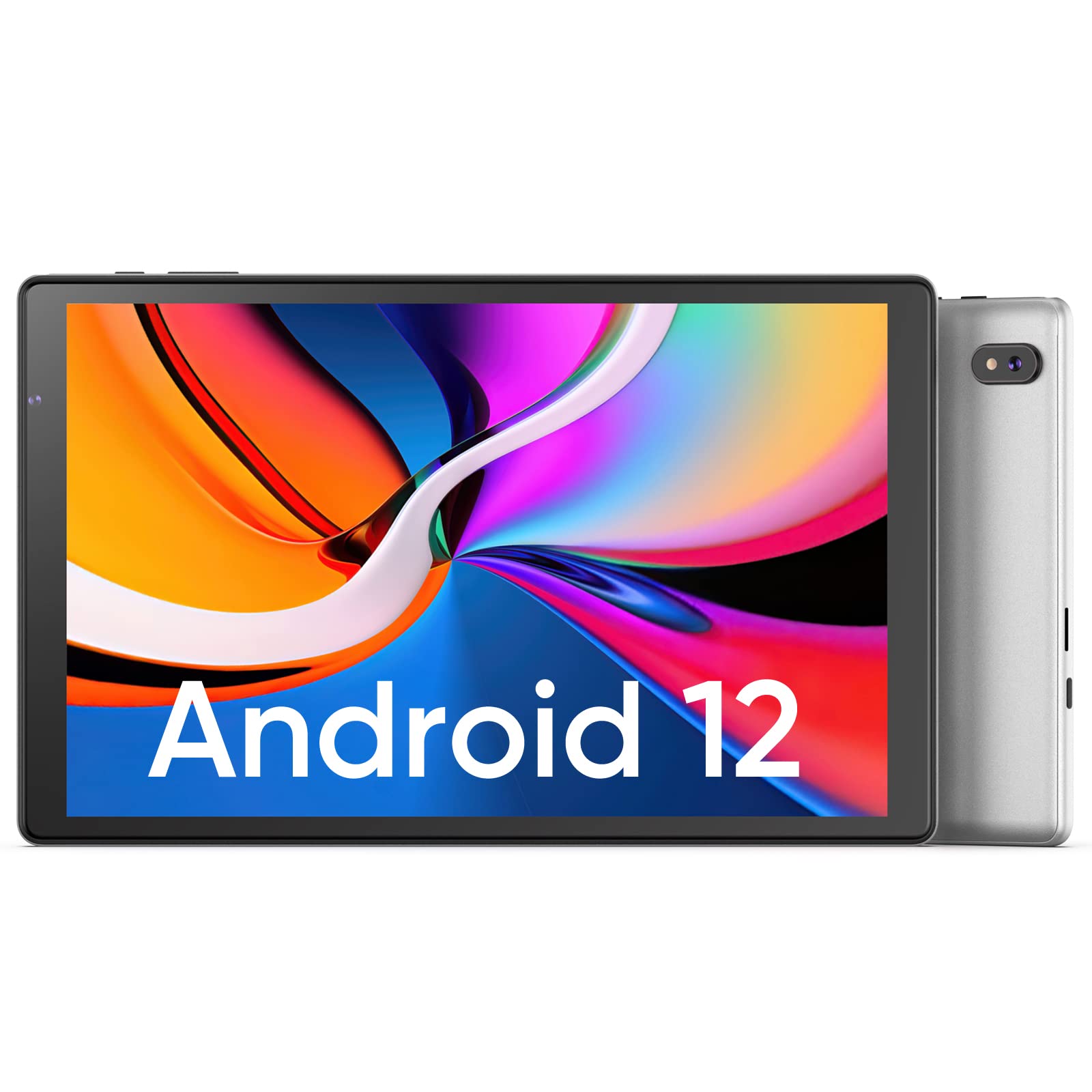
Afbeelding: Voor- en achterkant view of the Plimpton PlimPad P3 Tablet.
Belangrijkste kenmerken:
- Besturingssysteem: Android 12 for a personalized and secure user experience.
- Weergave: 10.1-inch HD IPS LCD with 1280x800 resolution for clear visuals.
- Prestatie: Powered by an Allwinner A133 1.5GHz 4-core CPU with 4GB RAM for smooth operation.
- Opslag: 64GB internal storage, expandable up to 1TB via microSD card.
- Connectiviteit: Dual-band Wi-Fi 6 (5GHz+2.4GHz) and Bluetooth 5.0.
- Geluid: Dual speakers for an enhanced audio experience.
- Batterij: 6000mAh-batterij voor langdurig gebruik.
- Ontwerp: Premium silver metal body for efficient heat dissipation and a slim profile.

Image: Visual representation of key features including metal body, 10.1-inch screen, split screen functionality, and 6000mAh battery capacity.
Installatiehandleiding
1. Eerste keer opladen
Before first use, fully charge the tablet using the provided USB charger and 1.8M USB Type-C cable. Ensure the tablet is powered off during initial charging. Using non-original chargers may lead to compatibility issues.

Image: Details on battery capacity, charging port, and cable length.
2. Aan/uit
- Inschakelen: Houd de aan/uit-knop aan de zijkant van de tablet ingedrukt totdat het scherm oplicht.
- Uitschakelen: Press and hold the power button, then select "Power off" from the options that appear on the screen.
3. Wifi verbinding
The tablet supports Wi-Fi 6 with dual-band (5GHz and 2.4GHz) connectivity for stable internet access. To connect to Wi-Fi:
- Ga naar Instellingen.
- Selecteer Netwerk & internet.
- Kraan Wi-Fi en zet hem aan.
- Selecteer het gewenste netwerk uit de lijst en voer het wachtwoord in als daarom wordt gevraagd.

Afbeelding: Overview of Wi-Fi 6, Bluetooth 5.0, and dual-band network support.
4. Bluetooth-verbinding
Om Bluetooth-apparaten te verbinden:
- Zorg ervoor dat uw Bluetooth-apparaat in de koppelingsmodus staat.
- Ga naar Instellingen op uw tablet.
- Selecteer Verbonden apparaten, Dan Verbindingsvoorkeuren, en tik op Bluetooth.
- Turn Bluetooth on and select your device from the list to pair.
5. SD Card Installation and Initialization
The tablet supports microSD cards up to 1TB. Always insert or remove the SD card when the tablet is powered off to prevent data corruption.
- Schakel de tablet uit.
- Zoek de sleuf voor de microSD-kaart op de tablet.
- Plaats de microSD-kaart voorzichtig totdat u een klik hoort.
- Schakel de tablet in.
- For the tablet to recognize a new SD card, it may require initialization. Refer to the on-screen prompts or the detailed instructions in the included Japanese manual for the initialization procedure.
6. Installing a Protective Case
To protect your tablet, you may wish to install a compatible protective case. The following video demonstrates how to install a tablet into a case and utilize its stand function.
Video: Demonstration of installing a tablet into a protective case and using the stand function.
Gebruiksaanwijzing
1. Android 12 OS Features
The PlimPad P3 runs on Android 12, offering an optimized and user-friendly interface with enhanced privacy controls.
- Gepersonaliseerde gebruikersinterface: Customize your desktop display style with new UI designs.
- Privacybeheer: New privacy features allow you to manage your data and permissions easily.
- Google Services & Apps: Access stable Google services and install popular third-party applications like LINE, YouTube Kids, Yahoo, and Twitter.
- Toegankelijkheid: Features include automatic text-to-speech and an eye protection mode.

Image: Highlights of Android 12 OS features such as improved UI, privacy management, and simplified data transfer.
2. Display-instellingen
- Oplossing: The 10.1-inch IPS LCD offers a 1280x800 resolution for vivid colors and wide viewhoeken.
- Oogbeschermingsmodus: Activate this mode in settings to reduce eye strain during prolonged use.
3. Audio-instellingen
The tablet is equipped with dual speakers for surround sound. Adjust volume using the physical volume buttons or through the sound settings in the Android OS.

Image: Illustration of the tablet's dual stereo speakers and Bluetooth 5.0 connection for reduced interference.
4. Draadloze projectie
The tablet supports wireless projection to compatible smart TVs. Refer to your smart TV's manual for instructions on enabling screen mirroring or casting, then initiate the connection from your tablet's display settings.
Onderhoud
1. Batterijverzorging
- To maximize battery life, close unnecessary applications running in the background.
- Zorg ervoor dat de tablet niet wordt blootgesteld aan extreme temperaturen.
- For optimal performance, use the original charger and cable.
2. Opslagbeheer
- Wis regelmatig de cache en onnodige fileom een soepele werking te garanderen.
- While the tablet has 4GB RAM and 64GB ROM, it is not designed for memory-intensive applications such as high-end games or professional photo editing software (e.g., Photoshop).
- Utilize the microSD card slot for additional storage of media files en documenten.
Probleemoplossing
Veelvoorkomende problemen en oplossingen:
- Trage prestaties:
- Sluit achtergrondtoepassingen.
- Wis de app-cache.
- Zorg voor voldoende vrije opslagruimte.
- Note that this tablet is not optimized for demanding games or applications like Genshin Impact.
- Problemen met opladen:
- Use only the original Plimpton charger and USB Type-C cable.
- Zorg ervoor dat de oplaadpoort schoon en vrij van vuil is.
- Other Type-C chargers may not be compatible.
- SD-kaart niet herkend:
- Ensure the tablet is powered off when inserting or removing the SD card.
- A new SD card may require initialization. Refer to the included manual for steps.
- Screen Damage:
- In case of a cracked or damaged screen, please contact customer support for the best resolution.
- Consider using a P3 Pro dedicated reinforced glass screen protector for added durability.
- No SIM Card Compatibility:
- This is a Wi-Fi model tablet and is not compatible with SIM cards for cellular data.
Specificaties
| Functie | Detail |
|---|---|
| Merk | plimpton |
| Modelnaam | PlimPad P3 |
| Besturingssysteem | Androïde 12 |
| CPU | Allwinner ARM Cortex A133, 1.8 GHz 4-core |
| RAM | 4GB |
| Interne opslag | 64GB |
| Uitbreidbare opslag | MicroSD-kaart tot 1 TB |
| Schermgrootte | 10.1 inch |
| Weergavetype | IPS-LCD |
| Weergaveresolutie | 1280x800 |
| Beeldverhouding | 16:10 |
| Aanraakscherm | Ja |
| Wi-Fi | Wi-Fi 6 (Dual-band 5GHz+2.4GHz) |
| Bluetooth | Bluetooth 5.0 |
| Voorcamera | Ja |
| Achteruitrijcamera | 8 MP |
| Batterijcapaciteit | 6000 mAh (lithiumion) |
| Gewicht | 520 gram |
| Kleur | Zilver |
Garantie en ondersteuning
Garantie-informatie
Your Plimpton PlimPad P3 tablet comes with a 24-month free exchange warranty from the date of purchase. If any defects occur within this period, a new product exchange will be provided.
Klantenservice
For any inquiries or support needs, please contact us through Amazon:
- On the product page, locate the store name "Plimpton Direct" below the "Add to Cart" button.
- Klik op "Plimpton Direct".
- In the upper right corner of the store page, click on "Ask a question" om een bericht te sturen.
Inhoud van het pakket
The following items are included in your Plimpton PlimPad P3 package:
- PlimPad P3 Tablet
- USB-oplader
- 1.8M USB Type-C Cable
- Japanese Instruction Manual