
1. Inleiding
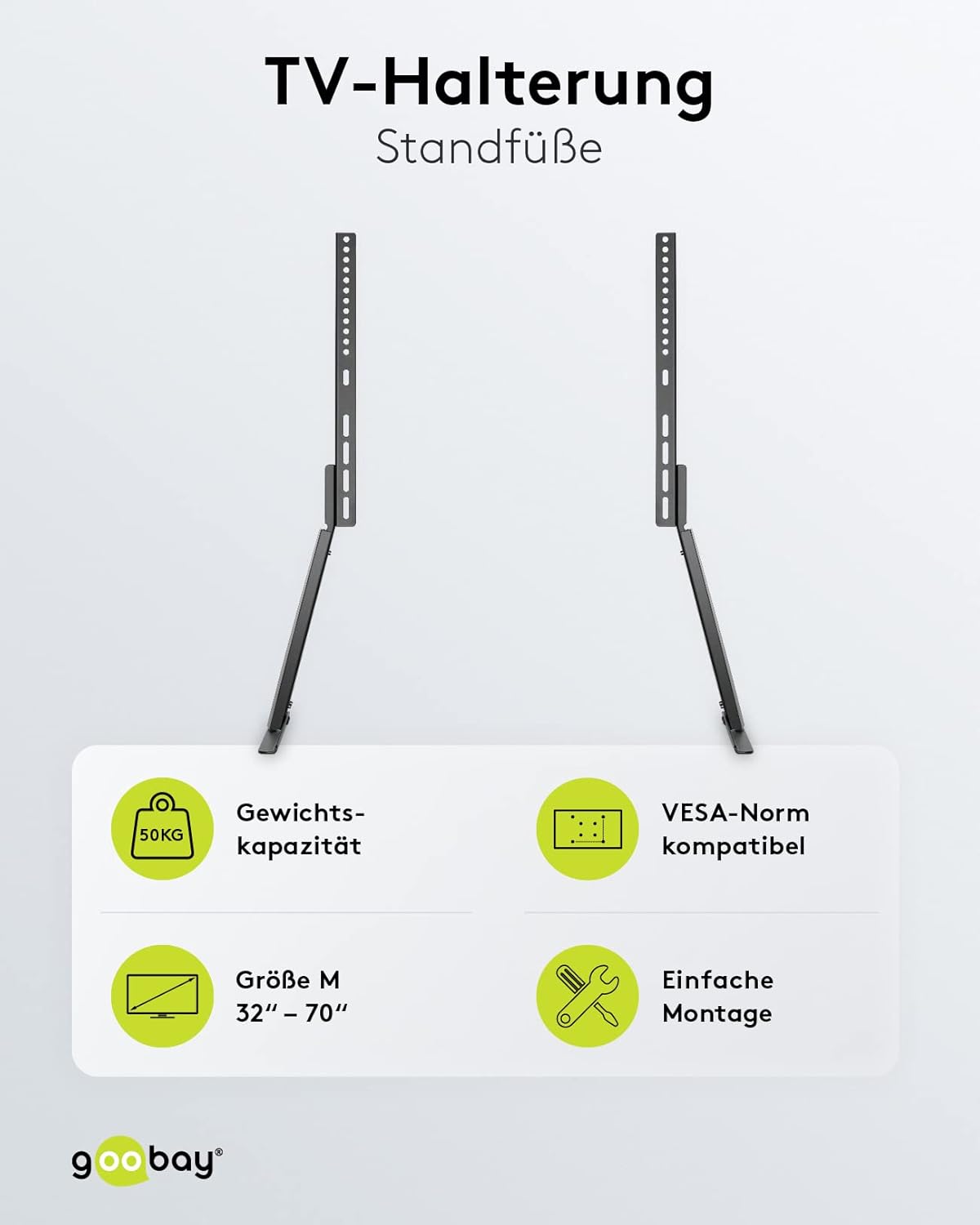
Thank you for choosing the goobay 58525 TV Stand. This product is designed to provide a stable and adjustable base for your television or monitor, accommodating screen sizes from 32 to 70 inches and supporting a maximum weight of 50 kg. It features a tilt function and height adjustment for optimal viewing, along with an integrated cable management system. Please read this manual carefully before assembly and use to ensure proper installation and safe operation.
2. Veiligheidsinstructies
- Controleer of alle onderdelen aanwezig en onbeschadigd zijn voordat u met de montage begint. Gebruik geen beschadigde onderdelen.
- Overschrijd het maximale draagvermogen van 50 kg (110 lbs) niet.
- This stand is designed for TVs and monitors between 32 and 70 inches. Verify your TV's VESA pattern and weight before installation.
- Always assemble the stand on a soft, clean surface to prevent scratches to the product or your furniture.
- Zorg ervoor dat de standaard op een stabiele, vlakke ondergrond staat om omvallen te voorkomen.
- Houd kinderen en huisdieren uit de buurt tijdens de montage. Kleine onderdelen kunnen verstikkingsgevaar opleveren.
- Als u over een onderdeel van het montageproces twijfelt, vraag dan professionele hulp.
3. Inhoud van het pakket
Please check the package contents against the list below. If any parts are missing or damaged, contact your retailer.

Afbeelding: Retail box and assembly quick tips with parts list. This image shows the packaging and a diagram detailing the included components and initial assembly steps.
Refer to the "Scope of Delivery" diagram on the quick tip sheet (visible in the image above) for a detailed list of screws, washers, and other hardware.
4. Opstelling en montage
Follow these steps carefully to assemble your goobay 58525 TV Stand. It is recommended to have a second person assist with mounting the TV.
4.1 Attach Mounting Brackets to TV
- Leg uw tv voorzichtig met het scherm naar beneden op een zachte, schone ondergrond om schade aan het scherm te voorkomen.
- Identificeer de VESA-montagegaten aan de achterkant van uw tv.
- Select the appropriate screws, washers, and spacers from the provided hardware kit that fit your TV's VESA pattern. Refer to your TV's manual for recommended screw length.
- Attach the two vertical mounting brackets to the back of your TV using the selected hardware. Ensure they are securely fastened and level. The hooks on the brackets should face upwards.

Afbeelding: The goobay 58525 TV Stand's main components, showing the two vertical mounting brackets and the base feet.
4.2 Assemble the Base Feet
- Connect the two base feet to the main vertical support columns using the provided screws. Ensure they are oriented correctly as shown in the diagrams.
- Attach the foam foot pads to the bottom of the base feet to protect your furniture from scratches.
Afbeelding: The goobay 58525 TV Stand with its base feet assembled, shown from different angles and with a TV mounted.
4.3 Mount TV onto Stand
- With assistance, carefully lift the TV with the attached mounting brackets.
- Hook the top of the TV mounting brackets onto the corresponding slots on the vertical support columns of the stand.
- Ensure the TV is securely seated and level. Fasten the safety screws at the bottom of the brackets to prevent accidental dislodging.

Afbeelding: The goobay 58525 TV Stand highlighting its weight capacity (50kg), VESA compatibility, screen size range (32"-70"), and easy assembly.
5. Gebruiksaanwijzing
5.1 Hoogte aanpassen
The goobay 58525 TV Stand offers multiple height adjustment levels. To adjust the height:
- With assistance, carefully lift the TV slightly to relieve pressure on the mounting points.
- Unfasten any safety screws that lock the TV's vertical position.
- Adjust the TV to the desired height by repositioning the mounting brackets on the vertical support columns. The stand offers 3 height levels.
- Once the desired height is achieved, re-fasten the safety screws to secure the TV in place.
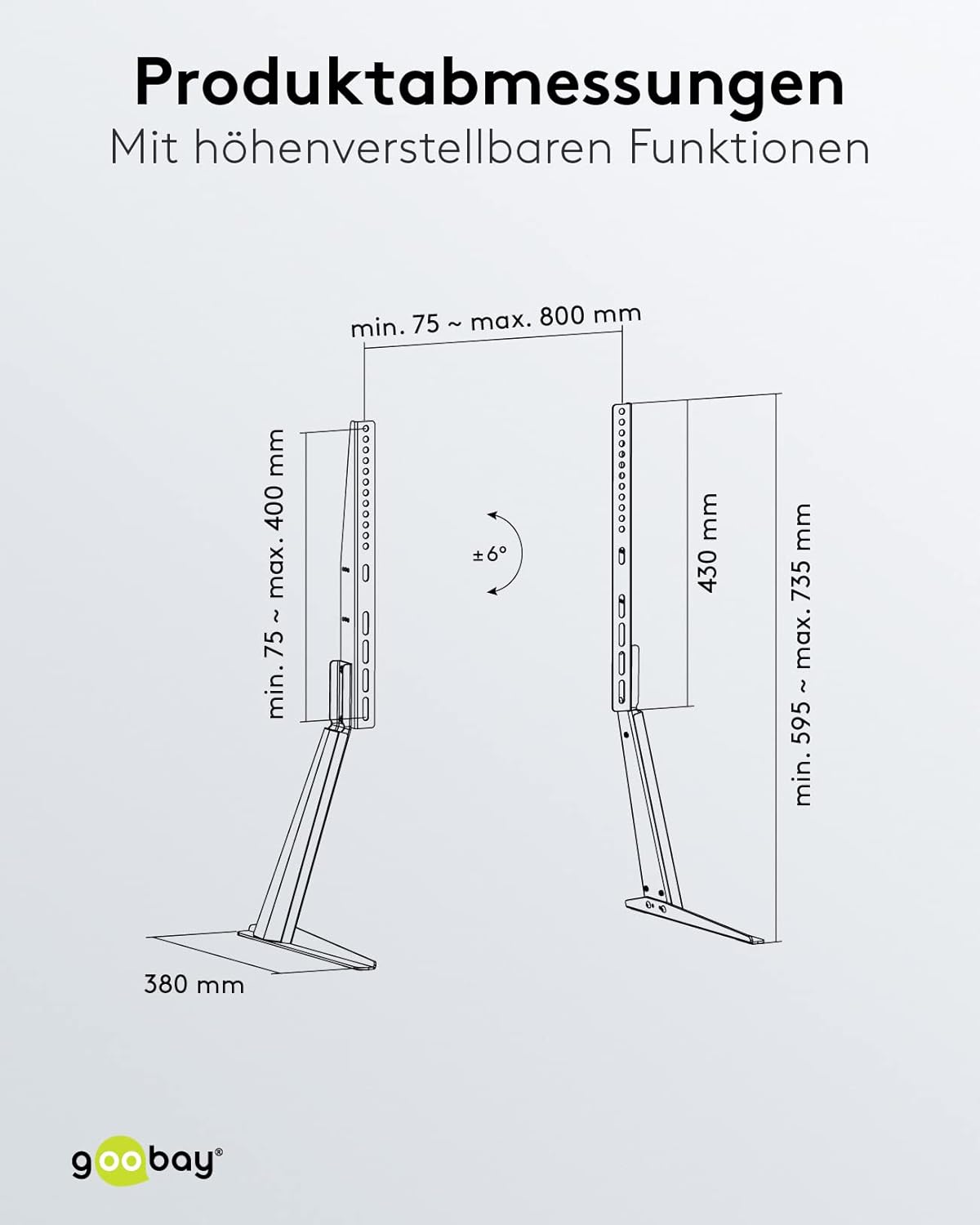
Afbeelding: Product dimensions and adjustable features, including the tilt angle of ±6 degrees and height range.
5.2 De kantelhoek aanpassen
The stand allows for a tilt angle of up to 6 degrees. To adjust the tilt:
- Locate the tilt adjustment mechanism on the mounting brackets.
- Loosen the tilt locking screws (if present).
- Gently tilt the TV to the desired angle (up to 6 degrees).
- Tighten the tilt locking screws to secure the TV in position.
5.3 Kabelbeheer
The goobay 58525 TV Stand includes an integrated cable management system to keep your cables organized and protected.
- Gather all TV and device cables.
- Route the cables through the designated cable channels or clips on the back of the stand's vertical columns.
- Use the included bezel or cover to discreetly hide the cables within the stand's structure.

Afbeelding: The goobay 58525 TV Stand showcasing its integrated cable management system, with cables neatly routed through the stand.

Afbeelding: Een close-up view demonstrating how to route cables through the integrated cable management system of the goobay 58525 TV Stand.
6. Onderhoud
- Schoonmaak: Gebruik een zachte, droge doek om de standaard af te vegen. Voor hardnekkige vlekken kunt u een iets drogere doek gebruiken.amp Gebruik eventueel een doek met milde zeep, gevolgd door drogen. Vermijd schurende reinigingsmiddelen of oplosmiddelen.
- Inspectie: Controleer regelmatig alle schroeven en verbindingen om er zeker van te zijn dat ze nog goed vastzitten. Draai ze indien nodig opnieuw vast.
- Gewichtslimiet: Do not place items exceeding the 50 kg weight limit on the stand or attach TVs larger than 70 inches.
7. Probleemoplossing
| Probleem | Mogelijke oorzaak | Oplossing |
|---|---|---|
| De standaard is wankel of instabiel. | Screws are loose; stand is on an uneven surface; TV weight exceeds limit. | Check and tighten all assembly screws. Move the stand to a level surface. Verify TV weight is within 50 kg limit. |
| TV cannot be tilted. | Tilt locking screws are too tight. | Loosen the tilt locking screws, adjust the angle, then re-tighten. |
| TV cannot be adjusted for height. | Safety screws are engaged; TV is too heavy to lift easily. | Ensure safety screws are disengaged. Seek assistance to lift the TV for adjustment. |
| Scratches on furniture. | Foam foot pads not installed or dislodged. | Ensure foam foot pads are correctly attached to the bottom of the base feet. |
8. Specificaties
| Functie | Detail |
|---|---|
| Modelnummer | 58525 |
| Merk | Goobay |
| Materiaal | Staal (gepoedercoat) |
| Kleur | Zwart |
| Compatibele schermformaten | 32 - 70 inch (81 - 178 cm) |
| Maximale laadcapaciteit | 50 kg (110 lbs) |
| VESA-compatibiliteit | 75x75, 100x100, 100x150, 100x200, 150x100, 150x150, 200x100, 200x200, 300x200, 300x300, 400x200, 400x300, 400x400, 600x400, 800x400 mm |
| Kantelhoek | Tot 6 graden |
| Hoogteverstelling | 3 levels (min. 595 mm - max. 735 mm) |
| Diepte | 380mm |
| Geïntegreerde functies | Cable management system, foam foot pads |

Afbeelding: Een overview of the goobay 58525 TV Stand's benefits, including foot pads for furniture protection, integrated cable management, and easy assembly with VESA standards.
9. Garantie en ondersteuning
Voor garantie-informatie en klantenondersteuning kunt u de documentatie bij uw aankoop raadplegen of contact opnemen met uw verkoper. Bewaar uw aankoopbewijs voor eventuele garantieclaims.
For further assistance or technical inquiries, please visit the official goobay website of neem contact op met de klantenservice.