
1. Inleiding
This manual provides instructions for the Gamrombo 2.4GHz Wireless Controller, designed for use with Xbox 360, Xbox 360 Slim consoles, and Windows 7/8/10/11 personal computers. Please read this manual thoroughly before using the product to ensure proper operation and to prevent damage.

Image 1.1: Gamrombo Wireless Controller for Xbox 360 and PC. This image displays the front view of the black wireless controller, highlighting its buttons and ergonomic shape.
2. Inhoud van het pakket
Controleer de inhoud van het pakket bij het uitpakken:
- 1 x Gamrombo Wireless Controller
- 1 x 2.4 GHz USB-ontvanger
- 1 x Gebruiksaanwijzing
- Note: AA batteries are required for controller operation and are not included.
3. Producteigenschappen
- Compatibiliteit met meerdere platforms: Compatible with Xbox 360, Xbox 360 Slim consoles, and Windows 7/8/10/11 PCs. (Note: Not compatible with Xbox One, Xbox One X, Xbox One S, or Xbox Series X consoles.)
- 2.4GHz draadloze technologie: Provides a stable connection up to 32 feet (approximately 10 meters). Supports up to four controllers simultaneously on one console.
- Trillingsfeedback: Built-in dual motors offer a realistic gaming experience through vibration effects.
- Ergonomisch ontwerp: Streamlined and compact design for comfortable extended gameplay sessions.
- Hoge gevoeligheid: Enhanced responsiveness to minimize input lag, providing accurate and sensitive control.
- Nauwkeurige bediening: Features an 8-way D-pad, precise thumbsticks, and pressure-point triggers for accurate input.

Image 3.1: Controller with internal dual motors. This image illustrates the controller with a transparent overlay highlighting the location of the dual vibration motors inside the grips.

Afbeelding 3.2: Zijkant view of the controller demonstrating its ergonomic shape. The image shows the contoured grips designed for comfortable handling.
4. Installatie en verbinding
Follow these steps to connect your Gamrombo Wireless Controller to your Xbox 360 console or PC:
- Batterijen plaatsen: Open the battery compartment on the back of the controller and insert two (2) AA batteries, ensuring correct polarity.
- USB-ontvanger aansluiten: Insert the 2.4GHz USB receiver into an available USB port on your Xbox 360 console or PC.
- Receiver Identification: After the USB receiver is inserted, its indicator light will turn on, signifying successful identification. Short press the button on the USB receiver; the indicator light will flash, entering pairing mode.
- Controller-koppeling: With the controller powered off, long press the "Home" button (the central Xbox Guide button) on the wireless controller for 3 seconds. The four LED lights around the Guide button will flash rapidly, indicating the controller is in pairing mode.
- Verbindingsbevestiging: Once the connection is successful, the corresponding channel light on the controller will remain solid, and the receiver's indicator light will also remain solid.

Image 4.1: Connection steps for the wireless controller. This image illustrates the process of inserting the USB dongle into an Xbox 360 or PC and then pairing the controller by pressing the Home button.
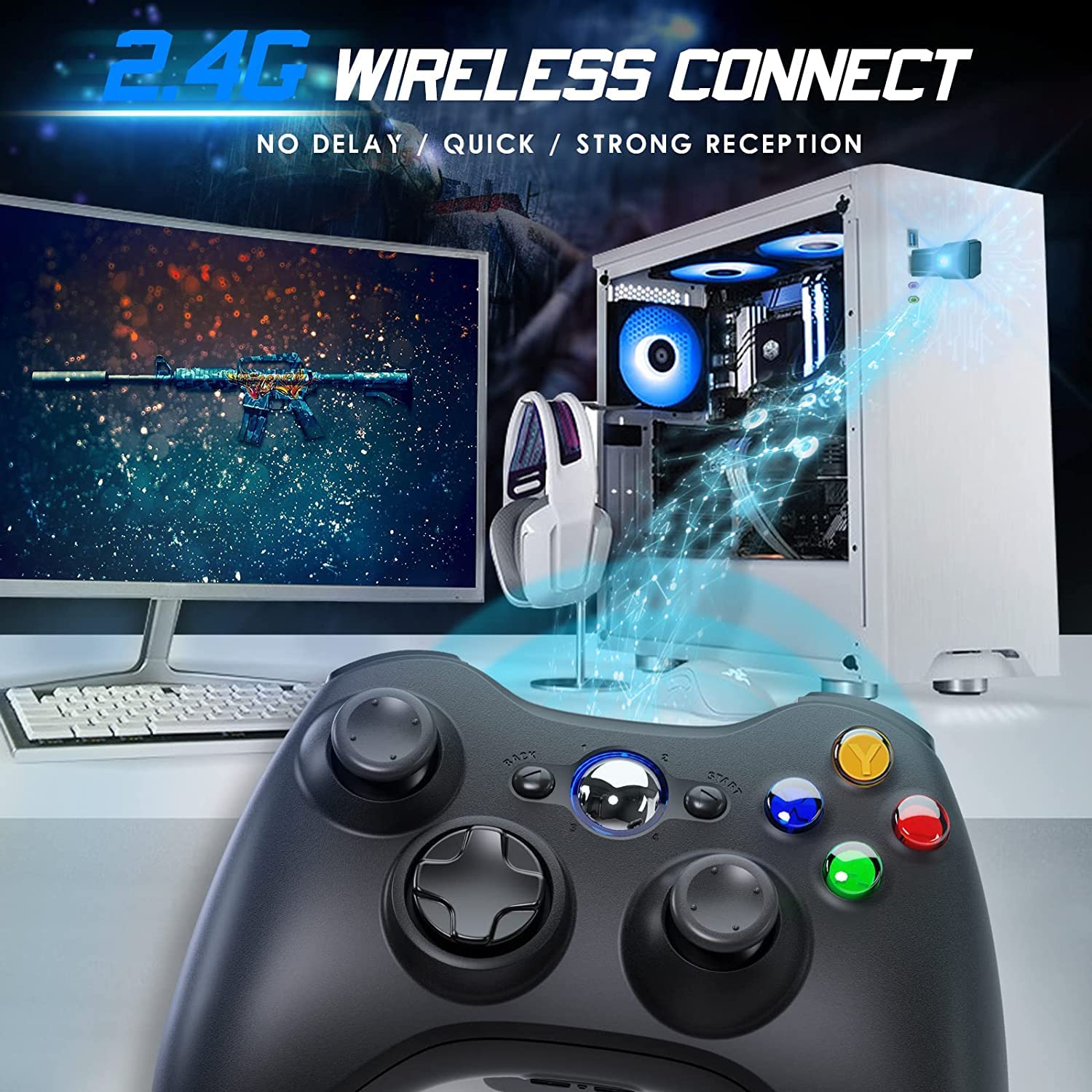
Image 4.2: Wireless controller in use with a PC. This image shows the controller on a desk in front of a computer monitor, with a visual representation of the 2.4GHz wireless connection.
5. Gebruiksaanwijzing
- Aan/uit: Press and hold the "Home" button for 3 seconds to power on or power off the controller.
- Gidsknop: The central "Home" button (Guide button) allows access to the Xbox Guide on Xbox 360, or specific game menus on PC, depending on the game and system configuration. It can also be used to power on or off the console.
- Multiple Controllers: Up to four wireless controllers can be connected to a single console or PC simultaneously. Each controller will be assigned a quadrant light around the Guide button (1, 2, 3, or 4) to indicate its player number.
- Batterij-indicator: The controller's LED lights may flash to indicate low battery power. Replace batteries when this occurs.
6. Onderhoud
- Schoonmaak: Gebruik een zachte, droge doek om de controller schoon te maken. Gebruik geen vloeibare reinigingsmiddelen of oplosmiddelen.
- Opslag: Store the controller in a dry place away from extreme temperatures and direct sunlight. If storing for an extended period, remove the batteries to prevent leakage.
- Vermijd druppels: Bescherm de controller tegen vallen en stoten, aangezien deze interne componenten kunnen beschadigen.
7. Probleemoplossing
- Controller maakt geen verbinding:
- Ensure the USB receiver is securely plugged into the console or PC.
- Verify that the controller has fresh AA batteries installed correctly.
- Repeat the pairing process (Section 4, steps 3 and 4).
- Probeer de USB-ontvanger op een andere USB-poort aan te sluiten.
- If using with PC, ensure necessary drivers are installed (Windows typically installs these automatically).
- Knoppen of joysticks reageren niet:
- Controleer het batterijniveau en vervang de batterijen indien nodig.
- Ensure the controller is within the 32-foot wireless range of the receiver.
- Restart the console/PC and re-pair the controller.
- Trilling werkt niet:
- Zorg ervoor dat het spel trilfeedback ondersteunt.
- Controleer de spelinstellingen om er zeker van te zijn dat trillen is ingeschakeld.
- Controleer het batterijniveau.
8. Specificaties
| Modelnummer | XBOX 360 |
| Merk | Gambrombo |
| Connectiviteit | 2.4GHz Wireless |
| Wireless Range | Tot 32 voet (ongeveer 10 meter) |
| Verenigbaarheid | Xbox 360, Xbox 360 Slim, Windows 7/8/10/11 |
| Energiebron | 2 x AA-batterijen (niet inbegrepen) |
| Productafmetingen | 6.1 x 4.4 x 2.4 inch |
| Artikelgewicht | 9.6 ons |
9. Veiligheidsinformatie
- Probeer de controller niet te demonteren of aan te passen.
- Houd de controller uit de buurt van water en andere vloeistoffen.
- Avoid exposing the controller to extreme heat or cold.
- Gooi batterijen weg volgens de plaatselijke voorschriften.
- Als het product beschadigd is, stop dan onmiddellijk met het gebruik.
10. Garantie en ondersteuning
For warranty information or technical support, please refer to the documentation included with your purchase or contact Gamrombo customer service directly. Contact details are typically available on the manufacturer's official webplaats.