
1. Inleiding
Bedankt voor uw aankoopasing the VANKYO CM7000 Gaming Headset. This manual provides detailed instructions for setting up, operating, and maintaining your headset to ensure an optimal gaming and audio experience. The CM7000 features 7.1ch virtual surround sound, a 50mm driver for powerful audio, and a noise-cancelling microphone for clear communication.

Image: VANKYO CM7000 Gaming Headset highlighting 7.1ch surround sound capabilities.
2. Producteigenschappen
- Immersive 7.1ch Virtual Surround Sound: Experience a 360° sound field, allowing you to pinpoint in-game sounds like explosions, character voices, gunshots, and enemy footsteps with excellent positional accuracy.
- Powerful 50mm Neodymium Drivers: Delivers clear high-to-mid range frequencies and powerful deep bass, enhancing your PC gaming experience. Ideal for various game genres including MOBA, FPS, and RPG.
- Optimized Noise-Cancelling Microphone: Reduces background noise for clear voice commands and smooth communication with teammates. Features an inline mute control for convenience.
- Comfortabel ergonomisch ontwerp: Equipped with a buffered double headband and oval protein leather earmuffs for reduced pressure and comfortable wear during extended gaming sessions. The materials are skin-friendly and breathable.
- Brede compatibiliteit: Connects via a 3.5mm 4-pole port, compatible with PS4, Xbox One (adapter required), PC, laptops, Nintendo Switch, PSP, tablets, iPads, iPhones, Macs, and smartphones. Supports Windows 8 and Windows 10.

Afbeelding: Gedetailleerd view of the 50mm powerful neodymium magnet driver.

Image: Illustration of the comfortable fit with double headband and soft earmuffs.
3. Instellen
3.1 De headset aansluiten
The VANKYO CM7000 Gaming Headset connects via a 3.5mm 4-pole jack. It also includes a 3-pole adapter cable for devices that separate headphone and microphone inputs.
- Voor pc/laptop: Connect the 3.5mm jack directly to your device's combined audio port. If your PC has separate ports for audio and microphone, use the included 3-pole adapter cable. For optimal performance and to prevent electromagnetic interference, connect the headset to a USB socket on the back of your computer.
- Voor PS4: Plug the 3.5mm jack into the controller's audio port.
- Voor Xbox One: A conversion adapter (not included) is required for use with Xbox One consoles. Plug the 3.5mm jack into the adapter, then connect the adapter to your controller.
- For Nintendo Switch/PSP/Tablets/Smartphones: Sluit de 3.5 mm-jackkabel rechtstreeks aan op de audio-aansluiting van het apparaat.

Image: Diagram illustrating the wide compatibility of the headset with various gaming platforms and devices.
3.2 Video Guide: Setup and Features
Video: This video demonstrates the VANKYO CM7000 Gaming Headset's features, including its 7.1ch surround sound, 50mm drivers, comfortable design, and compatibility with various devices like PC, PS4, Xbox One, Switch, and smartphones. It also shows the inline controls for volume, mute, and LED.
4. Gebruiksaanwijzing
4.1 Volumeregeling
The headset features multiple ways to adjust volume:
- Inline-bediening: Use the volume up (+) and volume down (-) buttons on the 7.1 adapter to adjust the main audio volume.
- Headset Volume Wheel: A dedicated volume wheel is located on the headset earcup for quick adjustments.
- Apparaatvolume: Adjust the volume settings directly on your connected device (PC, console, smartphone).
4.2 Microfoonbediening
The microphone can be controlled via the inline remote and a button on the headset:
- Inline Mute Button: Press the microphone button on the 7.1 adapter to toggle microphone ON/OFF. The indicator light will illuminate when ON.
- Headset Mute Button: A physical mute button is located on the headset body. When pressed down, the microphone is muted (OFF). When protruding upwards, the microphone is active (ON).
4.3 7.1 Surround Sound and LED Control
- 7.1 Surround-geluid: Use the '7.1' button on the inline adapter to toggle the virtual 7.1 surround sound feature ON/OFF.
- LED-verlichting: Use the light bulb button on the inline adapter to turn the headset's LED lighting ON/OFF.
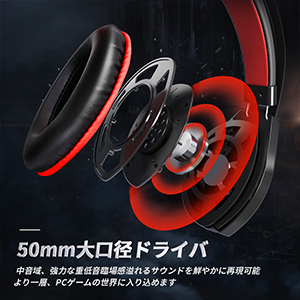
Image: The 7.1ch surround sound USB adapter, showing controls for volume, 7.1 sound, LED, and microphone mute.

Image: Close-up of the headset earcup, indicating the volume adjustment wheel and the physical mute button.
5. Onderhoud
To ensure the longevity and optimal performance of your VANKYO CM7000 Gaming Headset, follow these maintenance guidelines:
- Schoonmaak: Gebruik een zachte, droge doek om de oorschelpen en hoofdband schoon te vegen. Vermijd het gebruik van agressieve chemicaliën of schurende materialen.
- Opslag: Bewaar de headset op een koele, droge plaats, uit de buurt van direct zonlicht en extreme temperaturen.
- Kabelonderhoud: Avoid sharply bending or twisting the cable. Do not pull the cable to disconnect the headset; always grasp the plug.
- Connectorverzorging: Periodically check and clean the 3.5mm and USB connectors to ensure a good connection.
6. Probleemoplossing
If you encounter any issues with your VANKYO CM7000 Gaming Headset, please refer to the following common solutions:
Q: Can I voice chat on Nintendo Switch?
A: The Nintendo Switch does not inherently have a function to pick up voice directly through the headset for in-game voice chat. If you want to voice chat while playing games on Switch, we recommend using the official Nintendo smartphone app called 'Nintendo Switch Online'.
Q: The sound is too low and hard to hear.
A: Please adjust the volume using the volume control button on the headset itself, the volume control button on the 7.1 adapter, and the volume on the device you are using. Adjust all three until you reach an appropriate volume level.
Q: No sound from the headset.
A:
- Please check if the USB terminal is properly connected. Ensure the headset and device's USB terminals are not pulled from the outside. Also, check the condition of the USB terminal and try cleaning it.
- Adjust to an appropriate volume as described above.
- On your computer, right-click the system sound icon in the bottom right corner, then select [Sound] - [Output] - [USB PnP Audio Device].
Q: The microphone is not working.
A:
- First, check if the microphone is in the ON state. Turn OFF the mute button on the headset body. If this button is pressed down, mute is ON, and the microphone cannot be used. If it protrudes upwards, mute is OFF, and the microphone is ON.
- Also, turn ON the microphone button on the 7.1 adapter (when this button is ON, the indicator light on the button will illuminate simultaneously).
- If the microphone is already ON, please check if the headset's audio cable is securely plugged into the USB adapter.
Q: If noise occurs in the headset.
A:
- To prevent electromagnetic interference from the computer, connect the headset to a USB socket on the back of the computer.
- To prevent noise, go to your computer's sound settings, set the microphone properties to 'Listen to this device' OFF, and simultaneously select 'Noise Suppression'.
- There may be a poor connection with the USB terminal. Please check the condition of the USB terminal and try cleaning it.
Q: If there is a delay in microphone input.
A: You can resolve microphone delay issues through your computer's settings. Steps: Right-click the system sound icon in the bottom right corner, select [Playback devices] - [Playback] - [Speakers] - [Properties] - [Levels], find the port used by the microphone, and adjust the level to maximum.
7. Specificaties
| Functie | Specificatie |
|---|---|
| Merk | VANKYO |
| Modelnaam | CM7000 |
| Kleur | Rood |
| Hoofdtelefoontype | Over-ear |
| Koptelefoonaansluiting | 3.5 mm-aansluiting |
| Connectiviteit | Bedraad |
| Speciale functie | Microphone Included, Detachable Cable |
| GTIN / UPC | 810086431694 |
8. Garantie en ondersteuning
8.1 Garantie-informatie
The VANKYO CM7000 Gaming Headset comes with a 2 jaar gratis garantie vanaf de aankoopdatum.
8.2 Klantenservice
If you encounter any damages, malfunctions, or missing accessories, please do not hesitate to contact our customer support. We are committed to providing the best possible customer service.