
1. Inleiding
This manual provides detailed instructions for the installation, operation, and maintenance of your new ATA 43 Inch Full HD LED Smart TV, Model 43S1. Please read this manual thoroughly before using the television to ensure proper functionality and to maximize your viewervaring. Bewaar deze handleiding voor toekomstig gebruik.
2. Belangrijke veiligheidsinformatie
- Energiebron: Zorg ervoor dat de tv is aangesloten op een stroomvoorziening binnen het aangegeven bereik.tage bereik.
- Ventilatie: Blokkeer de ventilatieopeningen niet. Zorg voor voldoende ruimte rondom de tv voor een goede luchtcirculatie.
- Water en vocht: Stel de tv niet bloot aan regen of vocht. Plaats geen voorwerpen gevuld met vloeistof, zoals vazen, op de tv.
- Schoonmaak: Haal de stekker van de tv uit het stopcontact voordat u hem schoonmaakt. Gebruik een zachte, droge doek. Gebruik geen vloeibare reinigingsmiddelen of spuitbussen.
- Plaatsing: Plaats de tv op een stabiele, vlakke ondergrond. Vermijd direct zonlicht of warmtebronnen.
- Onderhoud: Probeer dit product niet zelf te onderhouden. Laat al het onderhoud over aan gekwalificeerd onderhoudspersoneel.
3. Inhoud van het pakket
Vink het vakje aan voor de volgende items:
- ATA 43 Inch Full HD LED Smart TV (Model 43S1)
- Afstandsbediening
- TV-standaard (2 stuks)
- Stroomkabel
- Gebruikershandleiding (dit document)
- Schroeven voor tv-standaard
4. Product voorbijview
4.1. Voorzijde View
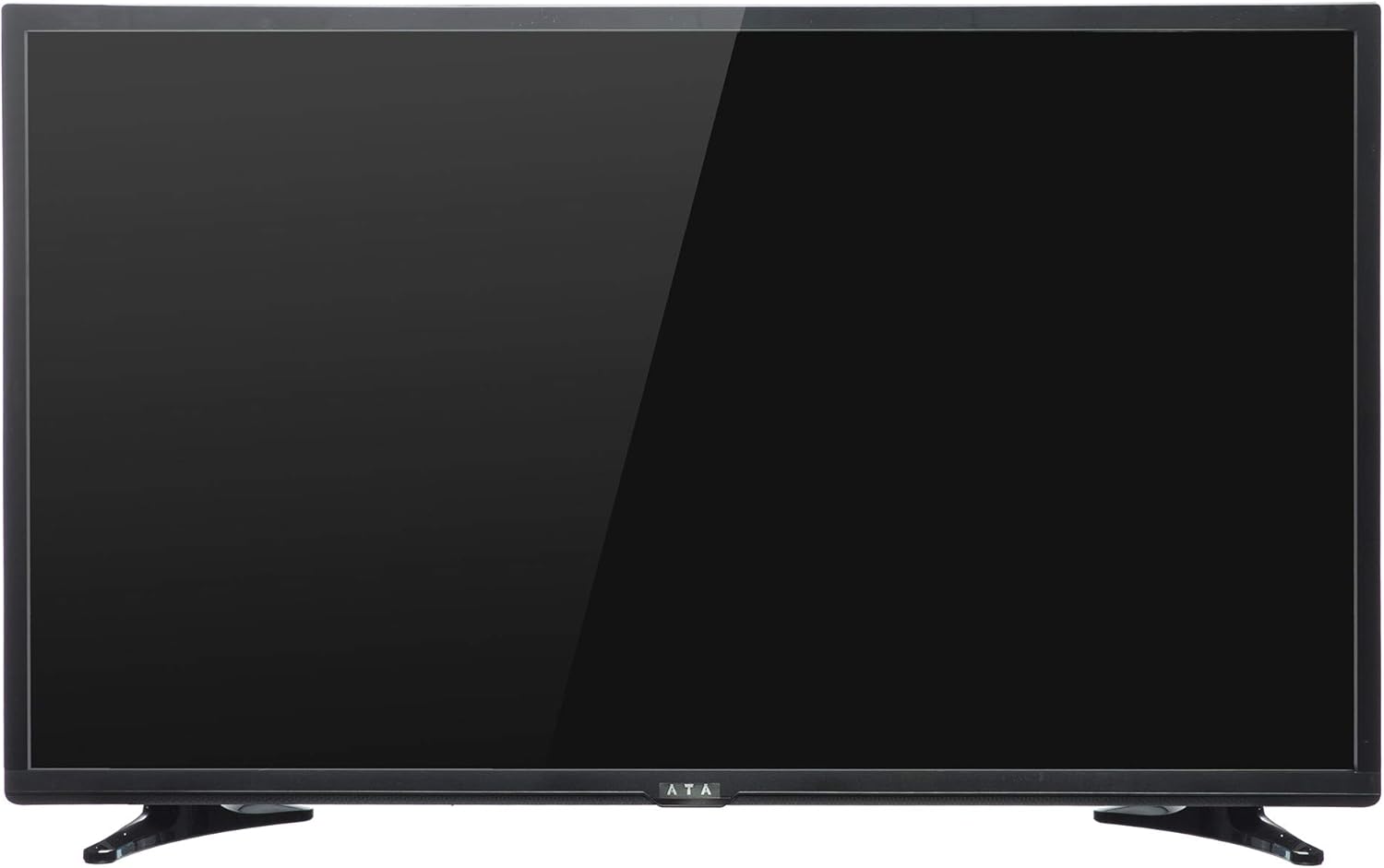
Afbeelding 1: Voorkant view of the ATA 43 Inch Smart TV. The screen is black, indicating it is powered off or in standby mode. The ATA logo is visible at the bottom center.
The front of the ATA 43S1 TV features a sleek design with a narrow bezel, maximizing the screen area. The ATA brand logo is centrally located at the bottom of the frame. An indicator light (not visible in image) and IR receiver for the remote control are typically located near the logo.
4.2. Achterkant View

Afbeelding 2: Achterkant view of the ATA 43 Inch Smart TV. This image displays the back panel, including VESA mounting holes for wall installation and designated areas for input/output ports.
The rear panel of the TV includes VESA mounting points for wall installation (wall mount bracket sold separately). Various input and output ports are located on the side and bottom sections of the back panel for easy access.
4.3. Invoer-/uitvoerpoorten
Your ATA Smart TV is equipped with a variety of ports to connect external devices.

Image 3: Close-up of the side-facing ports, showing three HDMI ports (HDMI1, HDMI2, HDMI3) and two USB ports (USB2.0, USB2.0).
- HDMI-poorten (x3): For connecting high-definition devices such as Blu-ray players, gaming consoles, and set-top boxes.
- USB-poorten (x2): Voor het aansluiten van USB-opslagapparaten om media af te spelen files of voor software-updates.

Image 4: Close-up of the bottom-facing ports, including Earphone, RJ45 (Ethernet), PC Audio, PC(VGA), Mini YPbPr, Video, L/R Audio (AV In), and Coaxial.
- RJ45 (Ethernet)-poort: Voor een bekabelde internetverbinding.
- PC(VGA) Port: Voor het aansluiten van een computer.
- PC-audio-ingang: Audio-ingang voor VGA-aansluiting.
- AV In (Video, L/R Audio): Voor het aansluiten van oudere apparaten met composiet video- en stereo-audio-uitgangen.
- Mini-YPbPr: Componentvideo-ingang.
- coaxiaal: Voor het aansluiten van een antenne of kabeltelevisie.
- Koptelefoon aansluiting: Voor het aansluiten van een hoofdtelefoon.
4.4. Afstandsbediening

Image 5: The remote control for the ATA Smart TV. It features standard TV controls, navigation buttons, and dedicated function keys.
The remote control allows you to operate all functions of your TV. It includes buttons for power, input source selection, volume control, channel navigation, menu access, smart TV functions, and media playback controls.
- STANDBY (Rode knop): Inschakelen / uitschakelen.
- BRON: Select input source (HDMI, AV, TV, etc.).
- Cijfertoetsen (0-9): Directe kanaalselectie.
- VOL +/-: Volume aanpassen.
- CH +/-: Verander kanalen.
- DEMPEN: Geluid dempen/dempen opheffen.
- MENU: Toegang tot het hoofdmenu.
- BINNENKOMEN: Selectie bevestigen.
- Navigatieknoppen (omhoog/omlaag/links/rechts): Navigeer door menu's.
- UITGANG: Het huidige menu of de huidige functie verlaten.
- HUIS: Open het startscherm van de Smart TV.
- P.MODE / S.MODE: Picture Mode / Sound Mode.
- SUBTITLE / AUDIO / REFRESH: Specific function buttons.
- PLAY/PAUSE, STOP, FF, FB, PREV, NEXT: Bedieningselementen voor het afspelen van media.
5. Instellen
5.1. De tv-standaard bevestigen
- Leg de tv voorzichtig met het scherm naar beneden op een zachte, schone ondergrond om schade aan het scherm te voorkomen.
- Lijn de standaardstukken uit met de overeenkomstige sleuven aan de onderkant van de tv.
- Bevestig de onderdelen van de standaard met de meegeleverde schroeven. Zorg ervoor dat ze stevig vastgedraaid zijn.
- Til de tv voorzichtig op en plaats deze op een stabiele, vlakke ondergrond.
Alternatively, you can use a VESA-compatible wall mount (not included) to mount the TV on a wall. Refer to the wall mount's instructions for installation.
5.2. Stroom aansluiten
Connect the power cord to the TV's power input and then plug the other end into a wall outlet. The TV will enter standby mode.
5.3. Wizard voor eerste installatie
The first time you power on the TV, an initial setup wizard will guide you through basic settings.
- Druk op de STANDBY knop op de afstandsbediening om de tv in te schakelen.
- Follow the on-screen prompts to select your preferred language, country/region, and time zone.
- Netwerkverbinding:
- Wifi: Selecteer uw Wi-Fi-netwerk uit de lijst en voer het wachtwoord in.
- Ethernet: If you connected an Ethernet cable to the RJ45 port, the TV should automatically detect the wired connection.
- Complete any remaining steps in the setup wizard, such as channel scanning (if connecting an antenna/cable).
6. Gebruiksaanwijzing
6.1. Aan/uit
- To turn on the TV from standby, press the STANDBY knop op de afstandsbediening.
- Om de tv in de stand-bymodus te zetten, drukt u op de STANDBY knop opnieuw.
6.2. Selectie ingangsbron
To switch between connected devices (e.g., HDMI, AV, TV tuner):
- Druk op de BRON knop op de afstandsbediening.
- Use the Navigation buttons (Omhoog/Omlaag) to highlight the desired input source.
- Pers BINNENKOMEN om uw selectie te bevestigen.
6.3. Volume- en kanaalregeling
- Pers VOL+ om het volume te vergroten, VOL - volume te verlagen.
- Pers CH+ om naar het volgende kanaal te gaan, CH - om naar het vorige kanaal te gaan.
- Use the Number buttons to directly enter a channel number.
- Pers MUTE to temporarily turn off the sound. Press again to restore.
6.4. Smart TV-functies (Android 4.4.2)
Your TV runs on Android 4.4.2, providing access to various smart features and applications.
- Druk op de THUIS button on the remote to access the Smart TV home screen.
- From the home screen, you can navigate to pre-installed applications or access settings.
- Ensure your TV is connected to the internet via Wi-Fi or Ethernet to utilize online features.
- Use the Navigation buttons and BINNENKOMEN to select and launch applications.
7. Onderhoud
- Het scherm schoonmaken: Veeg het scherm voorzichtig af met een zachte, pluisvrije doek. Voor hardnekkige vlekken, lichtjes afnemen.ampReinig de doek met water of een speciale schermreiniger (niet rechtstreeks op het scherm spuiten).
- De kast schoonmaken: Gebruik een zachte, droge doek om de tv-kast schoon te maken. Gebruik geen schuurmiddelen of oplosmiddelen.
- Afstoffen: Regularly dust the ventilation openings on the back of the TV to prevent overheating.
- Stroomkabel: Periodically check the power cord for any damage. If damaged, contact service personnel for replacement.
8. Probleemoplossing
| Probleem | Mogelijke oorzaak | Oplossing |
|---|---|---|
| Geen stroom | Stroomkabel niet aangesloten. Stopcontact werkt niet. | Zorg ervoor dat het netsnoer goed is aangesloten. Test het stopcontact met een ander apparaat. |
| Geen beeld, maar wel geluid | Verkeerde invoerbron geselecteerd; Probleem met achtergrondverlichting. | Druk op de BRON button to select the correct input. Check picture settings. |
| Geen geluid, maar wel beeld | Volume is muted or too low; Audio cables not connected properly. | Pers MUTE Of verhoog het volume. Controleer de audiokabelaansluitingen. |
| Afstandsbediening werkt niet | Batterijen zijn leeg of niet goed geplaatst. Er zit een obstakel tussen de afstandsbediening en de tv. | Replace batteries. Ensure line of sight to the TV's IR receiver. |
| Kan geen verbinding maken met wifi | Onjuist wachtwoord; Routerprobleem; TV te ver van router. | Verify Wi-Fi password. Restart router. Move TV closer or use Ethernet. |
9. Specificaties
| Functie | Detail |
|---|---|
| Merk | ATA |
| Modelnummer | 43S1 (ATA43FOS) |
| Schermgrootte | 43 inch |
| Weergavetype | LED FHD |
| Oplossing | 1920 x 1080 (volledig HD) |
| Vernieuwingsfrequentie | 60Hz |
| Besturingssysteem | Androïde 4.4.2 |
| Connectiviteitstechnologie | HDMI (x3), USB (x2), VGA, Ethernet (RJ45) |
| Speciale kenmerken | Smart TV functionality, Flat Screen |
| Productafmetingen (D x B x H) | 9x96.5x56cm |
| Artikelgewicht | 6.01 kg |
| Meegeleverde componenten | TV, standaard |
10. Garantie en ondersteuning
For warranty information, please refer to the warranty card included with your product or contact your local ATA authorized dealer or service center. Keep your purchase receipt as proof of purchase for warranty claims.
For technical support or service inquiries, please contact ATA customer service through their official webwebsite of de contactgegevens die u in de productdocumentatie vindt.