
1. Inleiding
This manual provides essential information for the safe and efficient operation of your iFFALCON 32F2A 32-inch HD Ready Android Smart LED TV. Please read these instructions thoroughly before using the television and retain them for future reference.
The iFFALCON 32F2A is an 80 cm (32 inches) HD Ready Android Smart LED TV designed to offer a comprehensive entertainment experience. It features a 720p resolution display, integrated Android operating system, and smart functionalities like Google Assistant and Chromecast built-in.
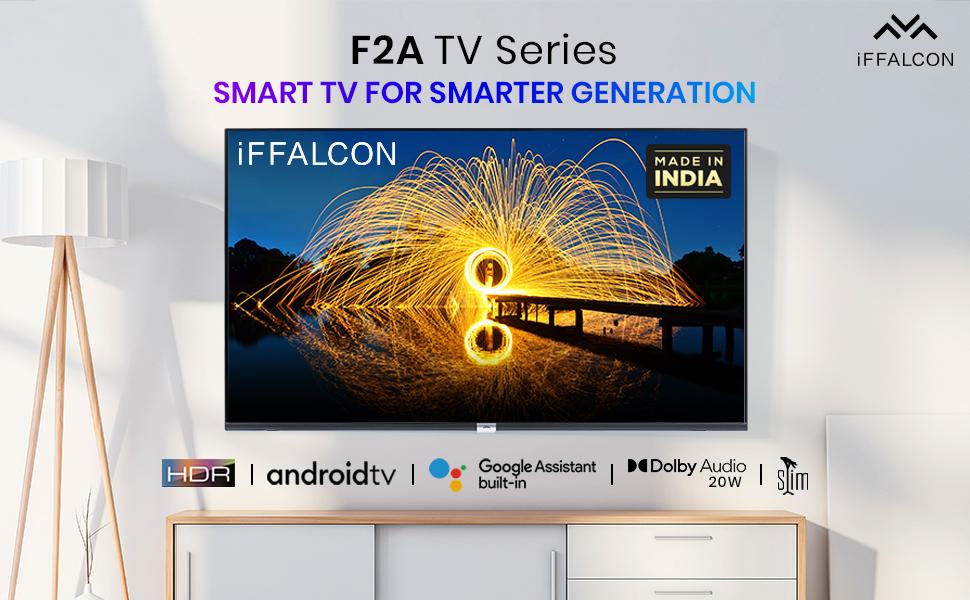
Afbeelding 1.1: Voorkant view of the iFFALCON 32F2A Smart LED TV displaying the Android TV interface, alongside icons representing key features such as HDR, Android TV, Google Assistant, Micro Dimming, IPQ Engine, Chromecast built-in, AI, and Dolby Audio with 20W speakers.
2. Wat zit er in de doos?
Verify that all components are present and undamaged upon unpacking your new television.
- 1 x iFFALCON 32F2A LED TV
- 1 x tafelstandaard
- 1 x Gebruikershandleiding
- 1 x Garantiekaart
- 1 x Afstandsbediening
- 2 x AAA-batterijen (voor afstandsbediening)
3. Instellen
3.1 Uitpakken en plaatsen
Carefully remove the TV from its packaging. It is recommended to have two people for this process. Place the TV on a stable, flat surface or mount it securely on a wall.
3.2 Attaching the Table Top Stand
- Leg de tv met het scherm naar beneden op een zachte, schone ondergrond om krassen te voorkomen.
- Lijn de voetjes van de standaard uit met de bijbehorende gleuven aan de onderkant van de tv.
- Secure the stand bases using the provided screws. Ensure they are tightened firmly.
3.3 Wandmontage (optioneel)
If you choose to wall mount your TV, please note that the wall mount bracket is not included and must be purchased separately. Follow the instructions provided with your wall mount kit and ensure professional installation for safety.
3.4 Externe apparaten aansluiten
Your iFFALCON 32F2A TV offers various connectivity options:
- HDMI-poorten: Sluit Blu-ray-spelers, spelconsoles of settopboxen aan.
- USB-poort: Sluit USB-opslagapparaten aan om media af te spelen.
- Ethernet-poort: Voor een bekabelde internetverbinding.
- Koptelefoon aansluiting: Voor privéluisteren.
3.5 Stroomaansluiting
Connect the power cord to the TV's power input and then to a suitable AC power outlet (240 Volts, 50 Watts). Ensure the power cable is securely connected.
3.6 Eerste keer inschakelen en installatiewizard
After connecting power, press the power button on the TV or remote control. The TV will guide you through the initial setup wizard, including language selection, network connection (Wi-Fi or Ethernet), Google account sign-in, and channel scanning.

Image 3.1: A diagram illustrating the physical dimensions of the iFFALCON 32F2A TV, including screen size (32 inches / 79.97 cm diagonal), width (73.20 cm / 29 inch), height (48.20 cm / 19 inch), and depth (17.30 cm / 6.9 inch).
4. Gebruiksaanwijzing
4.1 afstandsbediening
The provided remote control allows you to navigate the TV's interface and access various functions. Insert the two AAA batteries (included) into the remote control, ensuring correct polarity.
- Aan/uit-knop: Hiermee zet u de televisie aan of uit.
- Navigatie knoppen: Gebruik de richtingsknoppen en de OK-knop om door de menu's te navigeren.
- Inhoud +/-: Past het volumeniveau aan.
- Kanaal +/-: Verandert van tv-kanaal.
- Thuis knop: Keert terug naar het startscherm van Android TV.
- Terugknop: Keert terug naar het vorige scherm.
- Google Assistent-knop: Activeert spraakbesturing.
- Netflix-knop: Directe toegang tot Netflix.
- Amazon Prime Video-knop: Direct access to Amazon Prime Video.
- Zee5 Button: Direct access to Zee5.
- TCL Channel Button: Direct access to TCL channel.

Image 4.1: The smart remote control for the iFFALCON TV, highlighting the Google Assistant button and a dedicated hotkey for Netflix for quick access.
4.2 Android TV-interface
Your TV runs on Android 9, providing access to a wide range of apps and services. The home screen displays recommended content, installed applications, and input sources.
- Toepassingen: Access pre-installed applications like Netflix, YouTube, Prime Video, Disney+Hotstar, Sun NXT, and Zee5. Download more from the Google Play Store.
- Ingangen: Switch between HDMI inputs, USB, and other connected devices.
- Instellingen: Customize TV settings such as picture, sound, network, and system preferences.

Image 4.2: The iFFALCON Smart LED TV showcasing its Android TV home screen, featuring prominent app icons for Netflix, YouTube, Prime Video, and other streaming services.

Image 4.3: The iFFALCON Smart LED TV interface, illustrating the availability of popular streaming platforms such as YouTube, Prime Video, Disney+ Hotstar, SonyLIV, Zee5, ALTBalaji, Voot Select, and Eros Now.
4.3 Google Assistent
The built-in Google Assistant allows you to control your TV and smart home devices using voice commands. Press the Google Assistant button on your remote and speak into the microphone.
- Zoekinhoud: Say "Play a cartoon movie" or "Zoeken naar action films."
- Control TV: Say "Turn up the volume" or "Switch to HDMI 1."
- Get Information: Ask "What's the weather today?" or "How long is Moonlight?"
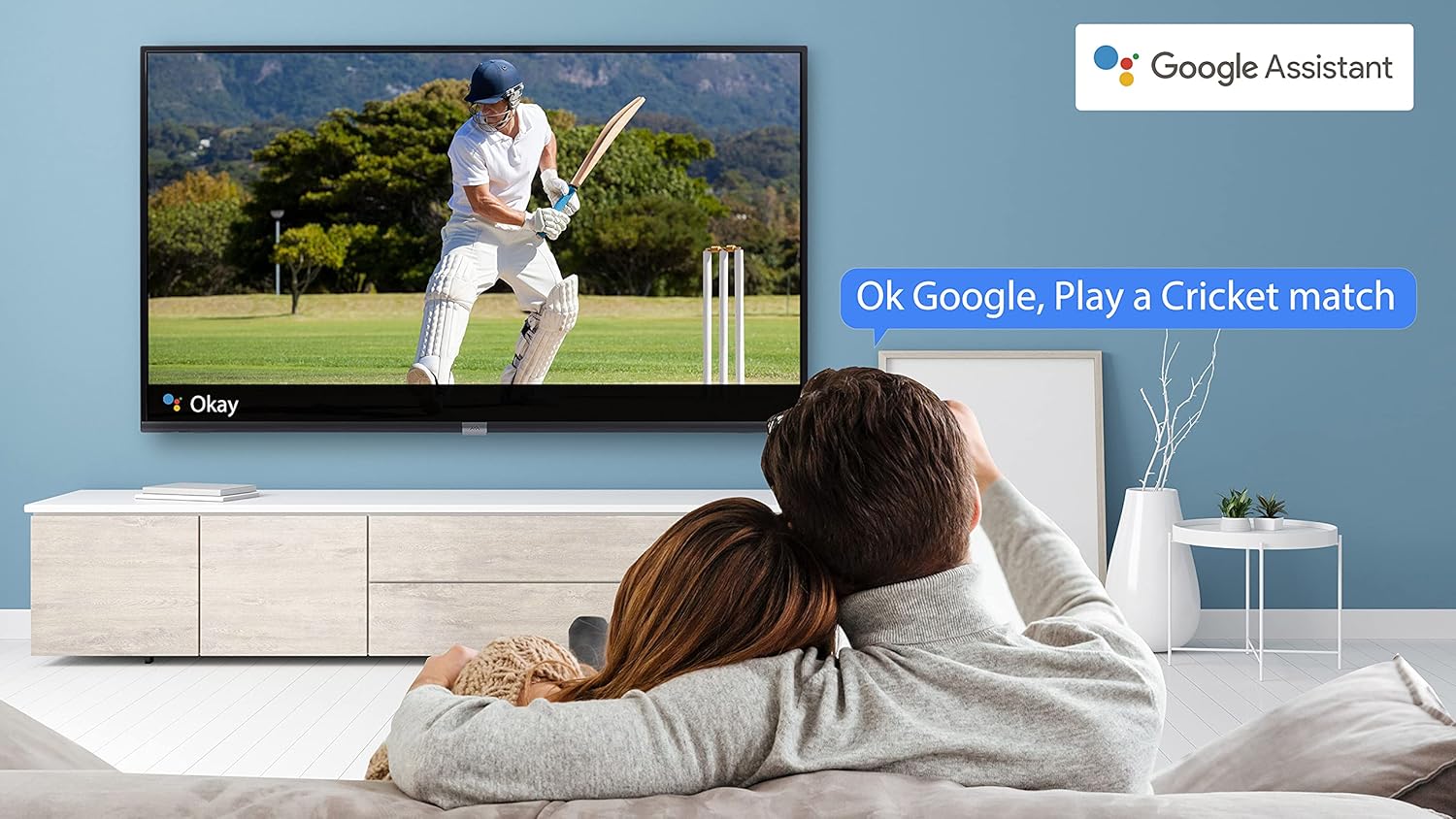
Image 4.4: A couple watching a cricket match on the iFFALCON TV, with a Google Assistant prompt bubble showing "Ok Google, Play a Cricket match," demonstrating voice control functionality.
Image 4.5: The Google Assistant logo, indicating the TV's integrated voice control capabilities.
4.4 Chromecast ingebouwd
Use Chromecast built-in to cast content from your compatible smartphone, tablet, or computer directly to your TV screen. Ensure your device and TV are connected to the same Wi-Fi network.

Image 4.6: A smartphone displaying a car image, with a casting icon indicating that the content is being mirrored to a larger TV screen, demonstrating the Chromecast built-in feature.
5. Belangrijkste kenmerken
5.1 HDR (High Dynamic Range)
HDR technology enhances contrast, color accuracy, and brightness, delivering a more lifelike and immersive viewing experience with greater detail in both dark and bright scenes.

Image 5.1: A split-screen comparison showing the visual difference between an image without HDR 10 (left, darker, less vibrant) and with HDR 10 (right, brighter, more detailed, and richer colors).
5.2 Microdimming
Micro Dimming analyzes the TV content in hundreds of separate zones to adjust brightness and darkness independently. This results in improved contrast and picture quality, especially in scenes with mixed light levels.
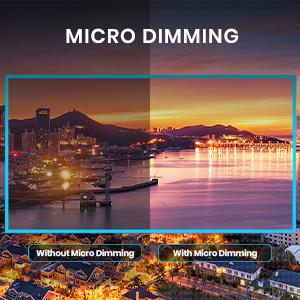
Image 5.2: A split-screen comparison demonstrating the effect of Micro Dimming, with the 'Without Micro Dimming' side appearing less vibrant and the 'With Micro Dimming' side showing enhanced contrast and color saturation in a city night scene.
5.3 IPQ Engine
The IPQ Engine (Image Quality Processing Engine) optimizes picture quality by intelligently adjusting brightness, color range, and contrast, ensuring a more vivid and accurate display.

Image 5.3: A visual representation of the IPQ Engine, highlighting its 'High Brightness Precision Control Technology' and 'Intelligent Color Range Control Technology' for optimized picture quality.
5.4 Dolby-audio
Experience rich, clear, and powerful sound with Dolby Audio. This technology enhances the audio output, providing an immersive listening experience for movies, music, and games.

Image 5.4: The Dolby Audio logo, signifying enhanced sound quality and an immersive audio experience.
5.5 Smart Volume
Smart Volume automatically adjusts the sound level to prevent sudden changes in volume, such as during commercials or when switching channels, ensuring a consistent listening experience.

Image 5.5: An illustration of the Smart Volume feature, showing how it maintains consistent audio levels across different content types, represented by varying sound wave patterns.
5.6 Sportmodus
Sports Mode optimizes picture and sound settings for sports content, enhancing motion clarity and audio to provide a more engaging viewervaring met live sportevenementen.

Image 5.6: A split-screen comparison of a cricket player, showing the 'Without Sports Mode' side with standard clarity and the 'With Sports Mode' side with enhanced motion and detail, indicated by a playback bar.
5.7 Slank ontwerp
The iFFALCON 32F2A features a slim design, allowing it to blend seamlessly into various living spaces and offering a modern aesthetic.

Image 5.7: An illustration emphasizing the slim profile of the iFFALCON TV, with a hand demonstrating its thinness.
6. Onderhoud
6.1 Het scherm schoonmaken
Veeg het scherm voorzichtig af met een zachte, pluisvrije doek. Bij hardnekkige vlekken lichtjes afnemen.ampReinig de doek met water of een speciale schermreiniger. Vermijd het gebruik van agressieve chemicaliën of schurende materialen.
6.2 De kast schoonmaken
Veeg het tv-meubel af met een zachte, droge doek. Gebruik geen vloeibare reinigingsmiddelen rechtstreeks op het meubel.
6.3 Onderhoud van het netsnoer
Controleer het netsnoer regelmatig op beschadigingen. Plaats geen zware voorwerpen op het snoer en stel het niet bloot aan extreme hitte.
7. Probleemoplossing
Als u problemen ondervindt met uw tv, raadpleeg dan de volgende veelvoorkomende problemen en oplossingen:
| Probleem | Mogelijke oorzaak | Oplossing |
|---|---|---|
| Geen stroom | Stroomkabel losgekoppeld, probleem met stopcontact | Zorg ervoor dat het netsnoer goed is aangesloten. Controleer of het stopcontact werkt. |
| Geen beeld, maar wel geluid | Onjuiste ingangsbron, defecte kabel | Verify the correct input source is selected. Check HDMI/AV cable connections. |
| Geen geluid, maar wel beeld | Volume muted or too low, audio settings issue | Increase volume. Check audio output settings in the TV menu. |
| Afstandsbediening werkt niet | Dead batteries, obstruction, remote out of range | Replace batteries. Remove obstructions between remote and TV. Ensure remote is within operating range. |
| Kan geen verbinding maken met wifi | Incorrect password, router issue, TV too far from router | Re-enter Wi-Fi password. Restart router. Move TV closer to router or use Ethernet. |
Als het probleem blijft bestaan nadat u deze oplossingen hebt geprobeerd, neem dan contact op met de klantenservice.
8. Specificaties
Detailed technical specifications for the iFFALCON 32F2A Smart LED TV:
| Functie | Specificatie |
|---|---|
| Merk | iFFALCON |
| Modelnaam | 32F2A |
| Schermgrootte | 32 inch (80 cm) |
| Weergavetechnologie | LED, A+ klasse paneel |
| Oplossing | HD Ready (1366 x 768 pixels) |
| Vernieuwingsfrequentie | 60Hz |
| Viewhoek: | 178 graden |
| Beeldverhouding | 16:9 |
| Beeldcontrastverhouding | 3000:1 |
| Besturingssysteem | Androïde |
| Geïnstalleerde RAM-geheugengrootte | 1GB |
| Digitale opslagcapaciteit | 8GB |
| Grafische coprocessor | Mali470x2 |
| Audio Wattage | 16 Watt |
| Luidspreker Surround Sound | Dolby-audio |
| Connectiviteitstechnologie | Wi-Fi, Ethernet, HDMI, USB |
| Totaal aantal USB-poorten | 1 |
| Energiebron | AC |
| Deeltage | 240 Volt |
| Wattage | 50 Watt |
| Productafmetingen | 48.2x73.2x18.3cm |
| Artikelgewicht | 3.9 kg |
9. Garantie en ondersteuning
Your iFFALCON 32F2A TV comes with a warranty. Please refer to the included Warranty Card for detailed terms and conditions, including the warranty period and coverage.
For technical assistance, service requests, or further inquiries, please visit the official iFFALCON support website or contact their customer service helpline. Contact information can typically be found on the Warranty Card or the manufacturer's official webplaats.