
Invoering
The Victrix Gambit Dual Core Tournament Controller is designed for competitive gaming across Xbox One, Xbox Series X|S, and Windows 10/11 PC. It features advanced technology for responsive input and extensive customization options to adapt to various play styles.
Belangrijkste kenmerken:
- Dual Core Technology: Dedicated processing for ultra-fast input and clear audio.
- Swappable Components: Includes interchangeable thumbsticks, D-pads, and faceplates for personalized ergonomics and aesthetics.
- Customizable Paddles & Triggers: Remappable buttons, bumpers, and paddles, along with adjustable hair triggers with five positional stops.
- Dolby Atmos Integration: Built-in support for immersive surround sound via the 3.5mm audio jack with compatible headsets.
- Victrix Control Hub App: Software for fine-tuning controller settings, including button remapping, dead zones, audio profiles, and vibration strength.
- Duurzaam ontwerp: Comes with a hard-shell carrying case for protection and portability.
Instellen
Je controller aansluiten:
- Ensure your Xbox console or PC is powered on.
- Connect the braided USB-C cable to the USB-C port on the top of the Victrix Gambit controller.
- Connect the other end of the USB-C cable to an available USB port on your Xbox console or PC.
- The controller's Xbox button will illuminate, indicating a successful connection.
Installing the Victrix Control Hub App:
- For Xbox: Download the 'Victrix Control Hub' app from the Xbox Store.
- For PC: Download the 'Victrix Control Hub' app from the Microsoft Store or Victrix's official webplaats.
- Launch the app to access customization options and firmware updates.
Bediening van de regelaar
Swapping Components:
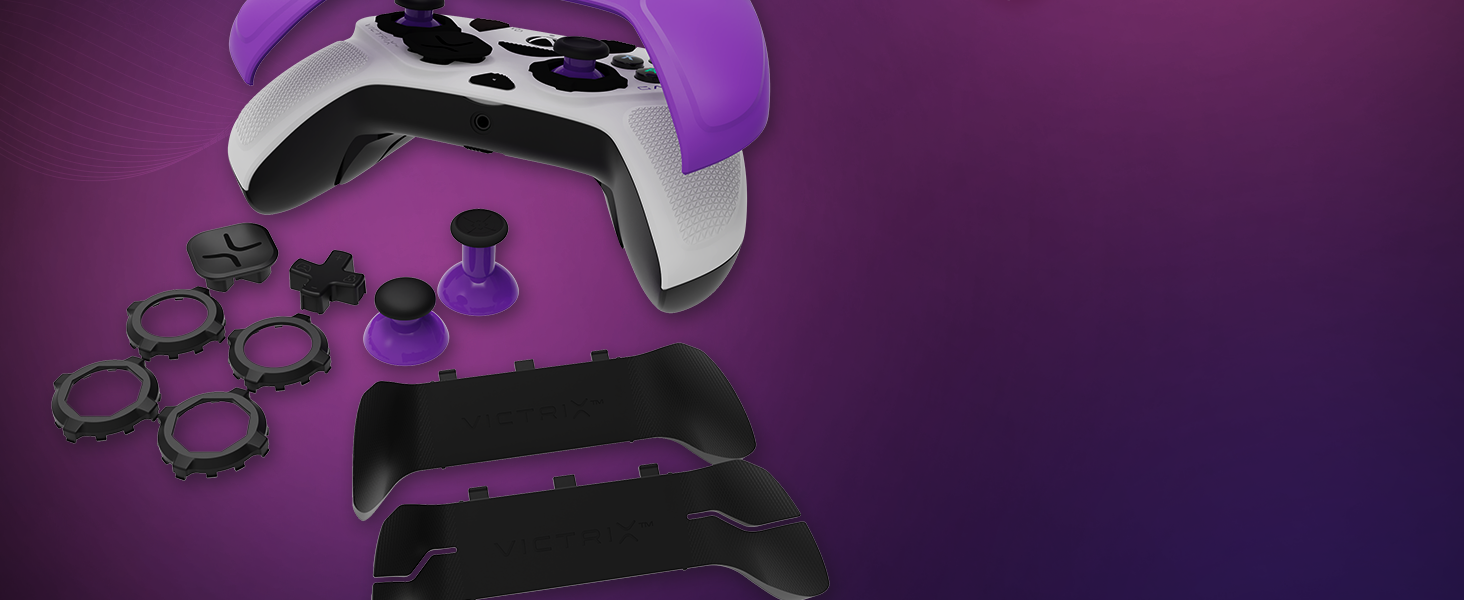
The Victrix Gambit controller features magnetic, swappable components for personalized comfort and control.
- Frontplaten: Gently lift the existing faceplate from the controller to remove it. Align the new faceplate with the controller's body and press down until it snaps into place.
- Duimstokken: Pull the existing thumbstick straight up to remove it. Insert the desired thumbstick into the base and push down until it is securely seated.
- D-Pads: The D-pad is also magnetically attached. Simply pull it off and replace it with your preferred style.
- Rugpeddels: The back paddle module can be removed by sliding it off. Replace it with the 2-button or 4-button module as desired.
Adjusting Trigger Stops:
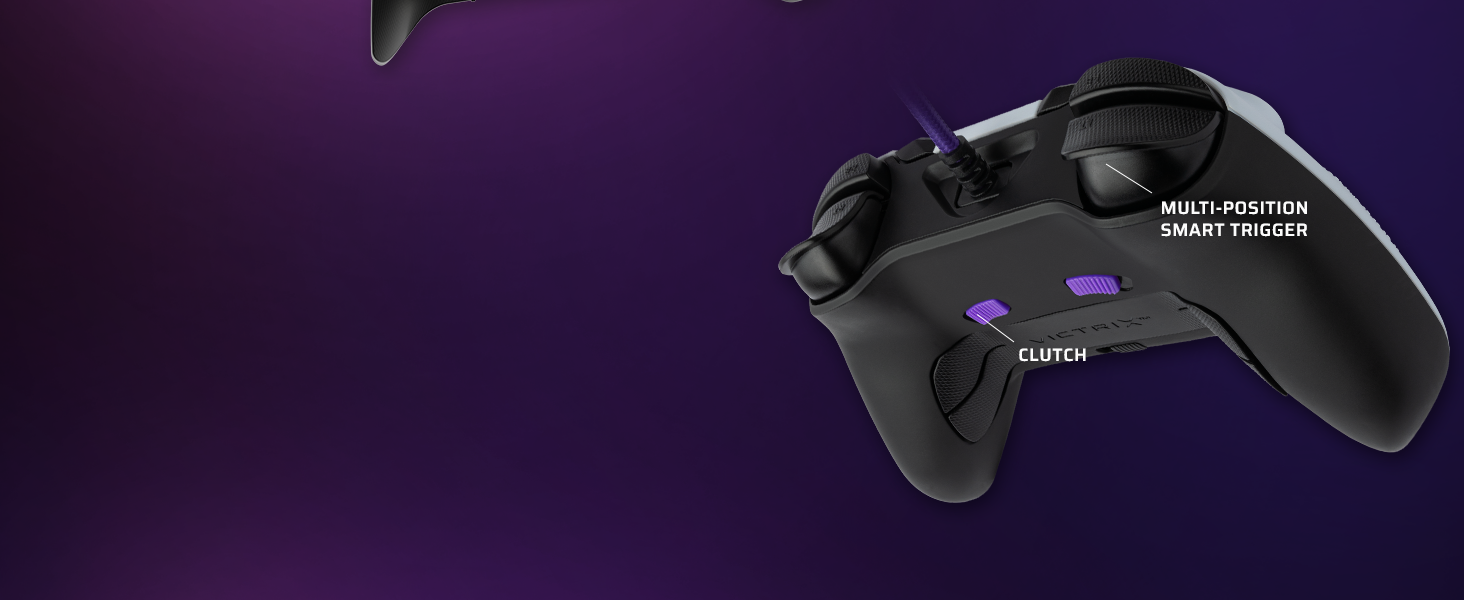
The controller features patented five-position trigger stops, allowing you to reduce the travel distance of the triggers for faster response times in games. Locate the small switches on the underside of the controller, near the triggers. Slide these switches to adjust the trigger travel to your preferred setting.
Customizing with the Control Hub App:
The Victrix Control Hub app provides extensive customization options:
- Knop opnieuw toewijzen: Assign any button function to another button or paddle.
- Analog Stick Adjustment: Test and calibrate analog sticks, adjust dead zones, and invert X/Y axes.
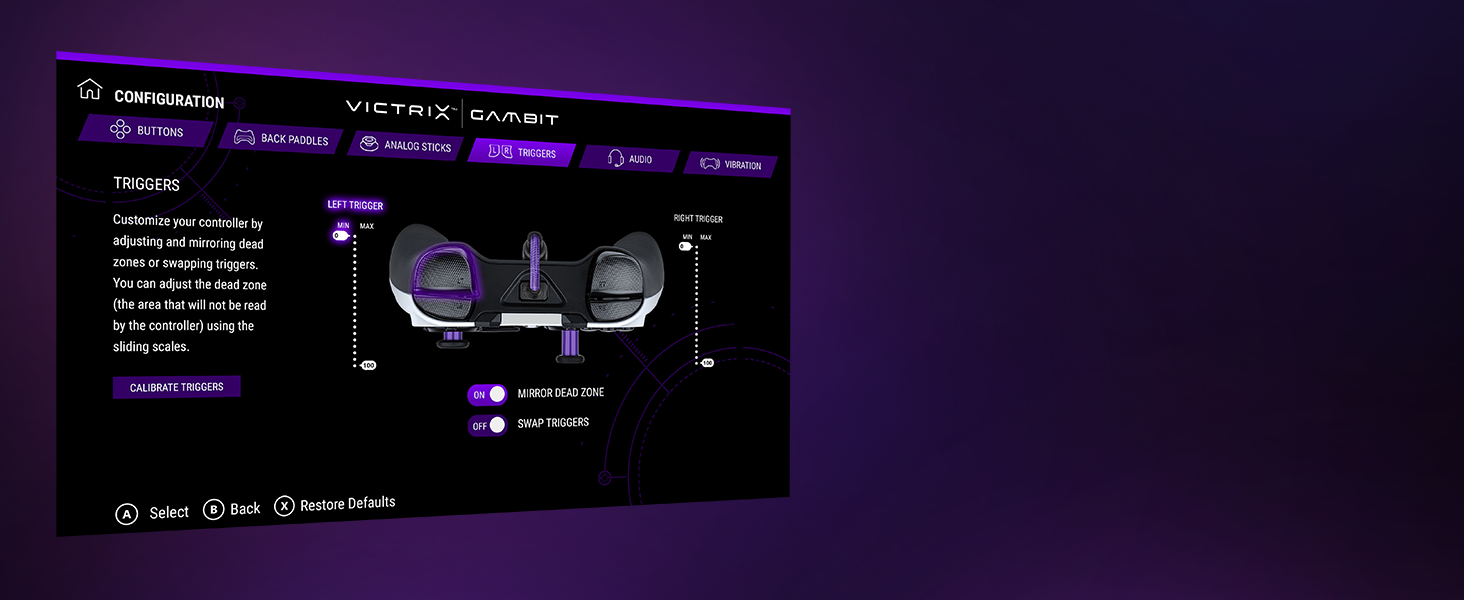
- Triggerinstellingen: Calibrate triggers, adjust dead zones, and swap trigger functions.
- Audio-professionalfiles: Fine-tune volume, game/chat balance, mic mute, and mic monitoring. Create custom EQ profiles.
- Trilling: Adjust the strength of the controller's vibration or turn it off completely.
Video: Een officiële overview of the Victrix Gambit Dual Core Tournament Controller, demonstrating its features and customization options through the Victrix Control Hub app.
Onderhoud
Cleaning Your Controller:
- Use a soft, dry cloth to wipe down the controller's surface regularly.
- Voor hardnekkig vuil, lichtjes dampReinig de doek met water of een milde, niet-schurende reiniger. Vermijd overmatige vochtigheid.
- Do not use harsh chemicals or solvents, as these can damage the controller's finish.
- Ensure the controller is disconnected from its power source before cleaning.
Opslag:
- Store the controller in its included hard-shell carrying case when not in use to protect it from dust, spills, and physical damage.
- Avoid storing the controller in extreme temperatures or direct sunlight.
Probleemoplossing
Veelvoorkomende problemen en oplossingen:
- Beheerder reageert niet:
- Zorg ervoor dat de USB-C-kabel stevig is aangesloten op zowel de controller als de console/pc.
- Probeer de controller op een andere USB-poort aan te sluiten.
- Start je console of pc opnieuw op.
- Check for any firmware updates via the Victrix Control Hub app.
- Stick Drift or Inaccurate Input:
- Open the Victrix Control Hub app and navigate to the 'Analog Sticks' section. Perform a stick calibration.
- Clean around the base of the thumbsticks to remove any debris.
- Adjust dead zone settings in the Control Hub app if minor drift persists.
- Buttons Not Registering or Malfunctioning:
- Zorg ervoor dat er geen vuil onder de knoppen vastzit.
- Check button remapping settings in the Victrix Control Hub app to ensure correct assignments.
- If using trigger stops, ensure they are not set too aggressively, preventing full button press.
- Audioproblemen:
- Verify your headset is properly connected to the 3.5mm jack.
- Check audio settings within the Victrix Control Hub app and your console/PC's system settings.
- Ensure Dolby Atmos is correctly configured if you are using it.
Specificaties
| Functie | Detail |
|---|---|
| Modelnummer | -049 006-NA |
| Verenigbaarheid | Xbox One, Xbox Series X|S, Windows 10/11 PC |
| Connectiviteit | Bedraad (USB-C) |
| Audio-ondersteuning | 3.5mm audio jack with Dolby Atmos (lifetime access included) |
| Aanpassing | Swappable faceplates, thumbsticks, D-pads, back paddles; adjustable trigger stops; software remapping |
| Afmetingen | 3.74 x 8.27 x 8.27 inch |
| Gewicht | 1.18 pond |
| Fabrikant | Victrix |
| Releasedatum | 4 oktober 2021 |
Garantie en ondersteuning
For warranty information, technical support, or service inquiries, please refer to the official Victrix webBezoek de website of neem rechtstreeks contact op met hun klantenservice. Bewaar uw aankoopbewijs voor eventuele garantieclaims.
Online resources, including FAQs and additional guides, may be available on the Victrix support page.