
Product voorbijview
This UP Ink Cartridge Chip Resetter is designed to reset the chips on genuine and compatible ink cartridges for various Brother MFC and J series printers. It allows for the reuse of ink cartridges by resetting their chip's ink level status, enabling refilling and continued use. The device is designed for approximately 60 uses.
Verenigbaarheid:
- Ink Models: LC3011, LC3013, LC3017, LC3019, LC3029
- Printer Models: Brother MFC-J491DW, MFC-J497DW, MFC-J690DW, MFC-J895DW, MFC-J5330DW, MFC-J6530DW, MFC-J6930DW, MFC-J6730DW, MFC-J5830DW, MFC-J5830DW-XL, MFC-J6535DW, MFC-J6535DW-XL, MFC-J5930DW, MFC-J6935DW
Important Note: This resetter is intended for use with genuine or UP brand compatible cartridge chips only. It is not compatible with SETUP/Initialize cartridge chips or other third-party chips.
Inhoud van het pakket
- 1 x UP Ink Cartridge Chip Resetter
- 1 x USB-kabel

Image: The UP Ink Cartridge Chip Resetter shown with its product box and included USB cable.
Instellen
- Componenten voorbereiden: Gather the chip resetter, the USB cable, and the ink cartridge you intend to reset.
- Sluit stroom aan: Connect the chip resetter to a 5V power source using the USB cable. This can be a computer's USB port or a cell phone charger.
- Stroomindicator: The resetter's LED light will flash red, indicating it is ready for operation.
Probleemoplossingstip: If the LED light does not illuminate, try connecting the USB cable to a different USB port or power source.

Afbeelding: Een close-up view of the chip resetter, highlighting the USB input port for power connection.
Gebruiksaanwijzing
- Cartridge verwijderen: Open the printer's cartridge cover and remove the ink cartridge you wish to reset. Close the printer cover after removal.
- Position Cartridge: Place the ink cartridge onto the fixed position of the chip resetter. Ensure the chip on the cartridge makes proper contact with the resetter's thimble.
- Reset Confirmation: The resetter's LED light will turn solid red or green and stop flashing, indicating a successful chip reset.
Probleemoplossingstip: If the LED light continues to flash red, the reset step has failed. This may be due to poor contact between the chip and the thimble, or the chip resetter may have exceeded its usage limit.
- Refill Ink: After a successful reset, it is crucial to refill the ink cartridge. Ensure the cartridge is refilled to at least 80% capacity before reinstallation.
Attention: If the ink cartridge's real ink level is lower than 50% when resetting the chip, refill the ink cartridge to more than 80% before installing it back into the printer.
- Cartridge opnieuw installeren: Open the printer's cartridge cover again and re-install the reset and refilled ink cartridge. Close the cover.
- Printer Recognition: The printer may initially display a "?" or "!" sign for the reset cartridge. Navigate to the "Ink Volume" option on the printer's screen. The printer should then recognize the chip and display a full ink level.
Probleemoplossingstip: If the printer does not recognize the ink cartridge chip, verify that you refilled the ink to more than 80% after resetting the chip ink level.
- Repeat for other colors: Repeat these steps for any other ink cartridges that require resetting.
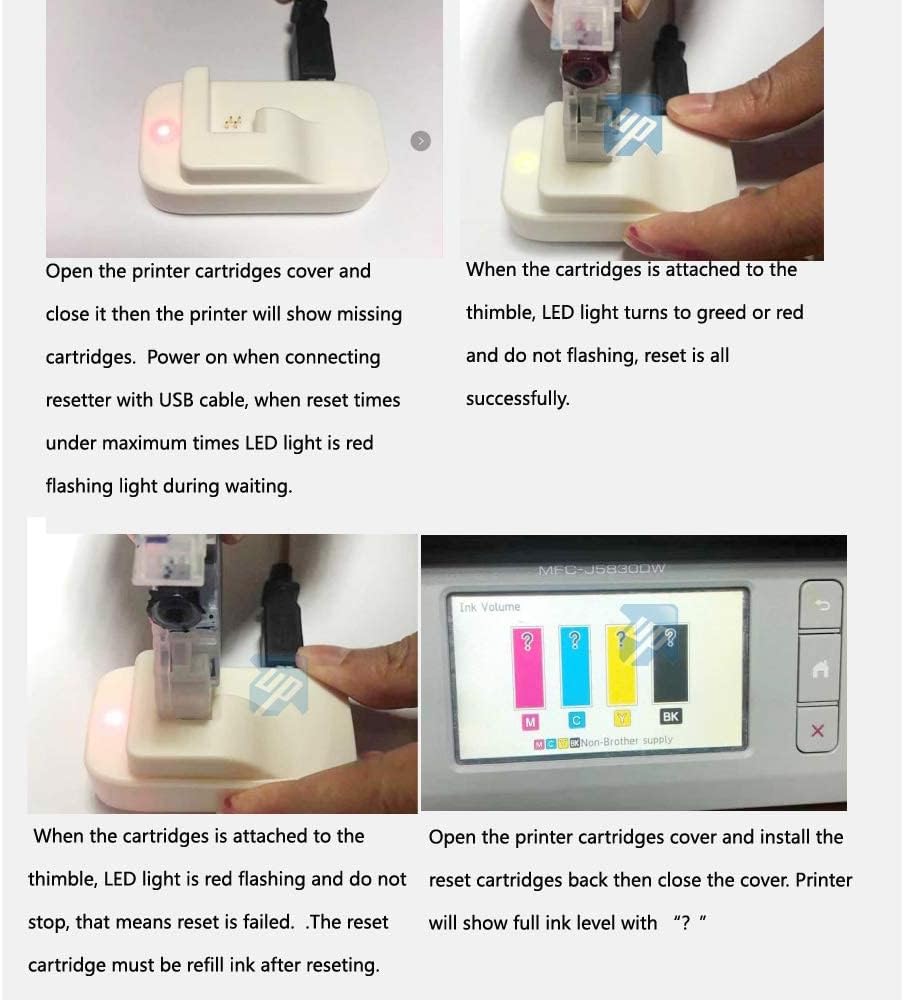
Image: A composite image illustrating the process of removing an ink cartridge, resetting its chip with the device, and the printer's display showing ink levels before and after resetting.
Instructievideo
Video: A detailed demonstration of how to use the UP Ink Cartridge Chip Resetter with a Brother printer, showing the steps for removing, resetting, refilling, and reinstalling ink cartridges.
Onderhoud
The chip resetter has a designed lifespan of approximately 60 uses. After this limit, the device may no longer function correctly and will need to be replaced.
Store the chip resetter in a clean, dry environment away from direct sunlight and extreme temperatures to ensure its longevity.
Probleemoplossing
| Probleem | Mogelijke oorzaak | Oplossing |
|---|---|---|
| Chip resetter LED does not light up. | Poor power connection or faulty USB port. | Try changing to another USB port (e.g., another computer USB interface or a cell phone charger). |
| Reseter LED keeps red flashing and does not stop. | Chip did not contact well with thimble, or chip resetter exceeded its limited usage times. | Ensure the ink cartridge chip is properly seated and making firm contact with the resetter's thimble. If the issue persists, the resetter may have reached its 60-use limit. |
| Printer cannot recognize ink cartridge chip after resetting. | Ink not refilled sufficiently after reset. | Check if you refilled ink more than 80% full after resetting the chip ink level. Ensure the cartridge is properly installed. |
| Reseter does not work with SETUP/Initialize cartridges or third-party chips. | Incompatible cartridge type. | This resetter is designed only for genuine and UP brand compatible cartridge chips. It will not work with SETUP/Initialize cartridges or other third-party chips. |
Specificaties
- Modelnummer: R-LC3013
- Merk: UP
- Fabrikant: UniPrint
- Artikelgewicht: 1.2 ounces (ongeveer 34 gram)
- Pakket afmetingen: 3.86 x 1.93 x 1.85 inch (ongeveer 9.8 x 4.9 x 4.7 cm)
- Datum eerste beschikbaarheid: 27 mei 2020
- Ink Color Compatibility: Black (and other colors for compatible ink models)
- Compatibele apparaten: Printer
- Speciale eigenschap: Refillable (enables refilling of cartridges)
- Compatibiliteitsopties: Verenigbaar
- Inktbasis: Water (for compatible inks)
- Aantal items: 1 (chip resetter)
Garantie en ondersteuning
Information regarding specific warranty terms or direct support contacts for the UP Ink Cartridge Chip Resetter is not provided in the available product details. For any issues or inquiries, please refer to the seller's contact information on the platform where the product was purchased.