
1. Inleiding
The OWL Meeting Owl Pro is an advanced 360-degree video conferencing device designed to enhance hybrid meeting experiences. It integrates a 1080p HD camera, a 360-degree microphone, and a speaker into a single unit. The device features automatic speaker focus, smart zooming, and noise equalization to facilitate clear communication and active participation in conference rooms and classrooms.
This manual provides essential information for setting up, operating, maintaining, and troubleshooting your Meeting Owl Pro to ensure optimal performance.
2. Wat zit er in de doos?
Controleer bij het uitpakken of alle onderdelen aanwezig zijn:
- Meeting Owl Pro device
- Stroomadapter
- 6.5 ft (2m) micro USB cable
- Snelstartgids

Image: The Meeting Owl Pro device, a white cylindrical unit with a camera lens at the top and an OWL logo on its fabric-covered body.
3. Installatie-instructies
The Meeting Owl Pro is designed for plug-and-play simplicity. Follow these steps for initial setup:
- Plaatsing: Position the Meeting Owl Pro in the center of your conference table or meeting space. Ensure it has an unobstructed 360-degree view van alle deelnemers.
- Stroomaansluiting: Connect the power adapter to the Meeting Owl Pro and plug it into a power outlet. The device will power on automatically.
- USB-verbinding: Connect the micro USB cable from the Meeting Owl Pro to an available USB port on your computer or meeting room system.
- Softwareherkenning: Your computer should automatically recognize the Meeting Owl Pro as a camera, microphone, and speaker device.
- Video Conferencing Platform: Launch your preferred video conferencing platform (e.g., Zoom, Google Meet, Microsoft Teams, Cisco Webex). In the platform's audio and video settings, select the Meeting Owl Pro as your camera, microphone, and speaker.
- Mobile App (Optional but Recommended): Download the Meeting Owl mobile app (available for iOS and Android) to manage settings, update firmware, and control the device during meetings.

Image: The base of the Meeting Owl Pro, displaying the model number MTW200, input voltage (12V === 3A), and FCC/IC IDs.
4. Gebruiksaanwijzing
The Meeting Owl Pro is designed to simplify your meeting experience with intelligent features:
- Automatic Speaker Focus: The device automatically detects and focuses on the person speaking, displaying them prominently in the video feed. It can also show multiple active speakers simultaneously.
- 360-Degree Video and Audio: The camera captures a full 360-degree view of the room in 1080p HD, while the microphone array picks up audio from up to 18 feet (5.5 meters) away.
- Smart Zooming and Noise Equalizing: The Meeting Owl Pro intelligently adjusts the camera zoom and equalizes audio levels to ensure all participants are seen and heard clearly, regardless of their distance from the device.
- Platformcompatibiliteit: The Meeting Owl Pro is compatible with most web-based video conferencing platforms, including Zoom, GoToMeeting, Google Meet, Microsoft Teams, and Cisco Webex.
- Owl Connect: For larger spaces, two Meeting Owl Pros can be paired using Owl Connect to extend the camera and microphone coverage. Refer to the Owl Labs website for detailed instructions on using Owl Connect.
- Mobiele app-bediening: Use the Meeting Owl mobile app to access advanced settings, adjust camera views, and manage audio preferences during a meeting.

Image: The Meeting Owl Pro facilitating a hybrid meeting, showing participants in the room and remote attendees on a screen.
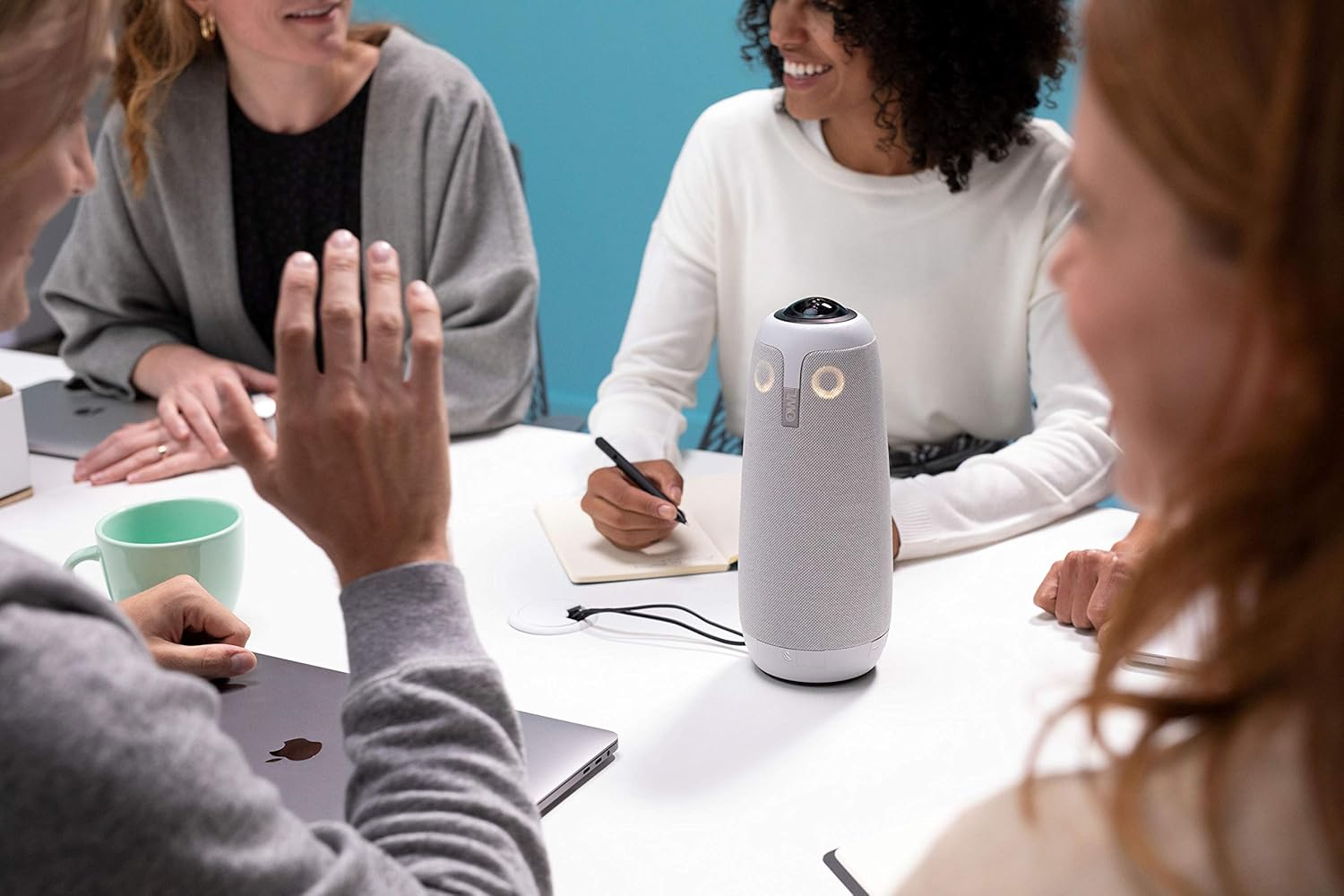
Afbeelding: Een close-up view of the Meeting Owl Pro on a table, surrounded by meeting participants, highlighting its role in capturing interactions.
5. Onderhoud
Proper maintenance ensures the longevity and optimal performance of your Meeting Owl Pro:
- Schoonmaak: Use a soft, dry, lint-free cloth to clean the exterior of the device. Do not use liquid cleaners or aerosols directly on the unit. For the camera lens, use a lens cleaning cloth.
- Opslag: When not in use, store the Meeting Owl Pro in a cool, dry place, away from direct sunlight and extreme temperatures.
- Kabelbeheer: Ensure cables are not kinked or strained. Avoid placing heavy objects on cables.
- Firmware-updates: Regularly check for and install firmware updates via the Meeting Owl mobile app. Updates often include performance improvements and new features.
6. Probleemoplossing
If you encounter issues with your Meeting Owl Pro, refer to the following common solutions:
- Apparaat niet herkend:
- Ensure the USB cable is securely connected to both the Meeting Owl Pro and your computer.
- Probeer een andere USB-poort op uw computer.
- Restart your computer and the Meeting Owl Pro (unplug and re-plug the power).
- Verify that the Meeting Owl Pro is selected as the camera, microphone, and speaker in your video conferencing platform's settings.
- No Video or Poor Video Quality:
- Check for obstructions around the camera lens.
- Ensure adequate lighting in the meeting room. Poor lighting can affect image quality.
- Confirm that the Meeting Owl Pro is selected as the video input in your conferencing software.
- Update the device firmware via the Meeting Owl mobile app.
- Geen audio of slechte audiokwaliteit:
- Ensure the Meeting Owl Pro is selected as both the microphone and speaker in your conferencing software.
- Check the volume levels on your computer and the Meeting Owl Pro (via the mobile app).
- Minimize background noise in the meeting environment.
- If using Owl Connect, ensure both devices are properly paired and configured.
- Automatic Speaker Focus Not Working:
- Ensure the Meeting Owl Pro is centrally located and has a clear view van alle deelnemers.
- Spreek duidelijk en met een normaal volume.
- Update the device firmware via the Meeting Owl mobile app, as this feature relies on software algorithms.
For further assistance, consult the official Owl Labs support resources or contact their customer service.
7. Specificaties
| Functie | Detail |
|---|---|
| Modelnummer | MTW200-1000 |
| Productafmetingen | 4.4 x 4.4 x 10.75 inch |
| Artikelgewicht | 2.64 pond |
| Resolutie video-opname | 1080p HD |
| Fotosensortechnologie | CMOS |
| Microfoon-ophaalbereik | Tot 18 voet (5.5 meter) |
| Connectiviteitstechnologie | USB |
| Ondersteunde audioformaten | AAC |
| Kleur | Wit |
| Fabrikant | Uilenlaboratoria |
8. Garantie en ondersteuning
For information regarding product warranty, please refer to the documentation included with your purchase or visit the official Owl Labs website. For technical support, firmware updates, and additional resources, download the Meeting Owl mobile app or visit the Owl Labs support portal online.
Opmerking: All device management, including firmware updates and advanced audio/video settings, is performed through the Meeting Owl mobile application.
9. Officiële productvideo's
Er zijn geen officiële productvideo's van de verkoper beschikbaar om in deze handleiding te integreren.