
1. Inleiding
Thank you for choosing the iggual QR Barcode Scanner. This device is designed for efficient and reliable scanning of both 1D and 2D barcodes, offering both manual and automatic scanning modes. It features an ergonomic design for comfortable use and broad compatibility with various operating systems. This manual provides essential information for setting up, operating, and maintaining your scanner.
Belangrijkste kenmerken:
- Ergonomic design with a comfortable trigger button.
- Detects all common 1D and 2D barcodes, including QR codes.
- Supports manual and automatic scanning modes.
- Wired USB connectivity for reliable data transmission.
- Compatible with Windows XP/7/8/10, macOS, Linux, and Android.
2. Inhoud van het pakket
Controleer de inhoud van het pakket om er zeker van te zijn dat alle artikelen aanwezig zijn:
- iggual QR Barcode Scanner (Model IGG315651)
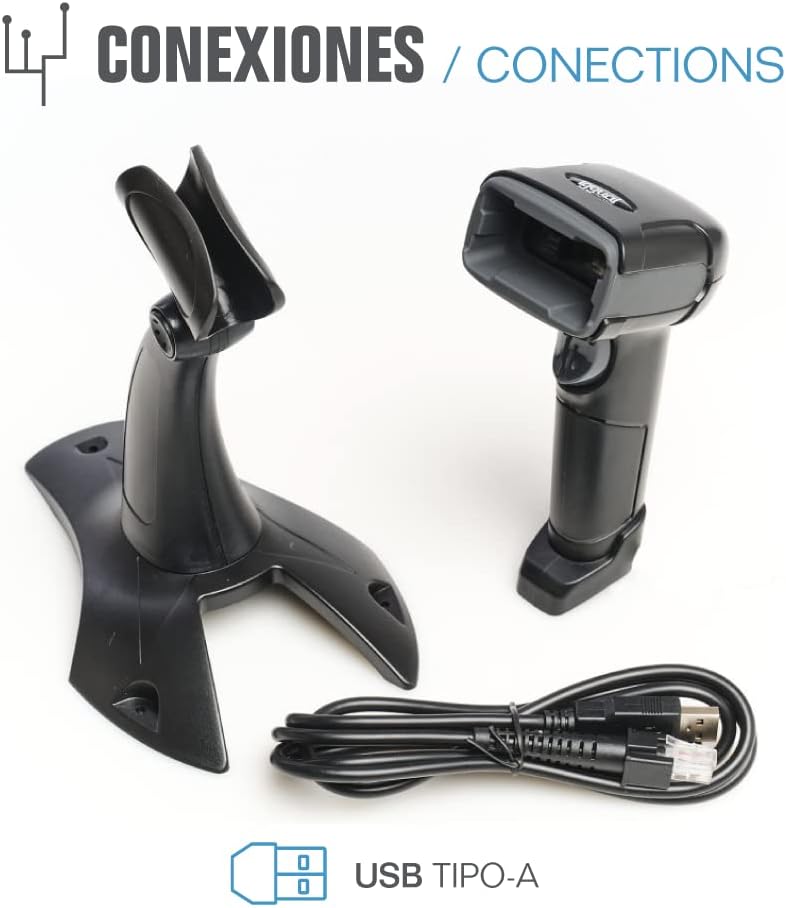
- USB Cable (Type-A)
- Scanner Stand (Optional, depending on package)

Figuur 2.1: Package contents including the scanner, stand, and USB Type-A cable.
3. Product voorbijview
Familiarize yourself with the main components of your iggual barcode scanner:
- Scanvenster: Gebied waar barcodes worden gelezen.
- Triggerknop: Activeert de handmatige scanmodus.
- USB-poort: Om de scanner op uw computer aan te sluiten.
- LED-indicator: Provides visual feedback on scanning status.
- Pieper: Provides audible feedback on scanning status.

Figuur 3.1: The iggual barcode scanner with its optional stand, highlighting the LED indicator and beeper functionality.
4. Instellen
4.1 De scanner aansluiten
- Connect the USB cable to the USB port on the scanner.
- Sluit het andere uiteinde van de USB-kabel aan op een beschikbare USB-poort van uw computer of hostapparaat.
- The scanner will typically be recognized automatically by your operating system as a standard HID keyboard device. No special drivers are usually required.
4.2 Systeemcompatibiliteit
The iggual QR Barcode Scanner is compatible with a wide range of operating systems:
- Windows XP / 7 / 8 / 10
- macOS
- Linux
- Androïde

Figuur 4.1: Operating system compatibility for the iggual barcode scanner.
5. Gebruiksaanwijzing
5.1 Scanmodi
De scanner ondersteunt twee primaire scanmodi:
- Handmatige modus: Press the trigger button to activate the scanner and read a barcode. Release the button after a successful scan.
- Automatische modus: The scanner continuously emits a scanning beam, reading barcodes as they are presented within its field of view without needing to press the trigger. Refer to the full product manual (if available from iggual.com) for instructions on switching between modes, usually done by scanning specific configuration barcodes.
5.2 Ondersteunde barcodetypen
This scanner is capable of reading a wide range of 1D and 2D barcode symbologies, including:
- 2D-codes: QR Code, Maxi Code, MicroPDF, PDF417
- 1D-codes: Code 128, EAN-13, EAN-8, Code 39, UPC-A, UPC-E, Code 93, Interleaved 2 of 5, Codabar, MSI, RSS, etc.

Figuur 5.1: Scanner capabilities including 200 scans/second, 2D scanning, and supported code types.
5.3 Scanprocedure
- Ensure the scanner is properly connected to your host device.
- Open an application where you want the scanned data to appear (e.g., a text editor, spreadsheet, or POS software).
- Point the scanning window at the barcode you wish to read.
- If in manual mode, press and hold the trigger button. If in automatic mode, simply present the barcode.
- A successful scan will be indicated by a short beep and/or a flash of the LED indicator. The scanned data will appear in your active application.
- If the barcode is not read, adjust the distance and angle of the scanner relative to the barcode.
6. Onderhoud
6.1 Reinigen
- Gebruik een zachte, droge doek om de buitenkant van de scanner schoon te maken.amp lap.
- For the scanning window, use a lint-free cloth and a mild glass cleaner. Avoid abrasive materials or harsh chemicals that could scratch the surface.
- Zorg ervoor dat er geen vloeistof in de behuizing van de scanner terechtkomt.
6.2 Opslag
When not in use, store the scanner in a cool, dry place, away from direct sunlight and extreme temperatures.
7. Probleemoplossing
| Probleem | Mogelijke oorzaak | Oplossing |
|---|---|---|
| De scanner wordt niet herkend door de computer. | Loose USB connection, faulty USB port, or cable issue. | Ensure USB cable is securely connected. Try a different USB port or cable. Restart the computer. |
| De scanner leest geen barcodes. | Barcode damaged, incorrect scanning angle/distance, scanner in wrong mode, or dirty scanning window. | Check barcode integrity. Adjust scanning angle and distance. Ensure scanner is in the correct mode (manual/automatic). Clean the scanning window. |
| Gescande gegevens worden onjuist weergegeven. | Keyboard layout mismatch or corrupted data. | Ensure your computer's keyboard layout matches the scanner's default output (usually US English). If issues persist, consult the full product manual for advanced configuration. |
8. Specificaties
| Functie | Detail |
|---|---|
| Model | IGG315651 |
| Afmetingen (L x B x H) | 160 x 80 x 100 mm (6.3 x 3.15 x 3.94 inch) |
| Gewicht | 120 gram (0.26 pond) |
| Scansnelheid | 200 scans/second |
| Beeldsensor | 640(H) x 480(V), 256 Grayscale |
| Connectiviteit | Wired USB (Type-A) |
| Energiebron | Elektrisch met snoer (via USB) |
| Besturingssystemen | Windows XP/7/8/10, macOS, Linux, Android |
| Ondersteunde barcodes | 1D & 2D (QR, Maxi Code, MicroPDF, Code, PDF417, RSS, etc.) |
Figuur 8.1: Physical dimensions of the iggual barcode scanner.
9. Garantie en ondersteuning
For warranty information, technical support, or to download the complete product manual with advanced configuration options, please visit the official iggual webwebsite of neem contact op met uw lokale distributeur.
Officieel Webwebsite: www.iggual.com