
Invoering
This manual provides instructions for the Razer Raiju Mobile Gaming Controller, model RZ06-02800100-R3M1. This controller is designed for use with Android devices, offering advanced features for an enhanced mobile gaming experience. Please read this manual thoroughly before using the device to ensure proper setup and operation.

Voorkant view of the Razer Raiju Mobile Gaming Controller, showcasing het ergonomische ontwerp en de knopindeling.
Instellen
1. Uitpakken en componenten
Controleer bij het openen van de verpakking of alle onderdelen aanwezig zijn:
- Razer Raiju Mobile Gaming Controller
- USB-C naar USB-A oplaadkabel
- Headphones (as per product specifications)
2. De controller opladen
Before initial use, fully charge the controller. Connect the USB-C end of the charging cable to the controller's USB-C port and the USB-A end to a powered USB port (e.g., computer, wall adapter). The LED indicator will show charging status.
3. Connecting to an Android Device
The Razer Raiju Mobile supports both Bluetooth wireless and wired connections.
Bluetooth-verbinding:
- Zorg ervoor dat de controller is opgeladen.
- Schakel de controller in door op de Home-knop te drukken.
- Activate Bluetooth on your Android device.
- On your Android device, search for available Bluetooth devices and select "Razer Raiju Mobile".
- Pair the devices. The LED indicator on the controller will confirm a successful connection.
Bekabelde verbinding:
- Connect the controller to your Android device using a compatible USB-C to USB-C cable (not included, or use the provided cable with an adapter if your phone has USB-A).
- Ensure your Android device supports USB OTG (On-The-Go) for wired controller input.
4. Adjusting the Phone Mount
The integrated phone mount allows for optimal viewing angles. Gently pull the top part of the mount upwards to extend it, then place your Android smartphone securely within the clamps. Adjust the angle as needed for comfortable gaming.
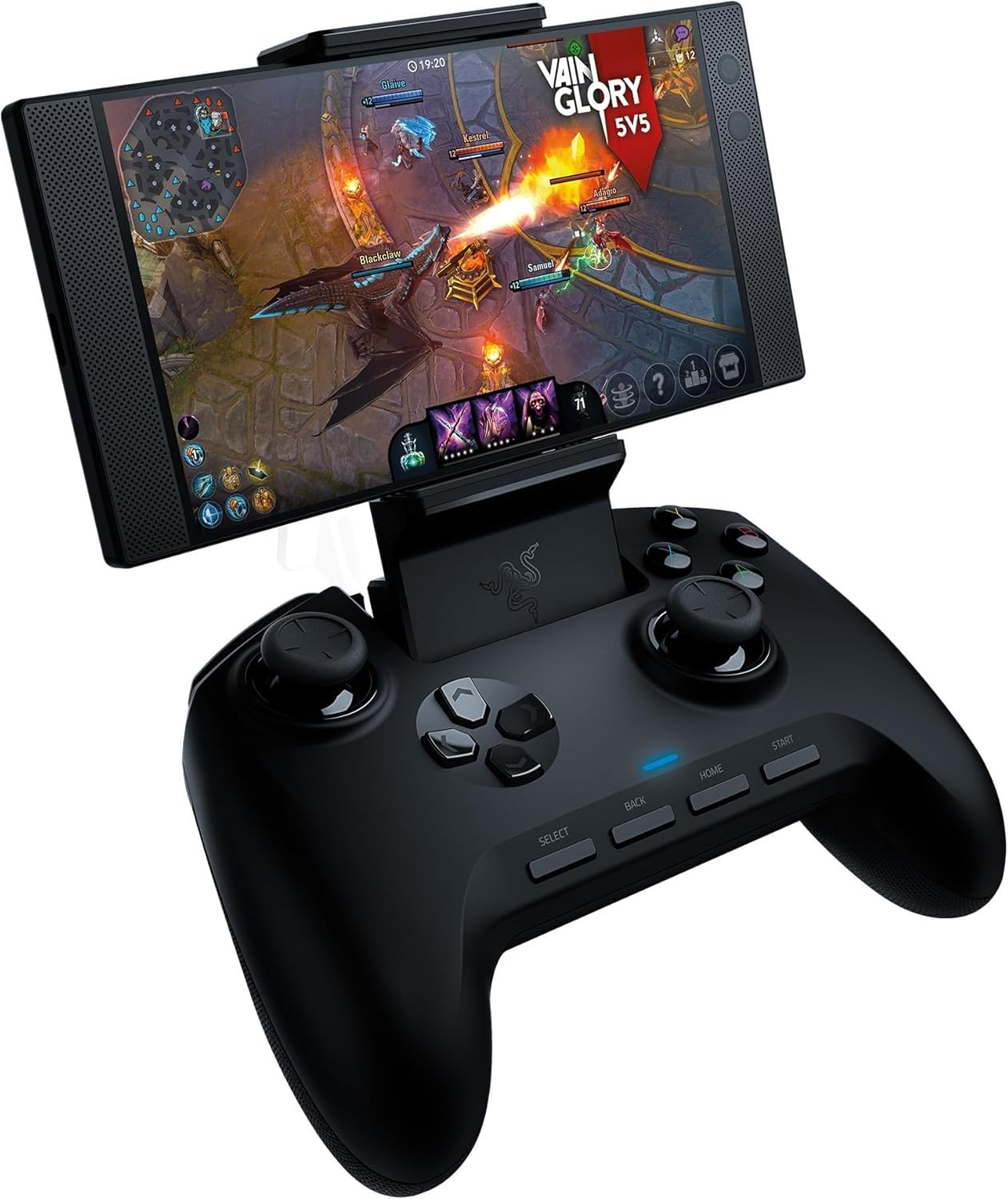
The Razer Raiju Mobile Controller with an Android smartphone securely mounted, ready for gameplay.
5. Mobiele app-configuratie
Download the Razer Raiju Mobile app from the Google Play Store to customize button mappings, adjust sensitivity, and configure other settings for a personalized gaming experience.
Bediening van de regelaar
Button Layout and Features
The Razer Raiju Mobile features an ergonomic design with a comprehensive button layout for precise control.
- Razer Mecha-Tactile Action Buttons: Provide a soft cushioned touch with tactile feedback for responsive inputs.
- Multifunctionele knoppen: Additional buttons (M1, M2, L3, R3) can be customized via the mobile app for expert control.
- Haartriggermodus: Engage this mode for reduced travel distance on the main triggers (L1, R1, L2, R2), allowing for faster actuation in competitive gaming.
- Adjustable Phone Mount: Securely holds your Android device for optimal viewind.
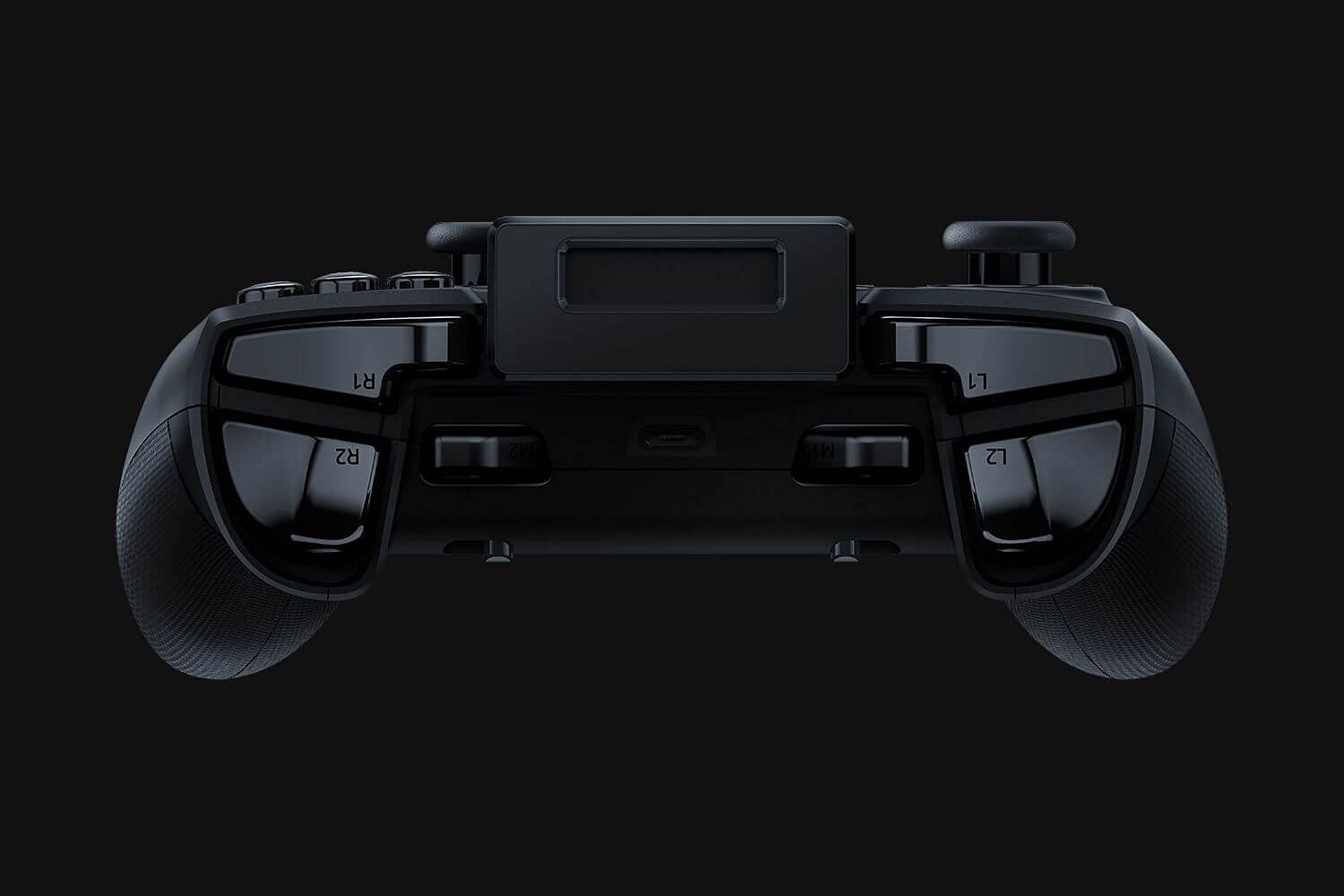
Achterkant view of the Razer Raiju Mobile Controller, highlighting the triggers (L1, R1, L2, R2) and additional multi-function buttons.
Official video demonstrating features of the Razer Raiju Mobile Gaming Controller, including Mecha-Tactile Action Buttons and ergonomic design.
Onderhoud
Schoonmaak
Om je controller schoon te maken, gebruik je een zachte, droge doek. Voor hardnekkig vuil kun je de doek iets zachter zetten.ampen the cloth with water. Avoid using harsh chemicals, abrasive cleaners, or solvents, as these can damage the surface and internal components.
Opslag
Store the controller in a cool, dry place away from direct sunlight and extreme temperatures. When not in use for extended periods, ensure the controller is fully charged before storage to maintain battery health.
Batterijverzorging
The controller contains a rechargeable battery. To prolong battery life, avoid fully discharging the battery frequently. Charge the controller regularly, even if not in constant use.
Probleemoplossing
| Probleem | Oplossing |
|---|---|
| Controller gaat niet aan. | Ensure the controller is fully charged. Connect it to a power source using the provided USB cable. |
| Kan geen verbinding maken via Bluetooth. |
|
| De knoppen reageren niet of met vertraging. |
|
| Phone mount does not hold phone securely. | Ensure the phone is centered and fully seated within the adjustable clamps. Avoid using overly thick phone cases that may prevent proper seating. |
Specificaties
- Modelnaam: Raiju Mobile
- Modelnummer: RZ06-02800100-R3M1
- Compatibele apparaten: Androïde
- Type controller: Spelcomputer
- Connectiviteitstechnologie: Bedraad, Bluetooth
- Aantal knoppen: 16
- Energiebron: Op batterijen
- Artikelgewicht: 418 gram
- Afmetingen artikel (D x B x H): 4.96"D x 6.26"B x 2.6"H
- Extra functies: Microphone Feature, Ergonomic Multi-Function Button Layout, Hair Trigger Mode, Adjustable Phone Mount, Razer Mecha-Tactile Action Buttons, Mobile App Configuration.
- Meegeleverde componenten: Koptelefoon
Garantie
The Razer Raiju Mobile Gaming Controller is covered by a limited manufacturer's warranty. For detailed information regarding warranty terms, conditions, and registration, please refer to the official Razer webwebsite of de garantiekaart die bij uw product is geleverd.
Steun
For technical assistance, troubleshooting guides, driver downloads, and frequently asked questions, please visit the official Razer Support webwebsite: ondersteuning.razer.com.