
1. Inleiding
The COMPUTHERM Q7RF wireless room thermostat is designed for precise control of heating and air conditioning systems. This programmable device allows you to set individual temperature schedules for each day of the week, optimizing comfort and energy efficiency in your home or office. Its wireless design offers flexible placement of the thermostat unit, while the receiver unit connects directly to your boiler or air conditioning system, compatible with both 24V and 230V control circuits.
2. Inhoud van het pakket
Controleer of alle componenten in uw pakket aanwezig zijn:
- 4 x COMPUTHERM Q7RF Room Thermostat (Transmitter Unit)
- 4 x COMPUTHERM Q7RF Receiver Unit
- Gebruikershandleiding (dit document)
- Montageschroeven en pluggen
3. Product voorbijview
The COMPUTHERM Q7RF system consists of two main components: the thermostat unit (transmitter) and the receiver unit. The thermostat unit measures the room temperature and allows you to set desired temperatures and programs. The receiver unit connects to your heating or cooling system and switches it on or off based on signals from the thermostat unit.

Figuur 1: Overview of the COMPUTHERM Q7RF 4-piece set, showing multiple thermostat and receiver units.
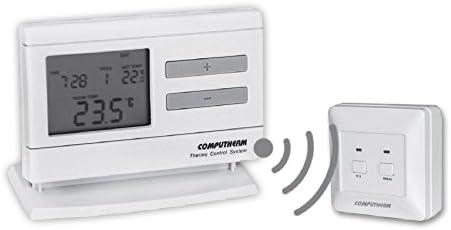
Figure 2: A single COMPUTHERM Q7RF thermostat unit communicating wirelessly with its receiver unit.
3.1 Thermostat Unit (Transmitter)
- LCD-scherm: Shows current temperature, set temperature, time, day, and program status.
- Bedieningsknoppen: For setting temperature, time, and programming schedules.
- Batterijcompartiment: Voor stroomvoorziening.
3.2 Ontvangereenheid
- Bedrading Terminals: For connection to the heating/cooling system.
- Statusindicatoren: LEDs to show power and relay status.
- Manual Override Buttons: For temporary manual control.
4. Specificaties
| Functie | Specificatie |
|---|---|
| Merk | COMPUTHERM |
| Model | Q7RF |
| Schakelvolumetage | 24V AC/DC, ... 250V AC, 50Hz |
| Stroomverbruik | 6W |
| Temperatuurmeetbereik | 3 – 45°C (in 0.1°C increments) |
| Instelbaar temperatuurbereik: | 5 – 40°C (in 0.5°C increments) |
| Nauwkeurigheid van temperatuurmeting | ±0.5°C |
| Controller-type | Drukknop |
| Connectiviteitstechnologie | Draadloos (radiofrequentie) |
| Speciale kenmerken | Programmable, Compatible with various system voltages |
5. Installatie en installatie
5.1 Thermostat Unit Placement and Battery Installation
- Kies een locatie: Place the thermostat unit in a central area of the room where it can accurately measure the ambient temperature, away from direct sunlight, drafts, or heat sources.
- Batterijen installeren: Open the battery compartment on the back of the thermostat unit. Insert the required batteries (typically AA or AAA, refer to the unit's markings) ensuring correct polarity. Close the compartment.
- Inschakelen: The display should light up, indicating the unit is powered.
5.2 Receiver Unit Wiring
WARNING: Electrical installation should only be performed by a qualified electrician. Disconnect power to the heating/cooling system before proceeding.
- Monteer de ontvanger: Secure the receiver unit near your boiler or air conditioning system using the provided screws and wall plugs.
- Toegang tot bedradingsaansluitingen: Open the cover of the receiver unit to expose the wiring terminals.
- Verbinding maken met systeem: Connect the receiver unit to the two-wire room thermostat connection point of your boiler or AC system. Ensure connections are secure and follow the wiring diagram provided with your heating/cooling system and the receiver unit. The COMPUTHERM Q7RF is compatible with both 24V and 230V control circuits.
- Herstel de stroom: Once wiring is complete and verified, close the receiver unit cover and restore power to your heating/cooling system.
5.3 Pairing the Units (If not pre-paired)
Refer to the specific instructions provided with your Q7RF set for pairing procedures. Typically, this involves pressing a pairing button on the receiver unit and then initiating a pairing sequence on the thermostat unit within a short timeframe. A successful pairing will usually be indicated by an LED on the receiver or a message on the thermostat display.
6. Gebruiksaanwijzing
6.1 Het LCD-scherm begrijpen
The LCD display provides all necessary information about the thermostat's current status and settings.

Afbeelding 3: Gedetailleerd view of the COMPUTHERM Q7RF LCD display, illustrating various indicators such as program number, manual modification symbol, weekdays, time, set temperature, actual room temperature, low battery symbol, boiler ON state, and timed control symbol.
- Weekdagen: Geeft de huidige dag van de week aan.
- Exact Time / Time Left: Displays the current time or time remaining for a manual modification.
- Programmanummer: Shows the active program segment.
- Temperatuur instellen: The desired temperature set by the user.
- Actual Room Temperature: The current temperature measured by the thermostat.
- Symbol for Manual Modification: Indicates that the thermostat is currently operating under a temporary manual override.
- Temp. Modified until next manual intervention: Shows the duration of a temporary temperature change.
- Symbol for Low Battery Voltage: Verschijnt wanneer de batterijen vervangen moeten worden.
- Symbol for Boiler ON State: Indicates when the heating/cooling system is active.
- Symbol for Timed Control: Indicates that a programmed schedule is active.
6.2 De huidige tijd en dag instellen
- Druk op de TIJD knop.
- Gebruik de + or - knoppen om het uur aan te passen, druk dan op TIJD nogmaals ter bevestiging.
- Herhaal dit voor het aantal minuten en de dag van de week.
6.3 Handmatige temperatuuraanpassing
- Druk in de normale bedrijfsmodus op de + or - knoppen om de gewenste temperatuur in te stellen.
- The new temperature will be maintained until the next programmed time slot or until manually overridden again.
6.4 Programming Daily/Weekly Schedules
The Q7RF allows for independent programming for each day of the week. You can typically set multiple time periods with different temperatures for each day.
- Druk op de PROG knop om de programmeermodus te openen.
- Gebruik de DAG button to select the day you wish to program (e.g., MON, TUE, etc.).
- Gebruik de TIJD En +/- buttons to set the start time for the first program period.
- Gebruik de TEMP INSTELLEN En +/- buttons to set the desired temperature for this period.
- Pers PROG again to move to the next program period for the same day, or use DAG om naar de volgende dag te gaan.
- Repeat until all desired periods and days are programmed.
- Druk op de LOOP or EXIT Knop om op te slaan en de programmeermodus te verlaten.
7. Onderhoud
7.1 Batterij vervangen
When the low battery symbol appears on the LCD display, replace the batteries immediately to ensure continuous operation. Use new, high-quality alkaline batteries of the specified type.
- Open the battery compartment cover on the back of the thermostat unit.
- Verwijder de oude batterijen.
- Plaats nieuwe batterijen en let daarbij op de juiste polariteit (+/-).
- Sluit het batterijklepje.
7.2 Reinigen
Clean the thermostat and receiver units with a soft, dry cloth. Do not use abrasive cleaners, solvents, or spray directly onto the units, as this may damage the electronics or finish.
8. Probleemoplossing
| Probleem | Mogelijke oorzaak | Oplossing |
|---|---|---|
| Thermostaatdisplay is leeg | Lege batterijen | Vervang de batterijen door nieuwe. |
| Verwarmings-/koelsysteem reageert niet | 1. Receiver unit not powered 2. Units not paired 3. Wiring issue 4. Buiten bereik | 1. Check power supply to receiver. 2. Perform pairing procedure (Section 5.3). 3. Verify wiring connections (Section 5.2). 4. Move thermostat closer to receiver or check for obstructions. |
| Verkeerde temperatuurmeting | Thermostat placed in unsuitable location (direct sun, draft) | Plaats de thermostaat op een centralere plek met een stabielere temperatuur. |
| Programmed schedule not active | Thermostat in manual override mode | Exit manual override mode (e.g., press RUN/AUTO button) to resume programmed operation. |
9. Garantie en ondersteuning
COMPUTHERM products are manufactured to high-quality standards. For warranty information, please refer to the warranty card included with your product or contact your retailer. For technical support, please reach out to the COMPUTHERM customer service or your local distributor. Keep your purchase receipt as proof of purchase.