
Invoering
Bedankt voor uw aankoopasing the QUMOX L165U 2.4GHz Wireless Gamepad. This high-quality game controller is designed for use with PC and Android devices, offering a reliable 2.4GHz wireless connection for an enhanced gaming experience. Please read this manual carefully to ensure proper setup and operation of your new gamepad.

Figure 1: QUMOX L165U Gamepad with included USB adapter and OTG connection kit.
Inhoud van het pakket
Zorg ervoor dat alle artikelen in uw pakket aanwezig zijn:
- 1x QUMOX L165U Gamepad
- 1x 2.4GHz USB Wireless Adapter
- 1x OTG Connection Kit (Micro USB to USB-A adapter)
Instellen
1. Batterij installatie
The QUMOX L165U Gamepad is powered by 2 AAA batteries (not included). To install the batteries:
- Zoek het batterijcompartiment aan de achterkant van de gamepad.
- Schuif het batterijklepje open.
- Plaats 2 AAA-batterijen en let op de juiste polariteit (+/-).
- Sluit het batterijklepje goed.

Figure 2: Open battery compartment for AAA battery installation.
2. Aansluiten op een pc
- Plug the 2.4GHz USB Wireless Adapter into an available USB port on your PC.
- Turn on the gamepad by pressing the 'START' button. The gamepad will automatically attempt to connect.
- The PC should recognize the gamepad and install necessary drivers automatically.
- If the gamepad does not connect, press the 'MODE' button on the gamepad to cycle through connection modes until it is recognized by your PC.
3. Connecting to an Android Device (with OTG support)
- Connect the OTG Connection Kit to your Android device's Micro USB port.
- Plug the 2.4GHz USB Wireless Adapter into the USB-A end of the OTG Connection Kit.
- Turn on the gamepad by pressing the 'START' button. The gamepad will automatically attempt to connect.
- Your Android device should recognize the gamepad.
- If the gamepad does not connect, press the 'MODE' button on the gamepad to cycle through connection modes until it is recognized by your Android device.
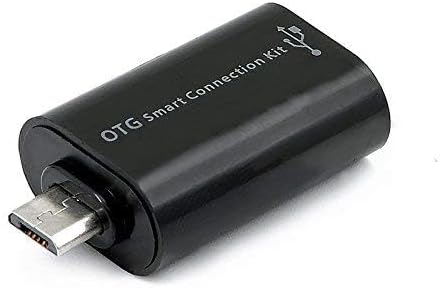
Figure 3: OTG Connection Kit for Android device connectivity.
Gebruiksaanwijzing
Once connected, your QUMOX L165U Gamepad is ready for use. The layout is standard for most game controllers.
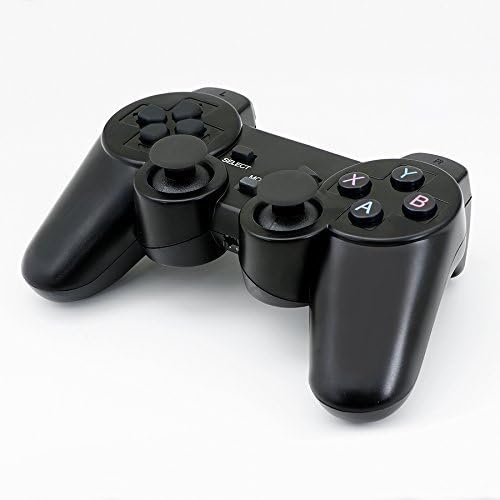
Figuur 4: Boven view of the QUMOX L165U Gamepad, highlighting button layout.
- Richtingspad (D-pad): Voor nauwkeurige richtingsinput.
- Analoge joysticks: Two analog sticks for 360-degree movement and camera control.
- Actieknoppen (A, B, X, Y): Standaard actieknoppen voor in-game commando's.
- Schouderknoppen (L1, R1) en triggers (L2, R2): Located on the top of the gamepad for additional actions.
- SELECTEER/TERUG-knop: Typically used for menu navigation or specific in-game functions.
- Startknop: Wordt gebruikt om spellen te pauzeren of selecties te bevestigen.
- MODE-knop: Cycles through different operating modes (e.g., Android, PC) if automatic detection fails.
Videodemonstratie
Video 1: Een door de verkoper verstrekte overview of a 2-pack wireless controller, demonstrating its features and compatibility. While showing a similar product, it illustrates general wireless controller usage and setup.
Onderhoud
- Schoonmaak: Gebruik een zachte, droge doek om de gamepad schoon te maken. Vermijd het gebruik van agressieve chemicaliën of schurende materialen.
- Opslag: Bewaar de gamepad op een koele, droge plaats, uit de buurt van direct zonlicht en extreme temperaturen.
- batterij zorg: Verwijder de batterijen als de gamepad gedurende langere tijd niet wordt gebruikt om lekkage te voorkomen.
Probleemoplossing
| Probleem | Mogelijke oorzaak | Oplossing |
|---|---|---|
| Gamepad does not connect. | Low batteries, incorrect mode, adapter not properly inserted. | Replace batteries. Press the 'MODE' button to cycle through modes. Ensure USB adapter is fully inserted into PC or OTG adapter. |
| Knoppen of joysticks reageren niet. | Connection issue, game incompatibility, physical damage. | Reconnect the gamepad. Check game settings for controller support. If issue persists, contact support. |
| Android device does not recognize gamepad. | Android device lacks OTG support, OTG adapter issue. | Verify your Android device supports OTG. Ensure OTG adapter is functioning correctly. |
Specificaties
| Functie | Detail |
|---|---|
| Modelnummer | L165U |
| Connectiviteitstechnologie | 2.4GHz Wireless (via USB Adapter) |
| Compatibele apparaten | PC, Android (with OTG support) |
| Energiebron | 2x AAA-batterijen |
| Artikelgewicht | 5.3 ons |
| Pakket afmetingen | 8.07 x 5.63 x 2.95 inch |
| Kleur | Zwart |
Garantie en ondersteuning
For warranty information or technical support, please refer to the contact details provided with your purchase or visit the official QUMOX webwebsite. Bewaar uw aankoopbewijs voor eventuele garantieclaims.