
1. Inleiding
The Cerevo LiveShell X is a versatile live streaming and broadcasting device designed for high-quality video transmission without the need for a personal computer. It supports 1080p resolution at 60 frames per second and includes real-time recording capabilities, making it ideal for various professional and enthusiast applications.
This manual provides comprehensive instructions for setting up, operating, and maintaining your LiveShell X device.
2. Product voorbijview
The LiveShell X features a compact and durable metal design, equipped with an OLED display for status monitoring and intuitive controls. It is built for portability and robust performance in various environments.
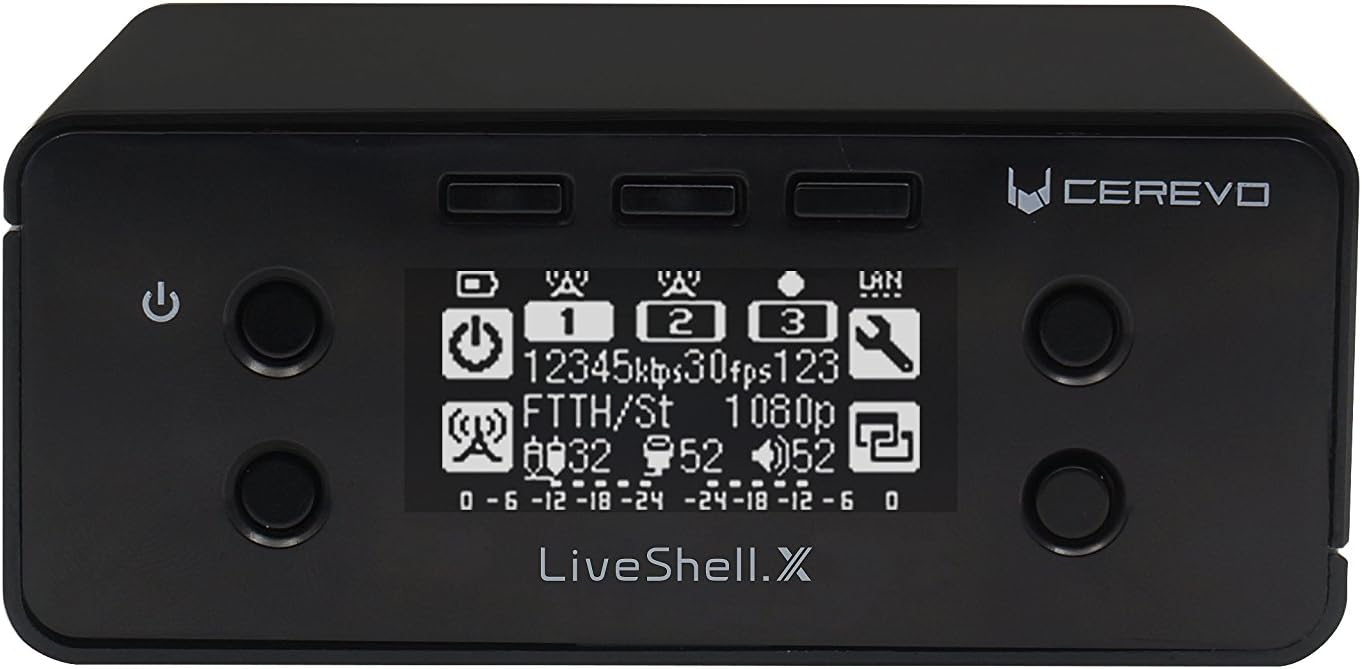
Figuur 2.1: Voorzijde view of the Cerevo LiveShell X with its OLED display.
2.1 Apparaatcomponenten

Figure 2.2: Labeled diagram of LiveShell X components.
- Aan/uit-knop: Wordt gebruikt om het apparaat aan en uit te zetten.
- 3 Stream Buttons: Control and indicate the status of up to three simultaneous live streams.
- M4 moer: Mounting point for accessories.
- OLED-scherm: Shows real-time streaming status, settings, and other device information.
- 1/4-20 UNC Tripod Nut: Standard tripod mounting thread for easy setup.
The device also features various ports on its rear and sides for connectivity.
- HDMI-ingang: For connecting video sources (e.g., cameras, video mixers).
- Ethernet-poort: Voor een stabiele bekabelde netwerkverbinding.
- USB-poort: Used for connecting a Wi-Fi dongle or cellular modem for wireless connectivity.
- MicroSD-kaartsleuf: For real-time recording of your streams.
- Audio-ingang (3.5 mm jack): Voor het aansluiten van externe audiobronnen.
- Stroomverbruik: Voor het aansluiten van de stroomadapter.
3. Instellen
3.1 Uitpakken en eerste betaling
Upon unboxing, ensure all components are present, including the LiveShell X unit and the included Lithium Ion battery. It is recommended to fully charge the battery before first use. The device can also operate directly from the power adapter.
3.2 Video- en audiobronnen aansluiten
- Connect your camera or video mixer to the HDMI-ingang port on the LiveShell X.
- If your audio is not embedded in the HDMI signal, connect your external audio source (e.g., microphone, audio mixer) to the Audio Input (3.5mm jack).
3.3 Netwerkverbinding
The LiveShell X offers flexible network connectivity options:
- Bekabeld (Ethernet): For the most stable connection, plug an Ethernet cable from your router or network switch into the Ethernet-poort op het apparaat.
- Wireless (Wi-Fi/Cellular): Insert the provided Wi-Fi dongle or a compatible cellular modem into the USB-poort. Wireless settings will be configured via the web-based control panel.
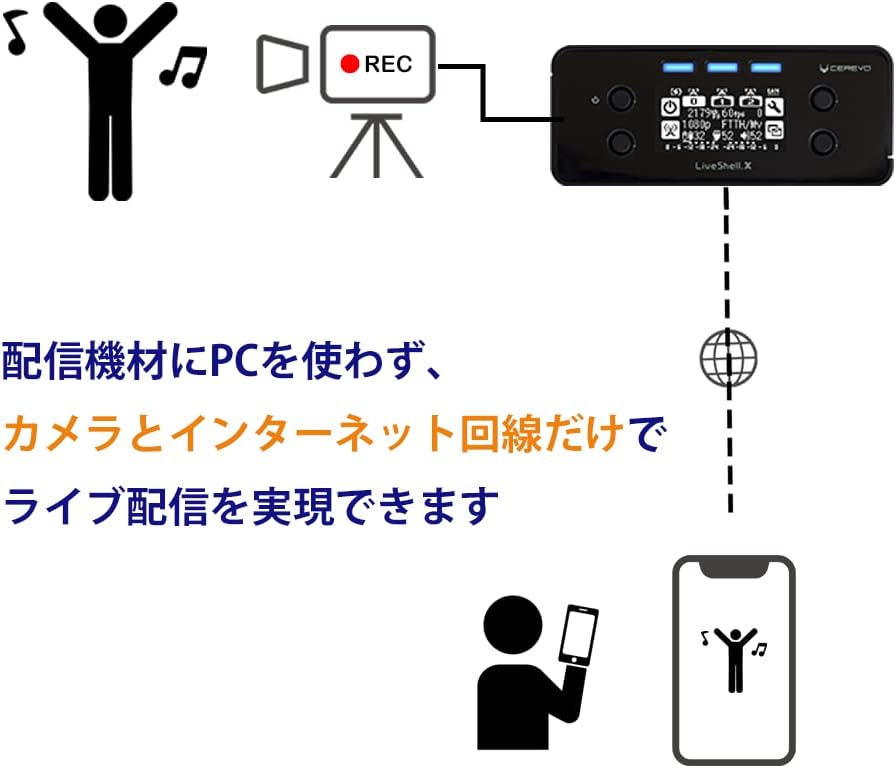
Figure 3.1: PC-less live streaming setup with LiveShell X.
3.4 MicroSD-kaart plaatsen
Insert a compatible MicroSD card into the MicroSD-kaartslot for local recording of your live streams. Ensure the card is properly formatted as per the device's requirements (refer to the web control panel for formatting options).

Figure 3.2: MicroSD card slot and simultaneous streaming capability.
4. Gebruiksaanwijzing
4.1 Web-Based Control Panel
All advanced configurations and stream management are performed through the LiveShell X web-based control panel. Access this panel by navigating to shell.cerevo.com in jouw web browser. Ensure your device is connected to the same network as your computer.
Met het bedieningspaneel kunt u:
- Configure streaming destinations (e.g., YouTube Live, Facebook Live, Twitch, custom RTMP).
- Adjust video resolution, frame rate, and bitrate settings for each stream.
- Manage audio input levels and apply audio delay if needed.
- Control recording to the MicroSD card.
- Add custom titling and graphic overlays to your streams.
4.2 Streaming Capabilities
The LiveShell X supports simultaneous streaming to multiple platforms. You can configure up to three independent streams or two streams with simultaneous recording to the MicroSD card.
- Single Stream: Up to 1080p at 60 frames per second (H.264 or H.265).
- Multiple Streams: Up to 720p at 30 frames per second per stream, with a total maximum bitrate of 150 Mbps across all channels.
- H.265-codering: Utilize H.265 (HEVC) for more efficient compression, providing better video quality at lower bitrates, if supported by your streaming platform.

Figure 4.1: LiveShell X enabling high-quality internet live broadcasting.
4.3 Bedieningselementen op het apparaat
While most configuration is done via the web panel, the physical buttons on the device allow for basic control, such as starting and stopping streams.
4.4 Titling and Overlays
The LiveShell X allows you to add custom text or image overlays (e.g., lower thirds, logos) directly to your live stream and recordings. This feature supports PNG files with transparency for professional-looking graphics.
5. Onderhoud
- Schoonmaak: Gebruik een zachte, droge doek om het apparaat schoon te maken. Vermijd vloeibare reinigingsmiddelen of schurende materialen.
- Firmware-updates: Regularly check the Cerevo website (cerevo.com) for firmware updates. Updates can improve performance, add features, and resolve issues. Follow the instructions provided with the firmware update carefully.
- batterij zorg: Om de levensduur van de batterij te verlengen, moet u extreme temperaturen vermijden en het apparaat gedeeltelijk opgeladen bewaren als u het gedurende langere tijd niet gebruikt.
6. Probleemoplossing
- Apparaat gaat niet aan: Ensure the power adapter is securely connected and the battery is charged. If using battery, check its connection and charge level.
- Geen video-ingang: Verify that the HDMI cable is correctly connected to both the source and the LiveShell X. Check the video source's output settings to ensure compatibility with the LiveShell X.
- Problemen met netwerkconnectiviteit: For wired connections, check the Ethernet cable and router status. For wireless, ensure the Wi-Fi dongle is inserted and configured correctly in the web control panel. Restarting the device and router may resolve temporary issues.
- Streamingproblemen: Check your internet upload speed. Ensure your streaming platform's RTMP URL and stream key are correctly entered in the web control panel. Lowering the bitrate or resolution in the settings may help with unstable connections.
- Web Control Panel Inaccessible: Confirm the device and your computer are on the same network. Try restarting the LiveShell X.
7. Specificaties
| Functie | Detail |
|---|---|
| Productafmetingen | 3.94 x 4.02 x 1.65 inch |
| Artikelgewicht | 1.06 pond |
| Artikelmodelnummer | CDP-LS04A |
| Batterijen | 1 lithium-ionbatterijen vereist (inbegrepen) |
| Connectiviteitstechnologie | Wired, Wi-Fi, USB, Ethernet, HDMI |
| Resolutie video-opname | 1080p |
| Video-opname-indeling | MP4 |
| Ondersteunde audioformaten | AAC, [OTHER] |
| Flash-geheugentype | SD |
| Kleur | Zwart |
8. Garantie en ondersteuning
Warranty and detailed support information for the Cerevo LiveShell X are typically provided with your purchase documentation or can be found on the official Cerevo website. Please refer to these resources for the most up-to-date information regarding product warranty, technical support, and service options.
Voor verdere hulp kunt u terecht op de Cerevo Store on Amazon or the official Cerevo webplaats.