
Invoering
Bedankt voor uw aankoopasing the DIAFIELD 1byone Ultra-Thin Wireless Keyboard. This manual provides detailed instructions on how to set up, operate, and maintain your new keyboard. Please read this manual thoroughly before use to ensure optimal performance and longevity of your device.
Product voorbijview
The DIAFIELD 1byone Ultra-Thin Wireless Keyboard is designed for versatility and convenience, featuring a compact design, a multi-function touchpad, and broad compatibility.

Figure 1: DIAFIELD 1byone Wireless Keyboard
Belangrijkste kenmerken:
- Ultra Portability: Designed for use anywhere, anytime, with your smartphone, tablet, or Smart TV. Its compact design ensures easy transport and quick setup.
- Geïntegreerd touchpad: Features an ultra-thin touchpad that functions as a mouse, supporting various pre-set gestures for convenient navigation. The touchpad can also be disabled if not needed.
- Duurzame batterijduur: Equipped with a 500 mAh built-in battery, providing up to 4 months of standby time or 90 hours of continuous use on a single charge.
- Spanish QWERTY Layout: Specifically designed for Spanish speakers, including common Spanish symbols and the 'Ñ' key. Ensure your system's keyboard language is set to Spanish for proper functionality.
- Bluetooth 3.0-connectiviteit: Ensures fast and stable connections with tablets and other devices, providing synchronous input without delay. Setup is quick and easy.

Figure 2: Touchpad and Function Keys

Figure 3: Type-C Charging and Battery Life
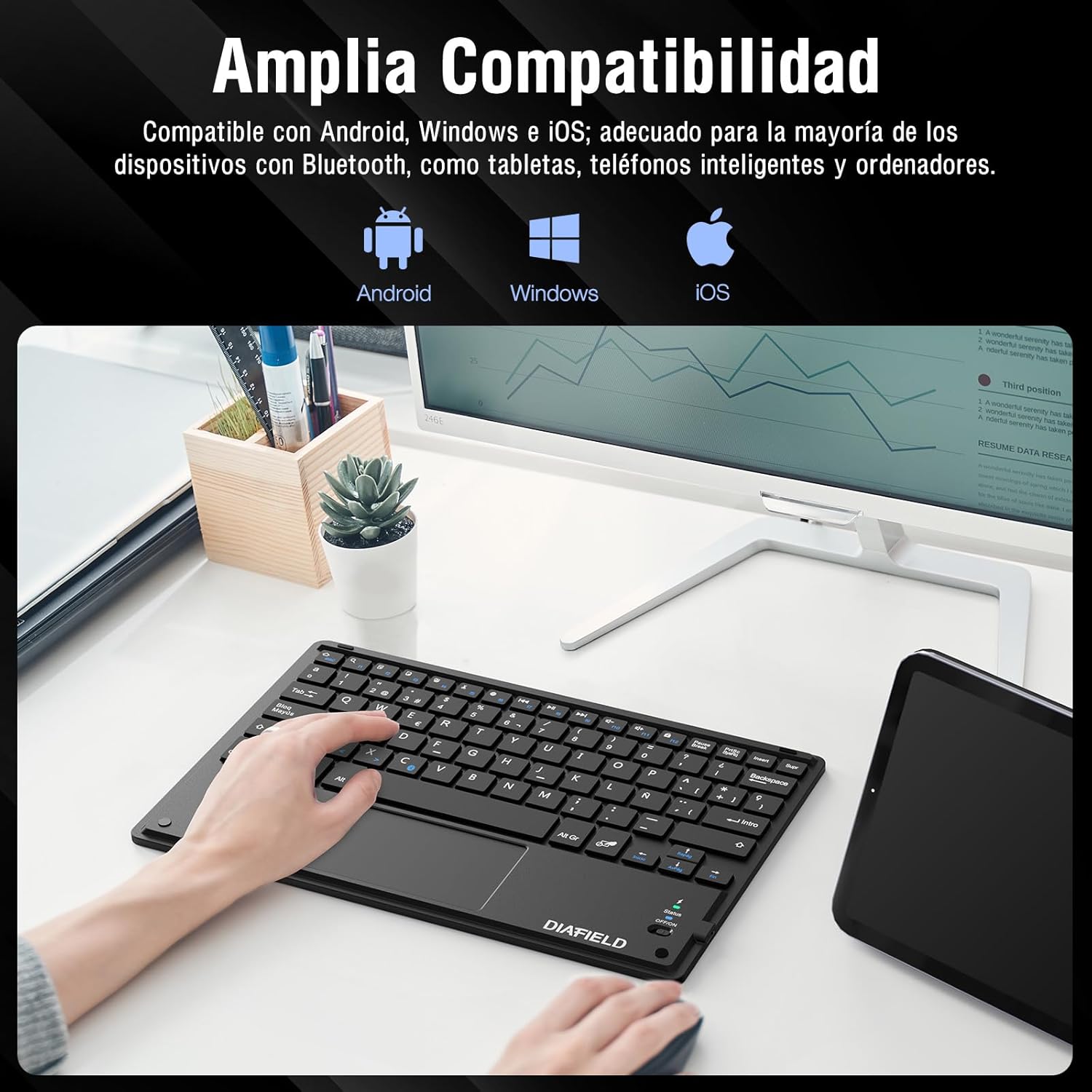
Afbeelding 4: Brede apparaatcompatibiliteit

Figure 5: Scissor-Type Key Mechanism

Afbeelding 6: Compact en lichtgewicht ontwerp

Figure 7: Multi-touch Gestures

Afbeelding 8: Toetsenbord in gebruik met tablet
Installatiehandleiding
1. Het toetsenbord opladen
Before first use, ensure the keyboard is fully charged. Connect the provided USB-C cable to the keyboard's charging port and the other end to a USB power source (e.g., computer, wall adapter). The charging indicator light will show the charging status.
- Charging time: Less than 4 hours.
- Batterijcapaciteit: 500 mAh.

Afbeelding 9: Het toetsenbord opladen
2. Bluetooth-koppeling
Follow these simple steps to pair your keyboard with your device:
- Turn on the keyboard by sliding the power switch to the "ON" position. The status indicator light will illuminate.
- Activate Bluetooth on your device (tablet, smartphone, computer, Smart TV).
- On your device, search for available Bluetooth devices. The keyboard will appear as "DIAFIELD KEYBOARD" or similar.
- Select the keyboard from the list to initiate pairing. Your device may prompt you to enter a pairing code displayed on the screen. Type this code on the keyboard and press Enter.
- Once paired, the status indicator light on the keyboard will turn off or change color, indicating a successful connection.
The keyboard supports quick connection and pairing with iOS, Android, and Windows systems.

Figure 10: Bluetooth Pairing on a Smartphone
Gebruiksaanwijzing
1. Het touchpad gebruiken
The integrated touchpad supports various multi-touch gestures to enhance your productivity:
- Links klikken: Single tap with one finger.
- Klik met de rechtermuisknop: Tik met twee vingers.
- In-/uitzoomen: Knijp met twee vingers naar binnen of naar buiten.
- Scroll/Explore: Drag two fingers up or down, or left or right.
- Switch Windows: Swipe three fingers horizontally.
- Open Task Manager (Windows): Swipe three fingers upwards.
Figure 11: Touchpad Multi-touch Gestures
2. Functietoetsen
The top row of keys (F1-F12) includes multimedia and shortcut functions. To use these functions, press the Fn toets tegelijkertijd met de gewenste functietoets.
| Toetscombinatie | Functie |
|---|---|
| Fn + Esc | Thuis |
| Fn-toets + F1 | Zoek |
| Fn-toets + F2 | Kopiëren |
| Fn-toets + F3 | Snee |
| Fn-toets + F4 | Plakken |
| Fn-toets + F5 | Volume omlaag |
| Fn-toets + F6 | Volume omhoog |
| Fn-toets + F7 | Vorig nummer |
| Fn-toets + F8 | Afspelen/Pauzeren |
| Fn-toets + F9 | Volgende nummer |
| Fn-toets + F10 | Stom |
| Fn-toets + F11 | Selecteer alles |
| Fn-toets + F12 | Schermvergrendeling |

Figure 12: Keyboard Function Keys
Onderhoud
Goed onderhoud verlengt de levensduur van uw toetsenbord:
- Schoonmaak: Gebruik een zachte, droge, pluisvrije doek om het toetsenbordoppervlak schoon te maken. Voor hardnekkig vuil, lichtjes dampReinig de doek met water of een milde reinigingsoplossing. Vermijd overmatige vochtigheid.
- Opslag: Bewaar het toetsenbord op een koele, droge plaats, uit de buurt van direct zonlicht en extreme temperaturen.
- batterij zorg: To preserve battery life, avoid fully discharging the keyboard frequently. If storing for a long period, charge it to about 50% and recharge every few months.
- Vermijd vloeistoffen: Houd het toetsenbord uit de buurt van vloeistoffen om schade aan interne componenten te voorkomen.
Probleemoplossing
Veelvoorkomende problemen en oplossingen:
- Het toetsenbord maakt geen verbinding via Bluetooth:
- Zorg ervoor dat het toetsenbord is opgeladen en ingeschakeld.
- Zorg ervoor dat Bluetooth op uw apparaat is ingeschakeld.
- Probeer het toetsenbord te ontkoppelen en opnieuw te koppelen via de Bluetooth-instellingen van je apparaat.
- Restart both the keyboard (turn off/on) and your device.
- Characters typed do not match the keys (e.g., @ instead of "):
This often happens when the keyboard layout setting on your device does not match the physical layout of the keyboard (Spanish QWERTY). You need to change your device's keyboard input language to Spanish.
For Android devices, follow these general steps (may vary slightly by device model):
- Ga naar Instellingen.
- Navigeer naar Algemeen Management (or System).
- Selecteer Taal en invoer.
- Under "Physical keyboard" or "Keyboards," find your connected keyboard (e.g., "DIAFIELD KEYBOARD").
- Tap on the keyboard name and then select Toetsenbordindelingen instellen or Configure keyboard layouts.
- Ensure "Spanish (ES)" is selected or enabled. You might need to disable other languages.
- Alternatively, you can often switch layouts by pressing Ctrl + Spacebar op het toetsenbord.

Figure 13: Resolving Keyboard Layout Mismatch
- Touchpad reageert niet:
- Ensure the touchpad is not accidentally disabled (check for a function key combination that toggles the touchpad).
- Maak het oppervlak van het touchpad schoon.
- Maak opnieuw verbinding met het toetsenbord via Bluetooth.
Specificaties
| Functie | Detail |
|---|---|
| Merk | 1 BY ONE |
| Fabrikant | DIAVELD |
| Modelnummer | O0000-0713 |
| Productafmetingen | 25.8x17.2x0.4cm |
| Gewicht | 259 gram |
| Kleur | Zwart |
| Energiebron | Batterij |
| Batterijtype | Geïntegreerde lithiumbatterij |
| Batterijvolumetage | 4.2 Volt |
| Aantal batterijen | 1 |
| Hardwareplatform | Computer, Laptop, Smartphone, Tablet, Television |
| Compatibiliteit met besturingssystemen | iOS, Android, Windows |
| Connectiviteitstechnologie | Bluetooth 3.0 |
| Toetsenbordbeschrijving | Multimedia |
| Aanbevolen toepassingen | Dagelijks gebruik |
| Speciale functie | Trackpad |
| Aantal sleutels | 81 |
| Keyboard Backlight Color | Enkele kleur |
| Eerste beschikbare datum | 24 augustus 2015 |
Garantie en ondersteuning
For warranty information and technical support, please refer to the contact details provided with your product packaging or visit the official 1 BY ONE webwebsite. Bewaar uw aankoopbewijs als bewijs van aankoop voor eventuele garantieclaims.
Als u problemen ondervindt die niet in deze handleiding worden behandeld, neem dan contact op met de klantenservice voor hulp.