
1. Inleiding
This manual provides essential instructions for the setup, operation, maintenance, and troubleshooting of your IBM Lenovo Preferred Pro USB Wired Keyboard and Mouse Set. Please read this manual thoroughly before using the product to ensure proper functionality and longevity.
2. Product voorbijview
The IBM Lenovo Preferred Pro USB Wired Keyboard and Mouse Set offers a reliable input solution for your computer. The keyboard features a standard layout with a numeric keypad, while the mouse is a 2-button optical mouse with a scroll wheel. Both devices connect via a standard USB interface, providing plug-and-play compatibility with most operating systems.

Figuur 2.1: Boven view of the IBM Lenovo Preferred Pro USB Wired Keyboard.
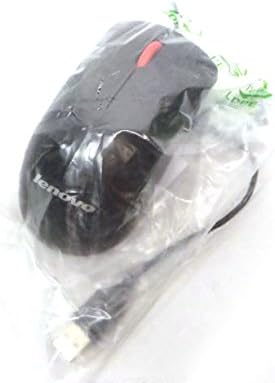
Figuur 2.2: Boven view of the Lenovo USB 2-Button Optical Mouse.
Belangrijkste kenmerken:
- USB Wired Connectivity: Ensures a stable and reliable connection.
- Plug-and-Play: No additional drivers typically required for basic functionality.
- Standard Keyboard Layout: Full-size keyboard with numeric keypad.
- Optical Mouse: Precise tracking with a scroll wheel for easy navigation.
3. Instellen
Follow these steps to connect your keyboard and mouse to your computer.
- Pak de apparaten uit: Haal het toetsenbord en de muis voorzichtig uit de verpakking.
- Identify USB Connectors: Locate the USB connectors at the end of the keyboard and mouse cables.
- Verbinden met computer: Insert the USB connector of the keyboard into an available USB port on your computer. Repeat this step for the mouse.
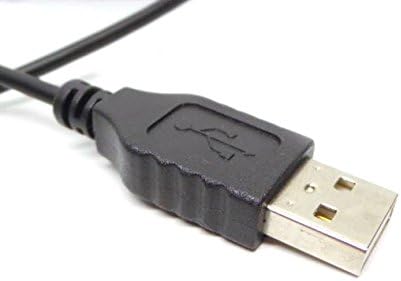
Figure 3.1: Close-up of a standard USB Type-A connector, used for connecting the keyboard and mouse.
Your computer should automatically detect and install the necessary drivers for the keyboard and mouse. No additional software installation is typically required for basic functionality.
4. Gebruiksaanwijzing
4.1 Toetsenbordgebruik
- Typen: Gebruik de alfanumerieke toetsen voor tekstinvoer.
- Functietoetsen (F1-F12): Deze toetsen vervullen verschillende functies, afhankelijk van de toepassing of het besturingssysteem.
- Numeriek toetsenbord: Use the dedicated numeric keypad for efficient data entry. Ensure the "Num Lock" indicator light is on.
- Speciale toetsen: Utilize keys like "Print Screen", "Scroll Lock", "Pause/Break", "Insert", "Home", "Page Up", "Delete", "End", and "Page Down" for their respective functions.
4.2 Muisgebruik
- Beweging: Move the mouse across a flat surface to control the cursor on the screen.
- Links klikken: Druk op de linkerknop om items te selecteren, links te openen of functies te activeren.
- Klik met de rechtermuisknop: Press the right button to open context menus.
- Muis wieltje: Roll the scroll wheel up or down to navigate through documents or web pagina's. Het scrollwieltje kan ook functioneren als een middelste muisklikknop.
5. Onderhoud
Proper care and maintenance will extend the life of your keyboard and mouse.
- Schoonmaak:
- Disconnect devices from the computer before cleaning.
- Gebruik een zachte, damp cloth with a mild cleaning solution (e.g., water or isopropyl alcohol) to wipe surfaces.
- Avoid excessive moisture, especially near keycaps and optical sensors.
- Gebruik perslucht om stof en vuil tussen de toetsen van het toetsenbord te verwijderen.
- Opslag: Store the devices in a clean, dry environment away from extreme temperatures and direct sunlight.
- Voorkom morsen: Houd vloeistoffen uit de buurt van het toetsenbord en de muis om schade te voorkomen.
6. Probleemoplossing
If you encounter issues with your keyboard or mouse, refer to the following common problems and solutions:
| Probleem | Mogelijke oorzaak | Oplossing |
|---|---|---|
| Toetsenbord/muis reageert niet | Losse USB-verbinding, defecte USB-poort, driverprobleem. |
|
| Keys not working or typing incorrectly | Debris under keys, software conflict, keyboard settings. |
|
| De muiscursor beweegt onregelmatig of helemaal niet. | Dirty optical sensor, unsuitable surface, software issue. |
|
If the problem persists after trying these solutions, contact customer support or your reseller for further assistance.
7. Specificaties
| Functie | Detail |
|---|---|
| Keyboard Model Numbers | 54Y9400, 41A5289, SK-8825, KB1021 |
| Mouse Model Numbers | 45J4888, 25011476, 45J4889, M-U0025-O |
| Merk | IBM/Lenovo |
| Kleur | Zwart |
| Connectiviteitstechnologie | USB bedraad |
| Toetsenbordtype | Preferred Pro USB Wired Keyboard |
| Muis type | 2-Button Black Red Scroll Wheel Optical Mouse |
| Pakket afmetingen | 22 x 10.2 x 4.7 inch (ongeveer) |
| Artikelgewicht | 1 pond (ongeveer) |
| Fabrikant | Lenovo |
8. Garantie en ondersteuning
For warranty information, please refer to the documentation provided at the time of purchase or contact your reseller. IBM and Lenovo products typically come with a standard manufacturer's warranty.
For technical support or further inquiries, please contact the product's manufacturer or the authorized reseller from whom you purchased the item. Keep your purchase receipt and product model numbers handy for faster service.