
1. Product voorbijview
The TP-Link TL-WA750RE is a 150Mbps Universal Wireless Range Extender designed to expand the coverage of an existing wireless network. It eliminates Wi-Fi dead zones by boosting the wireless signal to previously unreachable or hard-to-wire areas. Its compact, wall-mounted design allows for flexible deployment and easy relocation within your home or office.
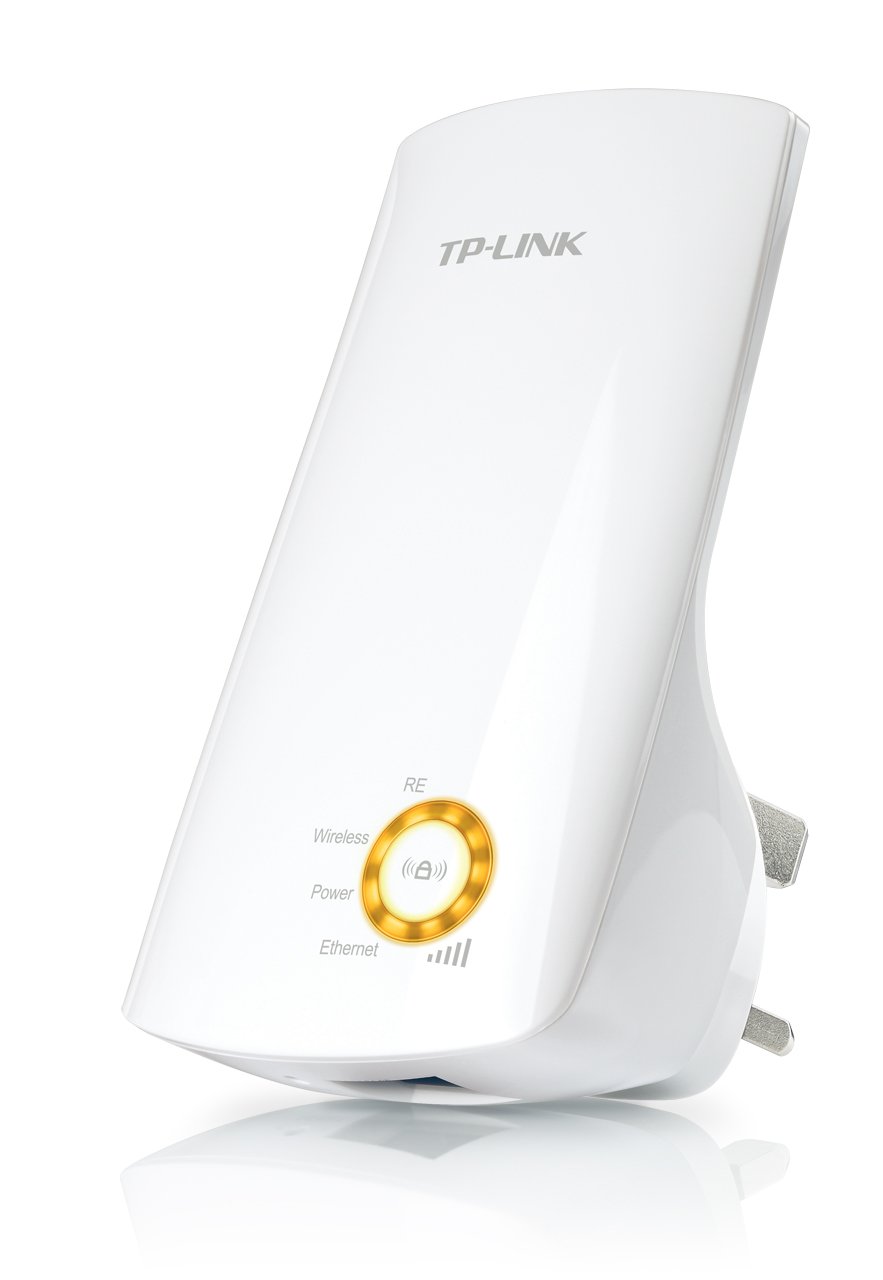
Figuur 1: TP-Link TL-WA750RE Universal Wireless Range Extender. This image shows the device in its retail packaging, highlighting its compact design and wall-plug form factor.
2. Belangrijkste kenmerken
- Range Extender-modus: Boosts wireless signal to eliminate Wi-Fi dead zones and extend network coverage.
- Compact ontwerp: Small size and wall-mounted design for easy deployment and flexible movement.
- WPS-knop: Allows for instant setup and secure connection with compatible routers.
- Slimme signaalindicator: Helps users find the optimal location for placing the range extender for best performance.
- Universele compatibiliteit: Works seamlessly with all 802.11n/g/b wireless devices.
3. Inhoud van het pakket
Het productpakket bevat doorgaans de volgende artikelen:
- TP-Link TL-WA750RE 150Mbps Universal Wireless Range Extender
- Gebruiksaanwijzing
4. Installatiehandleiding
4.1. Snelle installatie met de WPS-knop
- Aansluiten: Plug the TL-WA750RE into an electrical outlet near your wireless router.
- WPS activeren op de router: Druk op de WPS-knop op uw draadloze router. Raadpleeg de handleiding van uw router voor de exacte locatie en procedure.
- WPS activeren op de extender: Within two minutes, press the WPS button on the TL-WA750RE. The Signal LED on the extender should begin to flash.
- Wacht op verbinding: The Signal LED will turn solid blue or green when a successful connection is established.
- Verlenger verplaatsen: Unplug the extender and move it to a location between your router and the Wi-Fi dead zone. Ensure the Signal LED indicates a strong connection (e.g., solid blue or green) in the new location.
4.2. Manual Setup via Web Browser
- Aansluiten: Plug the TL-WA750RE into an electrical outlet near your computer.
- Verbinding maken met extender: Connect your computer to the extender's Wi-Fi network (e.g., "TP-LINK_Extender_XXXXXX"). No password is required initially.
- Toegang Web Interface: Open een web browser en type http://tplinkrepeater.net or the extender's default IP address (usually 192.168.0.254) into the address bar.
- Inloggen: Enter "admin" for both the username and password when prompted.
- Volg de instructies op het scherm: Use the Quick Setup wizard to select your main Wi-Fi network and enter its password.
- Verlenger verplaatsen: Once configured, unplug the extender and move it to an optimal location between your router and the desired coverage area.
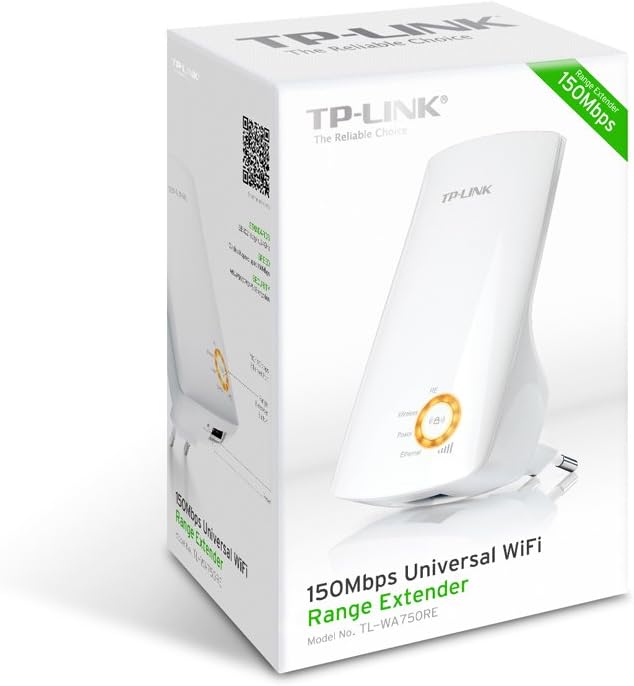
Figuur 2: Kant view of the TL-WA750RE. This image illustrates the physical layout of the device, including the WPS button and Ethernet port, which are crucial for setup and operation.
5. De range extender bedienen
Once the TL-WA750RE is successfully set up, it will automatically extend your existing Wi-Fi network. Devices within the extended range can connect to the network name created by the extender (e.g., "YourNetworkName_EXT").
5.1. Slimme signaalindicator
The Smart Signal Indicator LEDs on the front of the device provide real-time feedback on the signal strength received from your main router. This helps you determine the best placement for the extender:
- Effen blauw/groen: Excellent signal strength.
- Effen rood: Weak signal strength. Consider relocating the extender closer to your router.
- Uit: No connection to the main router.
5.2. Ethernet Port Usage
The TL-WA750RE includes an Ethernet port. This port can be used to connect a wired device, such as a desktop computer, gaming console, or smart TV, to your wireless network, providing a stable wired connection in the extended Wi-Fi area.
6. Onderhoud
- Schoonmaak: Gebruik een zachte, droge doek om het apparaat schoon te maken. Gebruik geen vloeibare reinigingsmiddelen of spuitbussen.
- Plaatsing: Avoid placing the extender in direct sunlight, near heat sources, or in areas with high humidity.
- Firmware-updates: Controleer regelmatig de officiële TP-Link-handleiding website voor firmware-updates om optimale prestaties en beveiliging te garanderen.
- Stroomcyclus: If the device experiences issues, try unplugging it from the power outlet for 10 seconds and then plugging it back in.
7. Probleemoplossing
- V1: Wat moet ik doen als ik geen toegang heb tot de extender? web beheerpagina?
- A1: Ensure your computer is connected to the extender's network. Verify that http://tplinkrepeater.net is correctly typed in the browser. If issues persist, try using the extender's IP address (e.g., 192.168.0.254) or reset the extender to factory defaults.
- Q2: My extended network has poor signal or frequent disconnections.
- A2: Check the Smart Signal Indicator on the extender. If it's red or off, the extender is too far from your main router. Relocate the extender to a position where the indicator shows a strong signal (solid blue/green). Ensure there are no major obstructions between the router and the extender.
- V3: Hoe zet ik de extender terug naar de fabrieksinstellingen?
- A3: With the extender powered on, use a pin to press and hold the Reset button (usually a small hole) for approximately 5-10 seconds until all LEDs flash briefly. The extender will then restart with factory default settings.
8. Specificaties
| Merk | TP-Link |
| Modelnummer | TL-WA750RE |
| Wireless Standard | 802.11b/g/n |
| Gegevensoverdrachtssnelheid | 150 Mbps |
| Frequentie | 2.4 GHz |
| Speciale kenmerken | Smart Signal Indicator, WPS Button |
| Aansluitingstype | RJ45 (Ethernetpoort) |
| Artikelgewicht | 0.4 pond |
| Kleur | Wit |
9. Garantie en ondersteuning
9.1. Garantie-informatie
This TP-Link TL-WA750RE device comes with a 2 jaar garantie Vanaf de aankoopdatum. Bewaar uw aankoopbewijs voor garantieclaims. De garantie dekt materiaal- en fabricagefouten bij normaal gebruik.
9.2. Technische ondersteuning
Voor technische ondersteuning, probleemoplossing of verdere vragen kunt u terecht op de officiële TP-Link-ondersteuningspagina. website or contact their customer service. You can find detailed support resources, FAQs, and contact information at www.tp-link.com/support.