
Gioteck E5SUNI-11-MU
Gioteck EX-05S Universal High Definition Stereo Headset User Manual
Model: EX-05S
1. Product voorbijview
The Gioteck EX-05S High Definition Headset is designed to deliver superior stereo game sound and crystal-clear voice communication. It is compatible with multiple platforms including PS4, PS3, Xbox 360, PC, and Mac. This headset features 40mm high-quality stereo drivers, a noise-isolating microphone, and breathable micro-fibre ear cups for extended comfort.
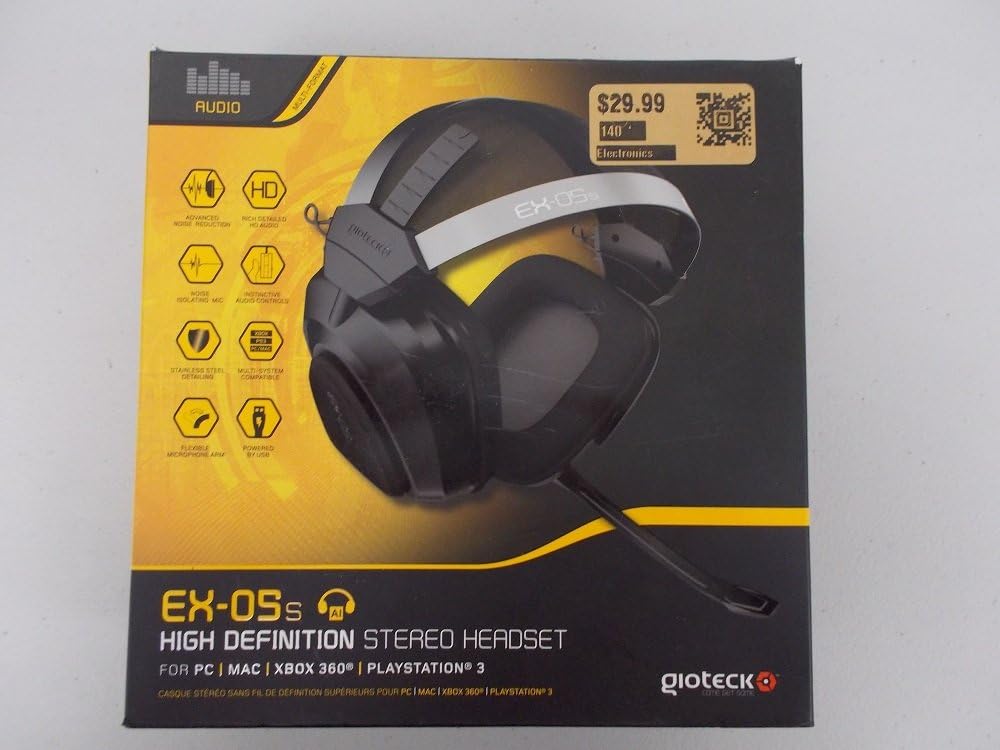
Figure 1.1: Gioteck EX-05S Headset packaging, highlighting key features and compatibility.

Figuur 1.2: Zijkant view of the Gioteck EX-05S Headset, showing the ear cup and microphone arm.
2. Kenmerken
- 40mm High Quality Stereo Drivers: Delivering rich, detailed audio for an immersive gaming experience.
- Noise Isolating Microphone: Designed to eliminate echo and external noise for clear communication.
- Breathable Micro-Fibre Ear Cups: Ensures comfort during long gaming sessions.
- Geavanceerde ruisonderdrukking: Minimizes game sound interference from external speakers.
- Flexible and 180-Degree Rotating Microphone Arm: Maakt optimale microfoonpositionering mogelijk.
- Instinctive and Accessible Controls: Conveniently located controls for voice and game sound adjustments.
- Stainless Steel Detailing: Provides durability and a premium finish.
- Compatibiliteit met meerdere platforms: Works with PS4, PS3, Xbox 360, PC, and Mac.
3. Inhoud van het pakket
Zorg ervoor dat alle onderstaande artikelen in uw pakket aanwezig zijn:
- Gioteck EX-05S Universal High Definition Stereo Headset
4. Installatiehandleiding
4.1 Connecting to Gaming Consoles (PS4, PS3, Xbox 360)
- Locate the 3.5mm audio jack on your gaming controller or console.
- Insert the 3.5mm connector from the EX-05S headset firmly into the audio jack.
- Ensure your console's audio settings are configured to output game audio and chat through the connected headset. Refer to your console's system settings for specific audio output configurations.
4.2 Verbinding maken met pc/Mac
- For PCs with separate audio and microphone jacks, you may need a PC splitter cable (not included) to connect the single 3.5mm headset jack to your computer's audio output and microphone input ports.
- For devices with a combined 3.5mm audio/microphone jack, simply plug the headset's 3.5mm connector directly into the port.
- Adjust your computer's sound settings to select the EX-05S headset as the default playback and recording device.
5. Gebruiksaanwijzing
5.1 Volumeregeling
The EX-05S headset features an inline control box on the cable. Use the volume dial to adjust the overall audio level of your game and chat sound.
5.2 Microfoon dempen
A switch or button on the inline control box allows you to quickly mute or unmute your microphone. Ensure the microphone is unmuted when you wish to communicate.
5.3 Microfoonpositionering
The flexible microphone arm can be rotated 180 degrees. Position the microphone approximately 1-2 inches from your mouth for optimal voice clarity and to minimize background noise.
6. Onderhoud en verzorging
- Schoonmaak: Gebruik een zachte, droge doek om de headset schoon te maken. Voor de oorschelpen is een licht vochtige doek voldoende.amp Je kunt een doek gebruiken, maar zorg ervoor dat er geen vocht in de speakerroosters komt. Gebruik geen agressieve chemicaliën of schuurmiddelen.
- Opslag: Bewaar de headset op een koele, droge plaats, uit de buurt van direct zonlicht en extreme temperaturen. Vermijd dat de kabel in de knoop raakt.
- Behandeling: Always grasp the plug when disconnecting the cable, rather than pulling on the cable itself, to prevent damage to the wiring.
- Oorschelpen: The breathable micro-fibre ear cups can be gently wiped clean. Avoid excessive pressure or stretching.
7. Probleemoplossing
7.1 Geen geluid uit de headset
- Zorg ervoor dat de 3.5 mm-aansluiting volledig in de audiopoort is gestoken.
- Check the inline volume control on the headset cable and ensure it is turned up.
- Verify your device's (console, PC, Mac) audio output settings are configured to send sound to the headset.
- Test de headset op een ander apparaat om een probleem met het apparaat uit te sluiten.
7.2 Microfoon werkt niet
- Check the microphone mute switch on the inline control box and ensure it is unmuted.
- Verify your device's (console, PC, Mac) microphone input settings are configured to receive input from the headset.
- Zorg ervoor dat de microfoonarm correct is geplaatst en niet wordt geblokkeerd.
- Test the microphone on another device or application to confirm functionality.
7.3 Static or Distorted Audio
- Zorg ervoor dat de verbinding stevig is en vrij van vuil.
- Try adjusting the volume levels on both the headset and the connected device.
- Move away from potential sources of electromagnetic interference (e.g., Wi-Fi routers, cordless phones).
- Test het met een andere audiobron of apparaat.
8. Specificaties
| Functie | Detail |
|---|---|
| Modelnaam | E5SUNI-11-MU |
| Connectiviteitstechnologie | Bedraad |
| Meegeleverde componenten | Koptelefoon |
| Leeftijdscategorie (beschrijving) | Volwassen |
| Materiaal | Roestvrij staal |
| Specifieke toepassingen voor het product | Gamen |
| Compatibele apparaten | Spelconsoles, computers |
| Controletype | Volumeregeling |
| Kabelfunctie | Intrekbaar |
| Artikelgewicht | 669 gram (1.47 pond) |
| Controlemethode | Stem |
| Audiostuurprogrammatype | Dynamic Driver |
| Oordopjesvorm | Over-ear |
| Koptelefoonaansluiting | 3.5 mm Jack |
| Productafmetingen | 8.46 x 7.87 x 3.94 inch |
9. Garantie en ondersteuning
Gioteck products are manufactured to high standards and undergo rigorous testing. For information regarding warranty coverage, technical support, or service, please refer to the official Gioteck webBezoek de website of neem rechtstreeks contact op met hun klantenservice. Bewaar uw aankoopbewijs voor eventuele garantieclaims.
Voor de meest actuele ondersteuningsinformatie kunt u terecht op: www.gioteck.com/support